Apple's new macOS makes the Shortcuts automation tool far easier to use
macOS 27 Golden Gate introduces "Describe a Shortcut," letting users create automations on Mac simply by typing what they want done. The update aims to make Shortcuts accessible to people who previously found it too complex.
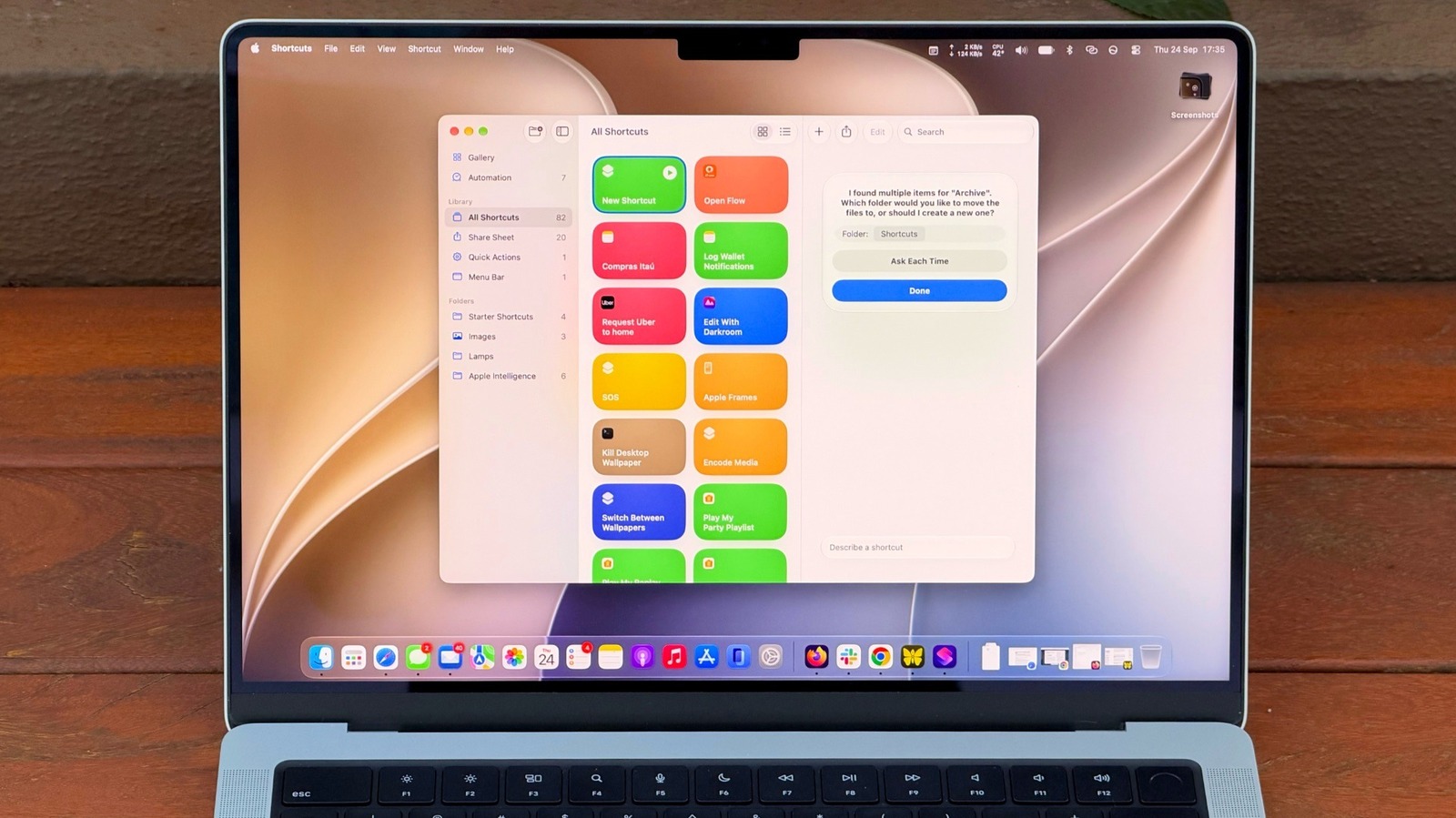
Shortcuts has been available on Mac since macOS Monterey, but many users have never explored it because choosing and linking actions required patience and some technical know-how. The new macOS release, dubbed "Golden Gate," changes that with an AI-powered feature called Describe a Shortcut.
How it works
Creating a shortcut now takes seconds: open the Shortcuts app, click the plus button, and type a description of the task. The more specific the request, the more likely the app will build the right automation — vague commands often fail to produce the intended result. For example, instead of simply asking to clean up a Downloads folder, a clearer prompt specifies moving files older than 30 days into an Archive folder every Friday.
The tool can also summarize text using Apple Intelligence: copying a long article or email and running a shortcut can automatically generate a short summary and save it to Notes.
Easier access
To avoid forgetting shortcuts that aren't part of a daily routine, users can assign them a keyboard shortcut or pin them to the menu bar or Control Center. This is done through the shortcut's details menu or by editing Control Center settings directly.
Beyond Shortcuts, the new system also includes Visual Intelligence, triggered with a keyboard combination, which lets Siri analyze on-screen content — for instance, spotting a date in an email and adding it to the calendar. Shortcuts can also be run by voice through Siri.
These features require Apple Intelligence, meaning they only work on Macs with an M1 chip or later — Intel Mac users cannot access them. Additionally, more complex prompts may run into usage limits on Apple's AI models.