Hidden iPhone feature saves an entire webpage as one PDF file
Instead of taking multiple screenshots to capture a long webpage, iPhone users can use Safari's built-in feature to save the whole page as a single PDF. The option appears in the screenshot editing menu under 'Full Page'.
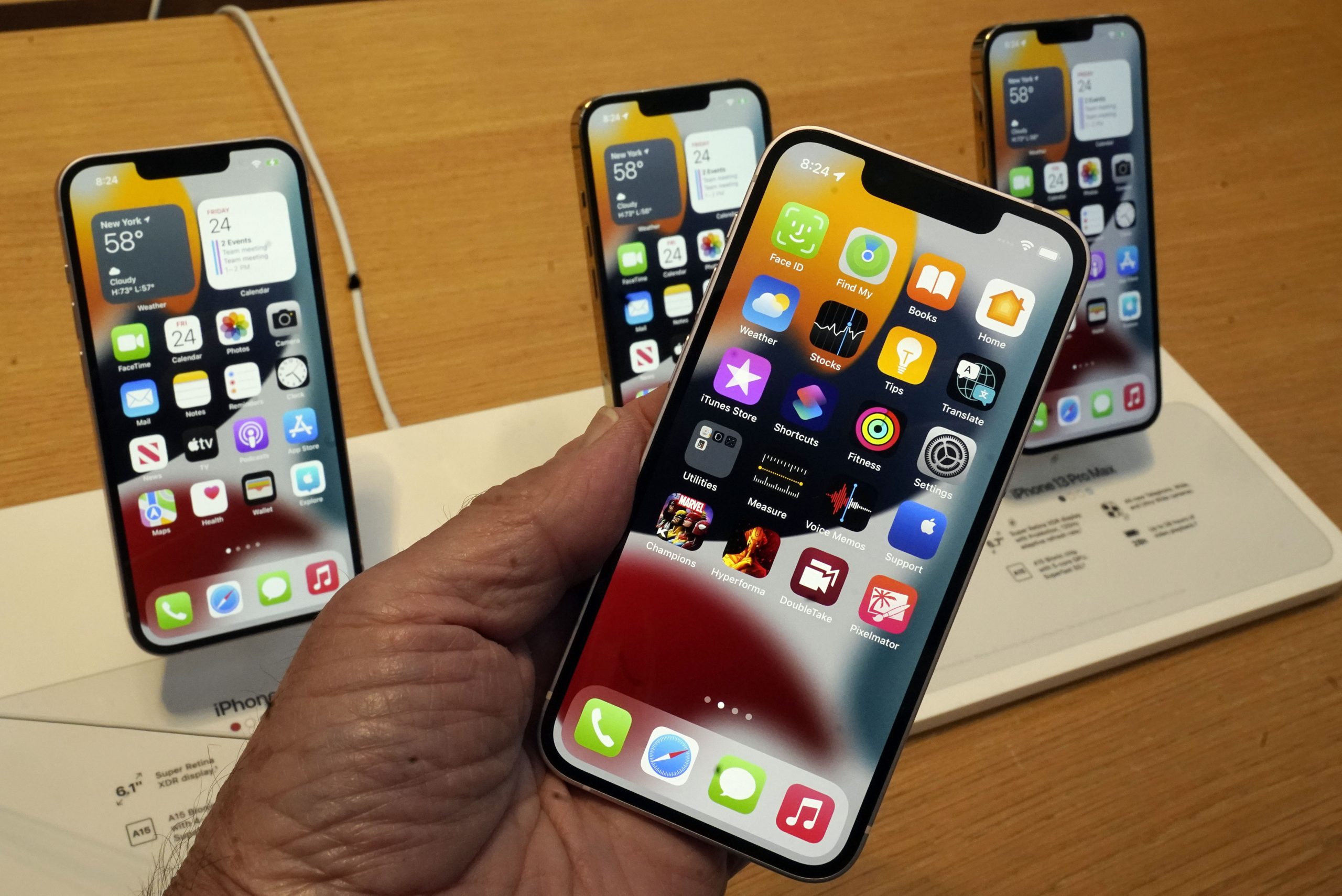
Many iPhone users still rely on an outdated method when trying to save a long recipe, article, or order confirmation from the web: taking one screenshot after another, ending up with five, six, or even ten separate images that later need to be pieced together. Safari, however, has had a built-in feature for some time that makes this much easier, and it requires no additional app.
How it works
After opening the desired webpage in Safari, users take a regular screenshot — depending on the iPhone model, this is done by pressing the side button and volume-up button together, or, on older models with a home button, by pressing the home and side (or top) buttons simultaneously. Tapping the preview of the captured image opens the screenshot editing view, where two options appear at the top: 'Screen' and 'Full Page.'
Selecting 'Full Page' makes the iPhone display not just the portion visible on screen, but the entire content of the webpage, which can be scrolled through and reviewed on the right side. From there, tapping the share or save icon lets the user save the whole page as a single PDF file, which then becomes accessible in the Files app and can be sent to others or attached to an email.
Where it comes in handy
This approach is especially useful for saving long recipes, instructions, travel information, or purchase confirmations, as well as for content that needs to be read later without an internet connection or sent to someone else. A PDF is also far more convenient to share than a series of separate images.
A limitation to keep in mind
The 'Full Page' option does not work with everything visible on an iPhone screen — it is designed specifically for supported web content in Safari. If this option does not appear in the screenshot editing screen, it simply means the content in question does not support the feature, not that anything was done incorrectly.


