How to reset your ASUS router: two simple methods
ASUS offers two ways to reset a router to factory settings — through the online web portal or app, or manually using the reset button on the device. Users are advised to back up important settings first, since the process erases all custom data.
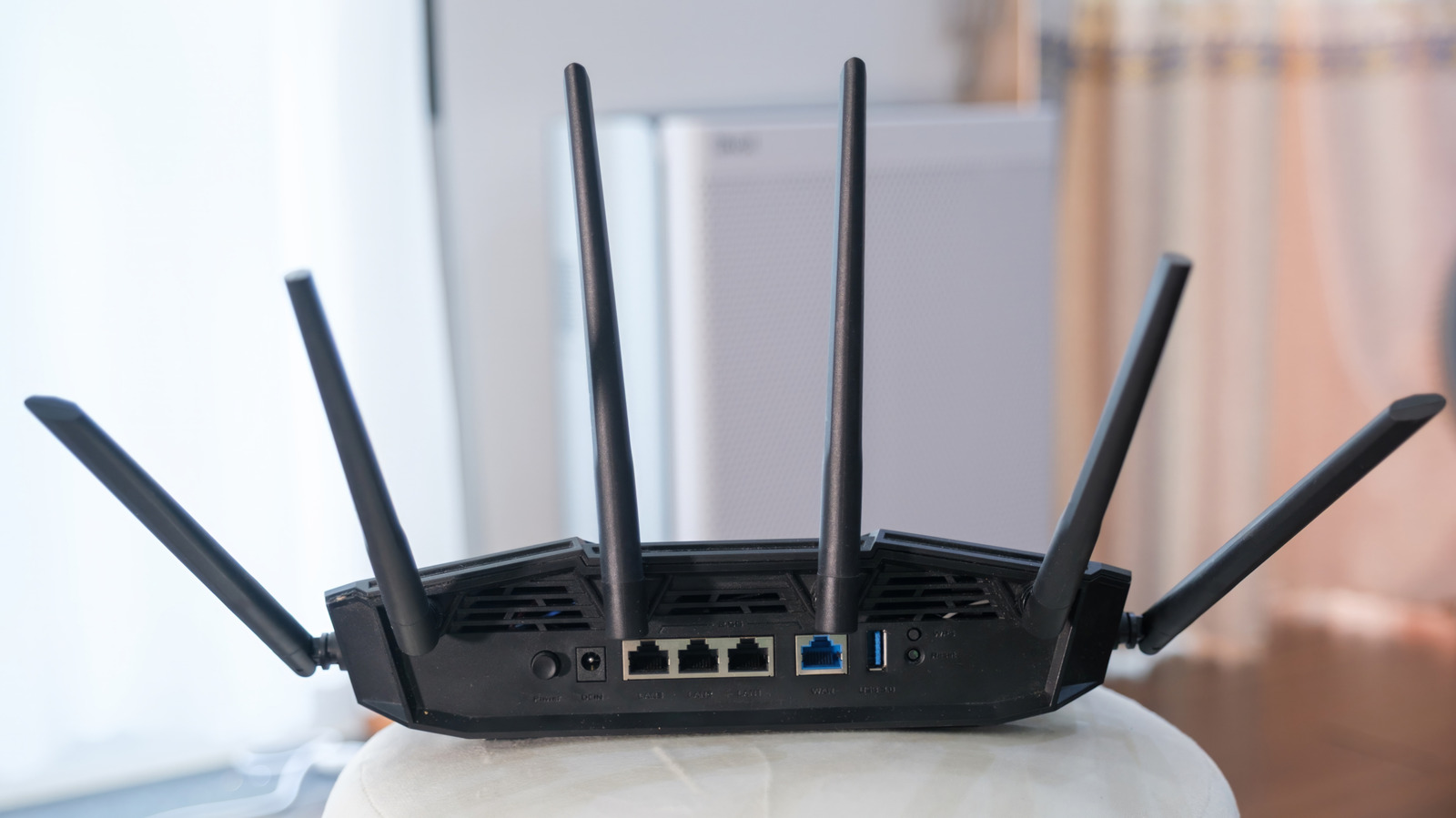
A router sits at the core of any smart home setup, which is exactly why technical problems with it can be so disruptive. Whether the issue is a forgotten password, a lost signal, or another glitch, resetting the device is often described as a catch-all fix. Still, it's not a step to take lightly, since it wipes out all custom settings.
ASUS offers two main routes back to factory settings: through the account's web portal or app, or manually via the reset button on the back of the device. The company recommends trying a standard reboot first. Because ASUS uses more than eight different manual reset procedures depending on the router model, users need to check the ASUS support page for the exact steps for their specific device.
Before resetting
ASUS advises saving account details, passwords, and any preferred settings beforehand, since a reset erases all of this information. Login credentials are usually printed on a label on the back or bottom of the router; if they're missing, contacting the internet service provider is recommended. A full reset also clears all logs from AiProtection, Traffic Analyzer, and web history, so that data should be backed up if needed.
Resetting through the online portal
Users with access to their router's settings page can go to asusrouter.com or the device's local IP address, log in with their username and password, open the Administration tab, select "Restore/Save/Upload Setting," and click the "Restore" button. The same result can be achieved through the ASUS Router app or the ExpertWiFi app by using the "System reset to factory default" option.
Resetting manually
For those without portal access — due to a forgotten password or a failed firmware update, for example — ASUS recommends locating the physical RESET button on the back of the router and holding it for five to ten seconds until the power LED flashes. Once the signal lights stabilize, the router can be set up again through the online portal.