How to Limit Spam Calls on iPhone and Android
Both iOS and Android now include built-in tools for filtering unwanted calls, so third-party apps are no longer necessary. Mobile carriers may also offer their own spam protection.
Spam calls remain a widespread nuisance, but modern smartphones can handle them on their own. Apps such as Truecaller have offered caller identification and spam filtering for years, yet there is now no need to pay for a subscription or install another service. Some carriers provide their own protection, which may be switched on by default; if not, the toggle can usually be found in the carrier's app or online account.
iPhone
Open Settings > Apps > Phone and enable Spam under Call Filtering. Calls that your carrier flags as junk will no longer ring and will go straight to voicemail, appearing in the Spam section of the Calls tab in the Phone app. Turning on Unknown Callers sorts recent calls from numbers outside your contacts into a separate list, and Mark as Known removes a number from it when needed.
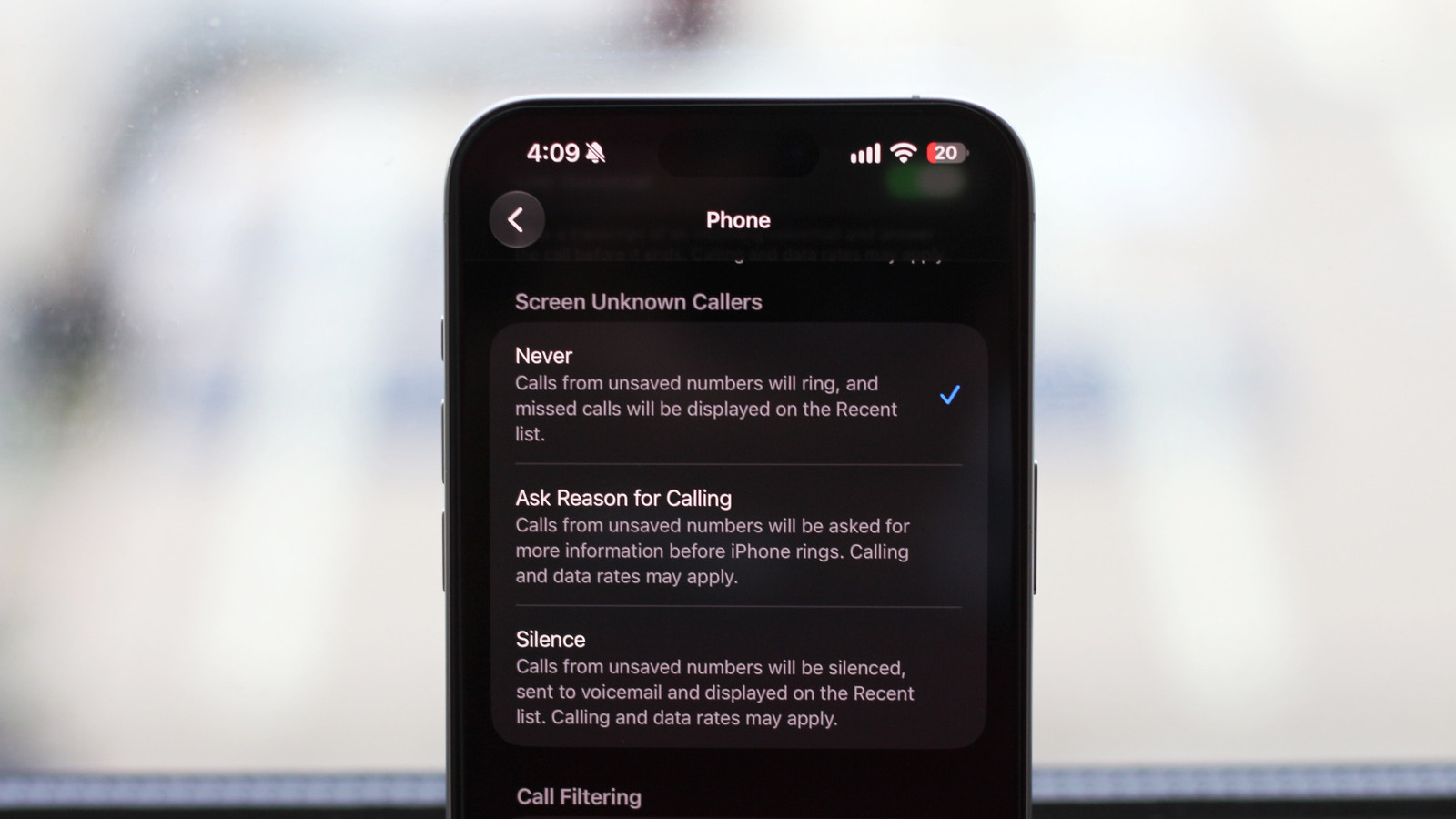
The Screen Unknown Callers section offers three options. Never is the default, so every call rings as usual. Silence mutes all calls from unsaved numbers and sends them to voicemail. Ask Reason for Calling is a middle ground: the iPhone asks the caller why they are calling and shows a live transcript of the answer on screen. This feature is available only in select countries and on iPhones running iOS 26 or later. It is worth saving numbers of doctors' offices, work clients and other regular callers so legitimate calls are not missed.
Android
Spam detection varies by phone model, Android version and dialer app. Google's Phone app, which most manufacturers ship, includes caller ID and spam detection. If your device uses another dialer, look through its settings for a similar option, or install Google's Phone app and make it the default.
In the app, open the menu at the top left, choose Settings, then tap Caller ID and spam under Call Assist. See caller and spam ID warns you about a likely spam call before you answer, while Filter spam calls silences suspected junk automatically. Both require Android 6.0 or newer and the latest Phone app set as default.
Some Samsung and Google phones also offer call screening similar to Ask Reason for Calling. On Pixel 6 and newer, it is set up under Settings > Spam and Call Screen > Call Screen. On supported Samsung phones, go to Settings > Call screening.


%20ILLUSTRATION%20Isadora-Ayesa%20Lima%20SOURCE%20Amazon.jpg)