How to make the most of your iPhone's built-in audio recording tool
Apple's pre-installed Voice Memos app lets iPhone users record, edit and transcribe audio without downloading anything extra. The article outlines its main and lesser-known features.
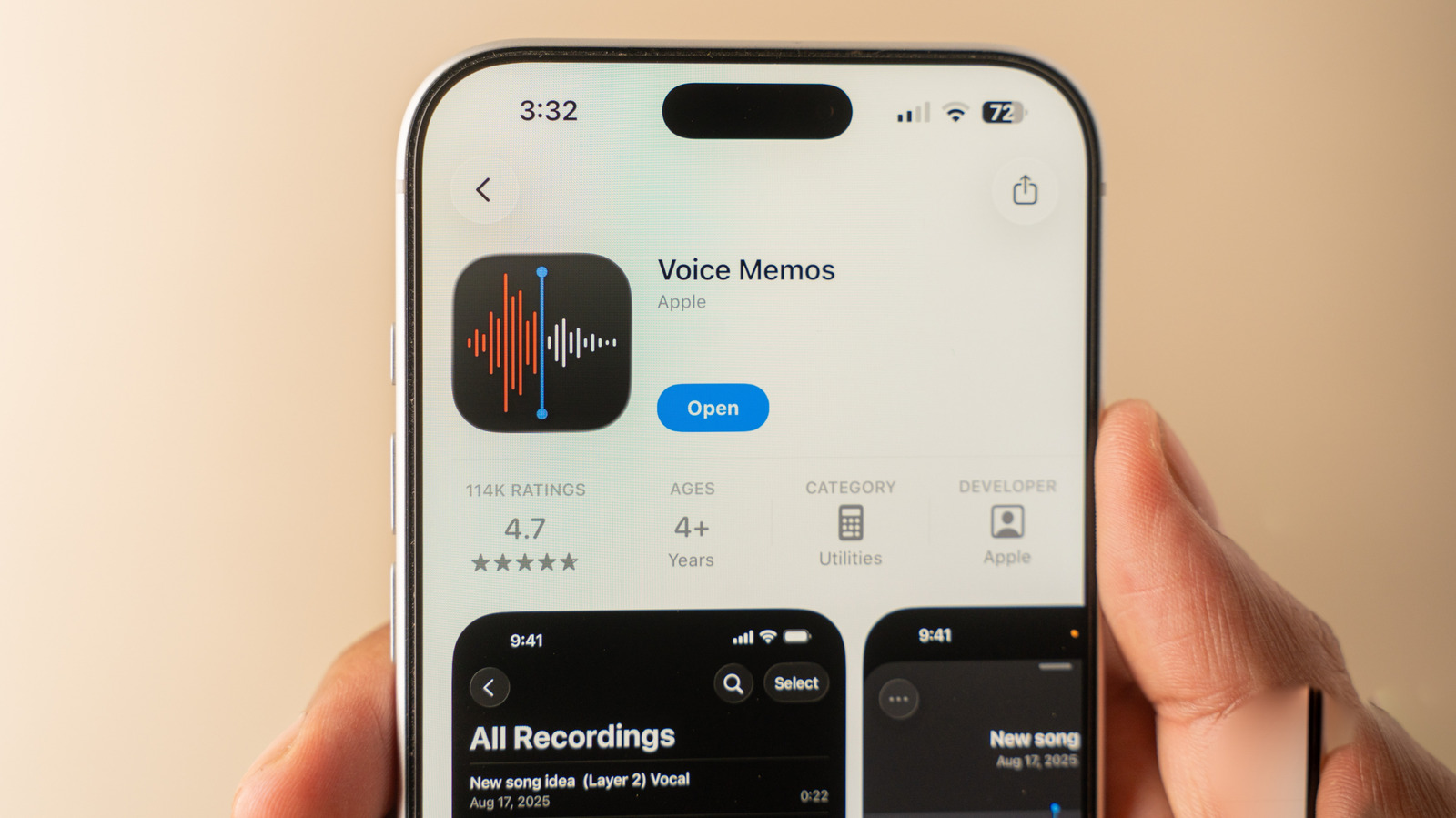
While iPhones are best known for their cameras, they also come with a capable built-in solution for recording audio: the Voice Memos app, part of iOS and free to reinstall from the App Store if it was ever removed. Getting started is simple — open the app and tap the red button to begin recording, then tap it again to stop and save.
Hidden features
Swiping up on the recording card during a session reveals a full-screen view with pause and rewind controls, useful for revisiting key moments or re-recording a short section that was misspoken or interrupted by noise. On newer devices — iPhone 16 Pro and later — a Plus button also enables multitrack recording of several audio channels at once.
In Settings, under Apps > Voice Memos, users can choose a recording mode: Mono, Stereo, or Spatial, the latter designed to sound as if audio is coming from all directions. On the recording screen itself, four corner buttons offer extra tools: copying the transcript, trimming clips, viewing a real-time transcript that can jump to specific words, and adjusting playback speed. This last menu also includes options to reduce background noise and enhance the recording so it sounds like it was captured in a studio.
Managing recordings
Saved memos are listed with the newest at the top and can be searched by transcript content, renamed, marked as favorites, or organized into folders. If location services are enabled, a recording is automatically named after where it was made. All voice memos sync across a user's Apple devices via iCloud, provided the feature is turned on in settings.


