How to turn off Safe Mode on your Android phone
Safe Mode is useful for troubleshooting but can be activated accidentally, disabling apps and enabling Airplane Mode. Restarting the phone or using the notification panel can get it back to normal.
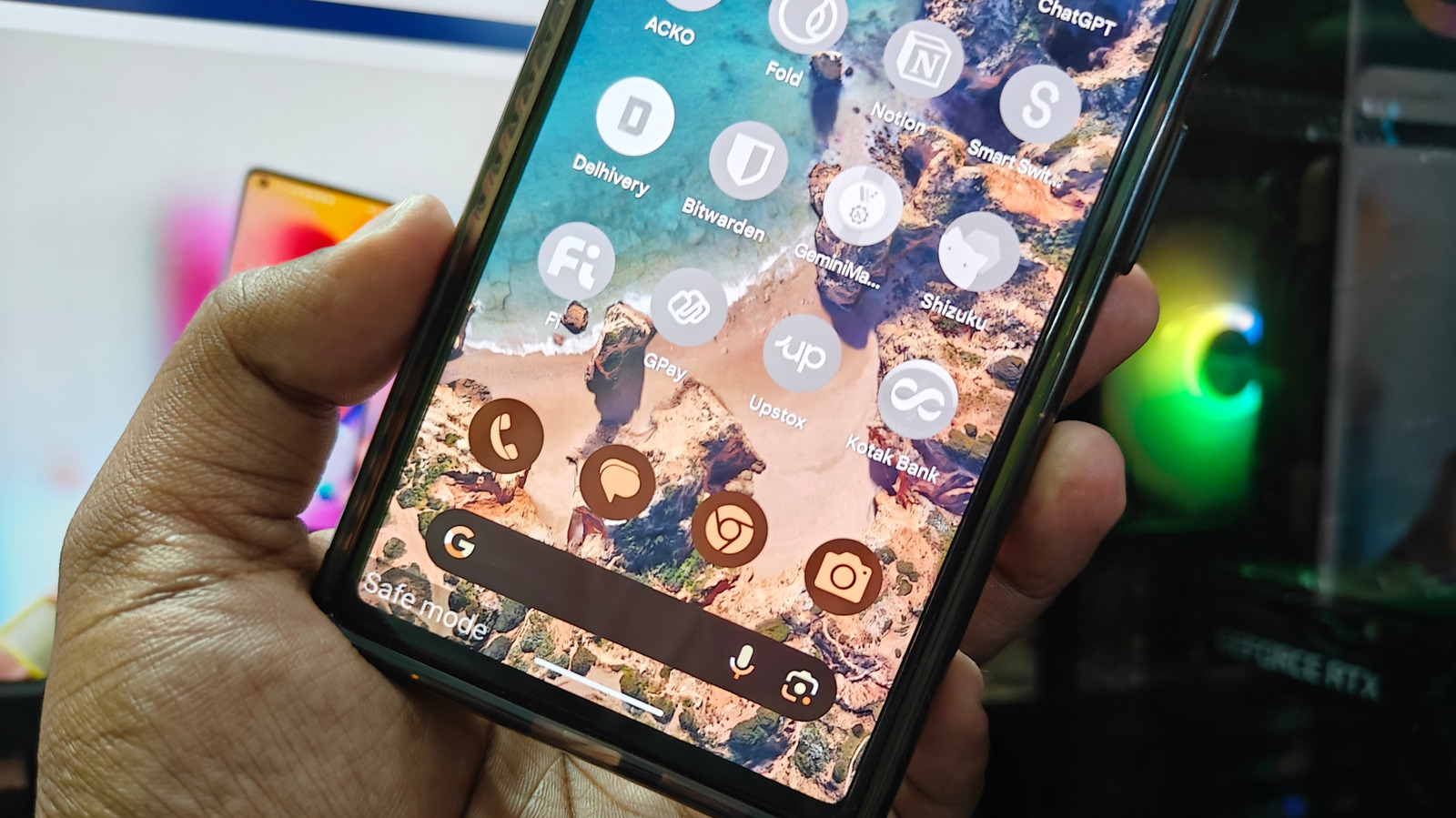
Safe Mode is a handy feature for diagnosing Android problems and protecting the device from malware. When enabled, all third-party apps are disabled and Airplane Mode gets turned on. This makes it easier to spot an app that might be causing lag or excessive battery drain, and to remove a suspicious application without it interfering in the background.
Activating Safe Mode takes just a moment: on the power options menu, press and hold the Power Off button until a Safe Mode option appears. But because it is so simple to enable, many users end up in Safe Mode by accident. Seeing apps grayed out when you are not troubleshooting is frustrating, though the fix is quick.
Turning off Safe Mode
The simplest way is to restart your device. Open the power options by holding the power button or the power and volume down button, depending on your phone model, and tap Restart. Once the phone boots up, Safe Mode will be off.
You can also turn it off from the notification panel. Swipe down from the left side of the screen, tap the notification that says the phone is in Safe Mode, and select the option to disable it.
Keep in mind that Airplane Mode may remain active even after leaving Safe Mode. You'll know if the airplane icon is visible on the status bar. To disable it, swipe down from the right side of the screen to open Quick Settings and tap the plane icon.
Safe Mode is not the only Android security feature that can occasionally cause headaches. Google Play Protect can also limit your phone, but it is usually easy to fix as well.