How to change and customize your Apple Watch face
Apple Watch users can go beyond the default look by using the Watch app to pick from hundreds of faces, add personal photos and configure complications. This guide covers the main customization steps.
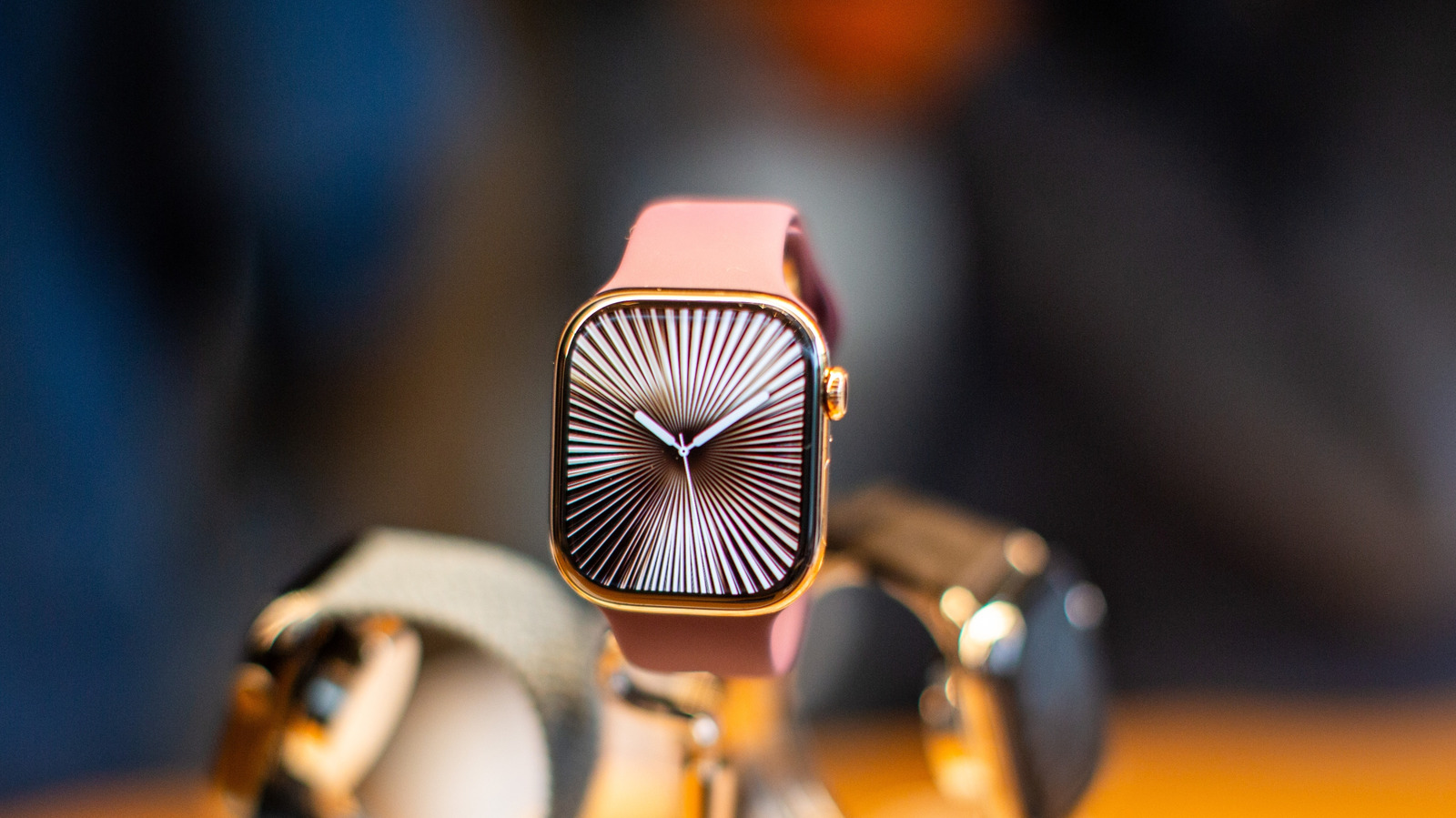
Apple Watch is more than a smartwatch; it is a style piece, a notification hub and a fitness tracker all in one. Apple keeps adding new features, including an AI-infused Siri update, but matching the device to your personal aesthetic is just as important. Swapping bands can help, but the watch face is where the real style happens. With hundreds of faces, features and color schemes available, it is worth exploring the settings before you consider buying an alternative.
The key to customization is the Watch app on your iPhone, which comes preinstalled. It lets you sync calendars, contacts, email and notifications, and it expands your options for downloading new faces and using photos from your phone. Make sure that the watch and phone are paired and running recent OS versions to get the full experience.
To change the face, open the Watch app and tap the Face Gallery tab. You will find categories such as Health & Fitness, Photos and Data Rich, with an option to see all faces at the bottom of the list. There are designs from brands like Nike and Disney, as well as artistic faces with millions of combinations. Tap Get to add a face to your collection and follow the prompts.
For a personal touch, add your own photos to the watch face. In Face Gallery, choose Photos and decide whether you want the watch to shuffle featured photos, specific people or a particular album. You can manually select up to 24 images with Choose Photos. After customizing, tap Add to Watch. Apple will shuffle 16 photos from your collection each day. There is also a shortcut: open a photo in the gallery, tap the export button and select Create Watch Face.
You can also add complications, which are widgets that appear on the face. Use the Edit button to tap a complication area, such as the top-right corner, and choose a feature. Complications can show calendars, compasses, map directions, air quality, tides or moon phases.
Managing the face collection is simple. Press and hold the display to enter edit mode, then swipe left to the gray plus button to add a new face. To remove a face, swipe up and tap the red trash icon. To rearrange faces, use Edit in the Watch app or hold and drag the face directly on the Apple Watch.