How to manually update Android Auto — and what it means if you can't
Android Auto usually updates automatically through the Google Play Store, but users can manually check for and trigger updates when problems arise. If no update is available or bugs persist, clearing app storage or rolling back to an older version can help.
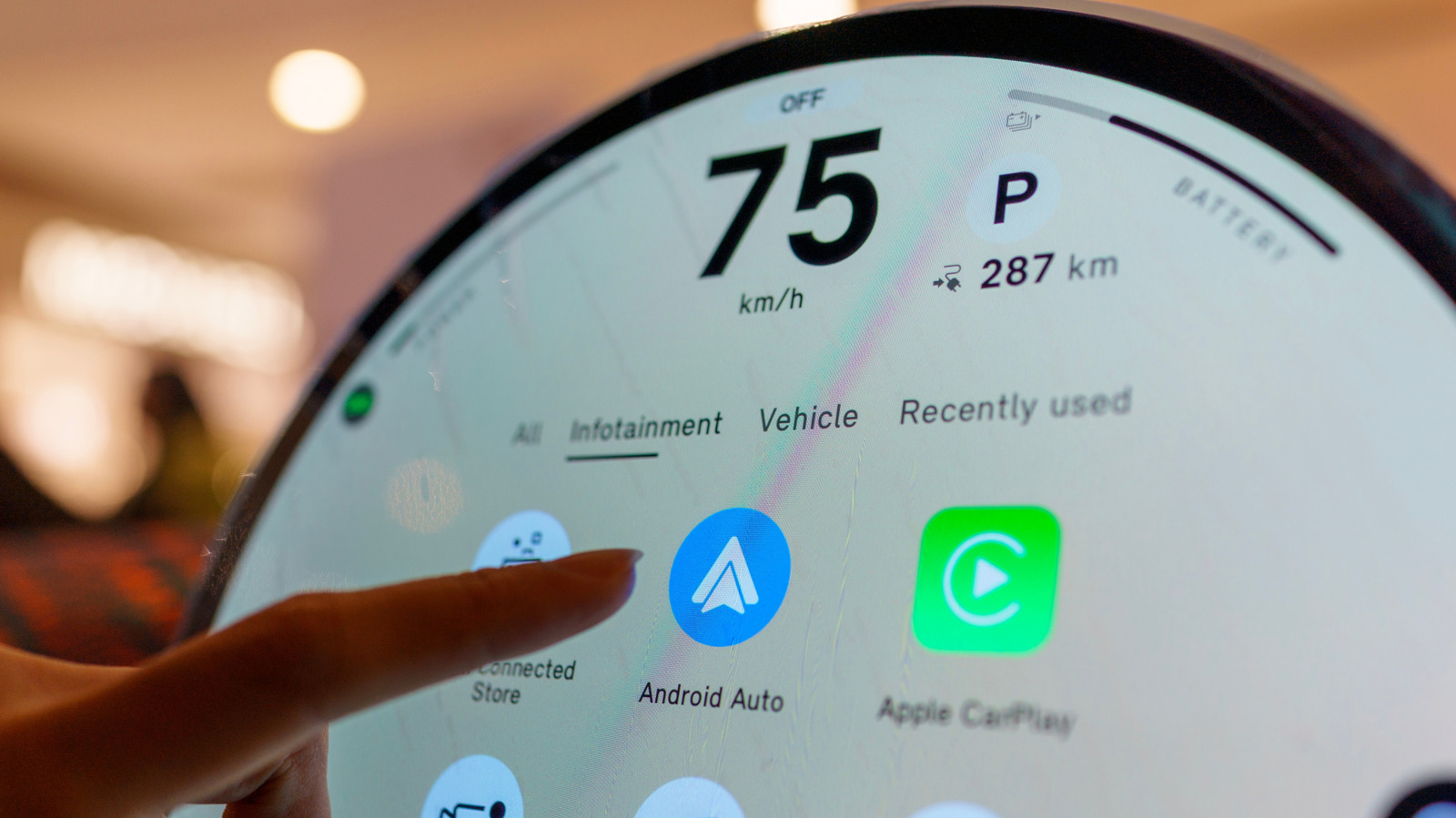
Although Android Auto appears on a car's infotainment screen, it actually runs on power from the connected smartphone and is treated as a regular app rather than a core part of the Android operating system. Because of this, it doesn't rely on major Android version releases for updates — instead, the Google Play Store handles keeping it current.
In most cases, Android Auto updates itself automatically in the background just like any other app. However, this process can occasionally fail or stall, particularly when a phone isn't connected to Wi-Fi, since the Play Store does not use mobile data for automatic background updates by default.
Checking for and forcing an update
Users can confirm whether they have the latest version by opening the Play Store and searching for Android Auto. If only an "Uninstall" button appears, the app is already fully up to date for that device. It's also worth checking the three-dot menu to confirm automatic updates are enabled. Owners of older phones should note that Android 9.0, released in 2018, is the minimum version required to receive current updates.
What to try if updating doesn't fix the problem
If glitches persist, users can go into their phone's settings and clear Android Auto's storage and cache, which resets the app's preferences without affecting data in other apps like Google Maps or Spotify. If issues continue, there's an option to "Uninstall updates," which reverts Android Auto to the oldest version originally included on the device. Should that older version prove more stable, users can temporarily disable automatic updates and wait for a future fix, or alternatively try installing the newest version again to see if it resolves the issue.