How Night Owls Can Watch TV Quietly with Roku and Bluetooth Headphones
Roku users can listen to TV audio through Bluetooth headphones by using a smartphone as a bridge, while Google TV and Amazon Fire TV allow direct headphone pairing.
If you enjoy watching TV late at night but don't want to disturb roommates or family, Bluetooth headphones offer a solution. Many smart TV platforms, including Roku, Google TV, and Amazon Fire TV, support wireless audio, but the setup process varies.
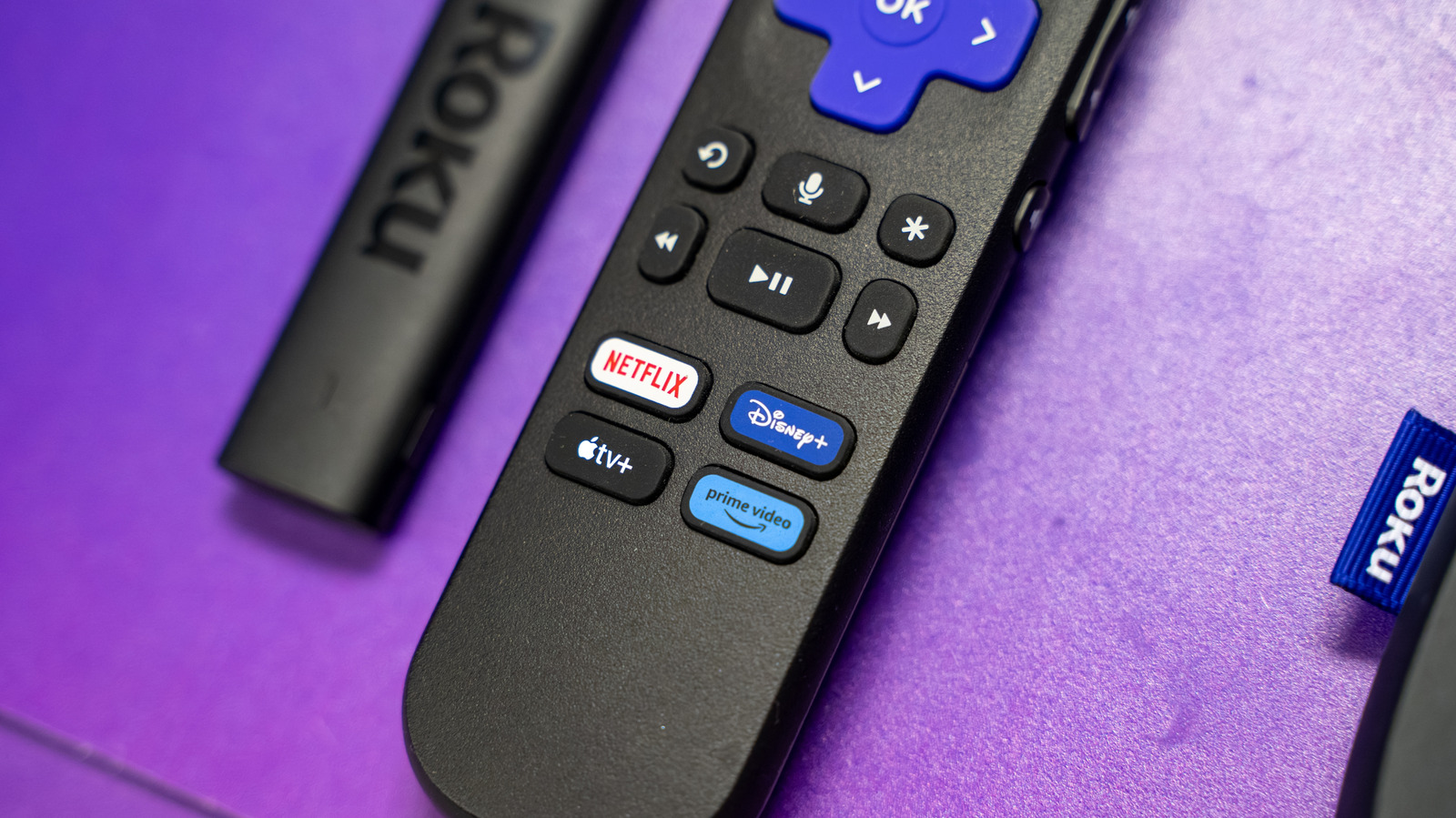
Most Roku devices do not support direct Bluetooth headphone connections to the TV or streaming stick. Instead, you need to use a smartphone as an intermediary. First, download the Roku app from the Google Play Store or Apple App Store. On your Roku remote, press Home, then navigate to Settings > System > Advanced System Settings > Control by Mobile Devices. Ensure network access is set to "Permissive" or "Enabled."
Next, open the Roku app on your smartphone and connect to the same Wi-Fi network as your Roku device. Tap the Devices tab, select your Roku, then tap again to open the virtual remote. Below the directional pad, you'll see a grid of icons. Tap the headphone icon in the top right corner. Audio from Roku will now play through your phone. Any Bluetooth or wired headphones plugged into your phone will work.
For Google TV devices (e.g., Google TV Streamer or Chromecast with Google TV), pairing is direct. Press and hold the Home button until the quick settings panel appears, select Bluetooth, then choose "Pair remote or accessory." Put your headphones in pairing mode and select them from the list. Amazon Fire TV works similarly: press Home, go to Settings (gear icon) > Controllers and Bluetooth Devices > Other Bluetooth Devices, then pair your headphones.
Some newer Roku devices support direct Bluetooth connections, so check your device specs. Using these methods, you can enjoy big-screen content at full volume without disturbing others.