How to customize the side button on your Samsung Galaxy phone
Samsung Galaxy phones have used a multifunctional side button instead of a traditional power button since 2019, and most of its functions can be remapped through the phone's settings.
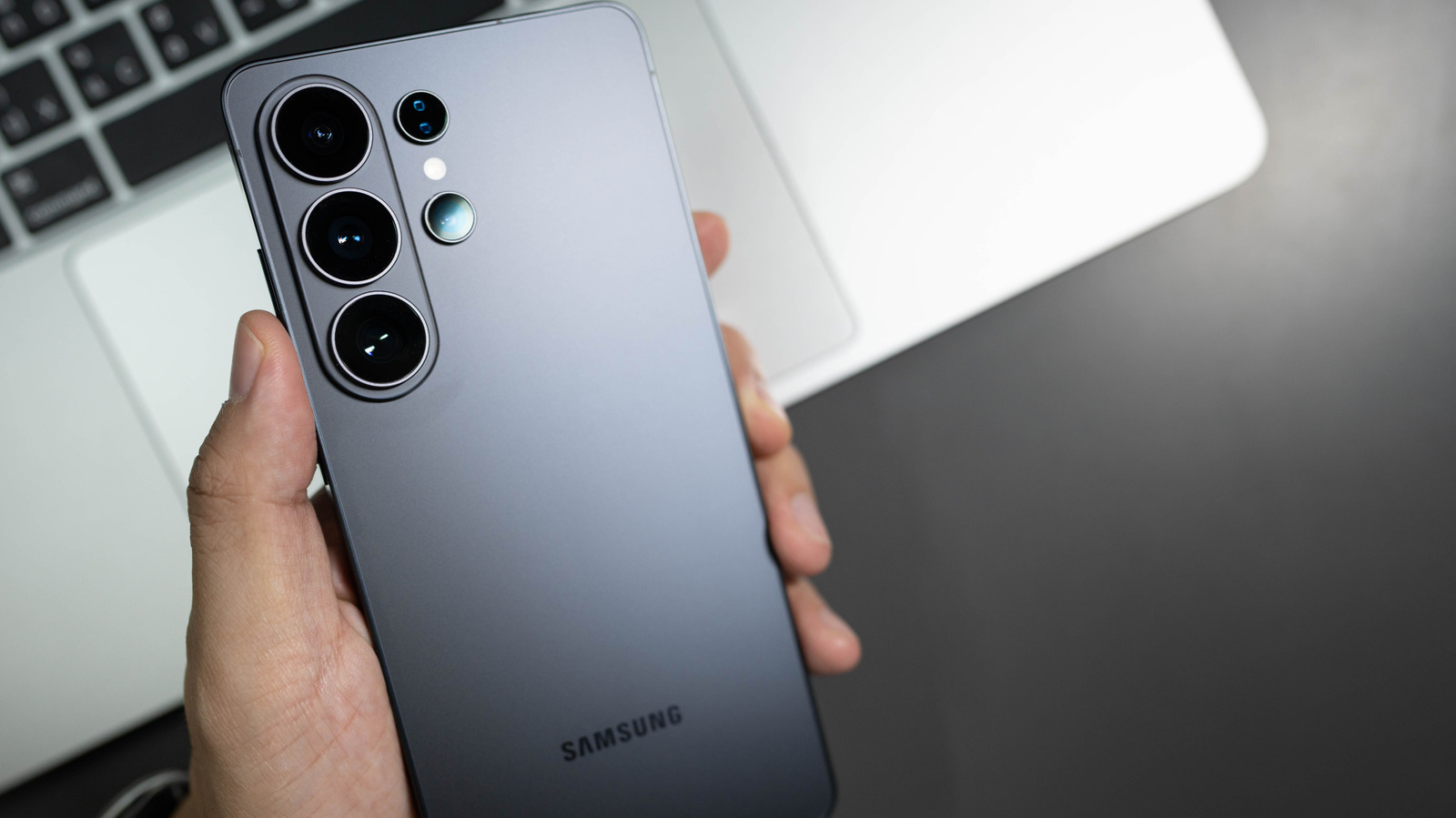
Samsung stopped making phones with a traditional standalone power button back in 2019. The button located beneath the volume control is actually a multifunctional side button that merges the power function with what used to be a dedicated Bixby button, found on flagship phones from the S8 through the S10 series. That merger happened starting with the Note 10 lineup and continued on all Galaxy phones since.
By default, a short press turns the screen on or off, a long press summons the Bixby assistant, and a double press launches the camera. Holding the side button together with the volume-down button opens the power menu, while pressing both briefly takes a screenshot.
Remapping the button
Users annoyed by accidental Bixby activations can reassign these actions under Settings > Advanced features > Side button. The double-press action can be set to open the Camera, Flashlight, Magnifier, Voice Recorder, Samsung Notes, Modes and Routines, Samsung Capture, or a chosen app. The long-press option, however, is limited to assistant apps such as Bixby, Google Gemini, ChatGPT or Claude, or it can be set to bring up the power-off menu instead.
On devices with a separate physical Bixby button — the Galaxy S10, S9 and S8 series, along with the Note 8 and Note 9 — a long press always opens Bixby Voice. On these models, the double-press and single-press functions can be customized separately through Settings > Advanced features > Bixby Key, allowing users to assign any app or command, though one of the two must remain set to open Bixby Home.
Notably, on the Galaxy Z Flip, the side button's behavior can differ depending on whether the phone is open or folded closed.
Useful ways to use it
Pairing the side button with Modes and Routines is one of the most practical customizations — for instance, triggering Driving Mode, which can enable hands-free calling, open maps, read messages aloud, and auto-reply to texts. Another popular option is assigning Voice Recorder to a double press, letting users start recording instantly without unlocking the phone or searching for the app.