How to add and customize your CarPlay widgets
With iOS 26 and iOS 27, CarPlay now supports widgets, giving drivers quick access to information from multiple apps beyond navigation and music. Widgets can be added and customized directly from the iPhone's Settings app.
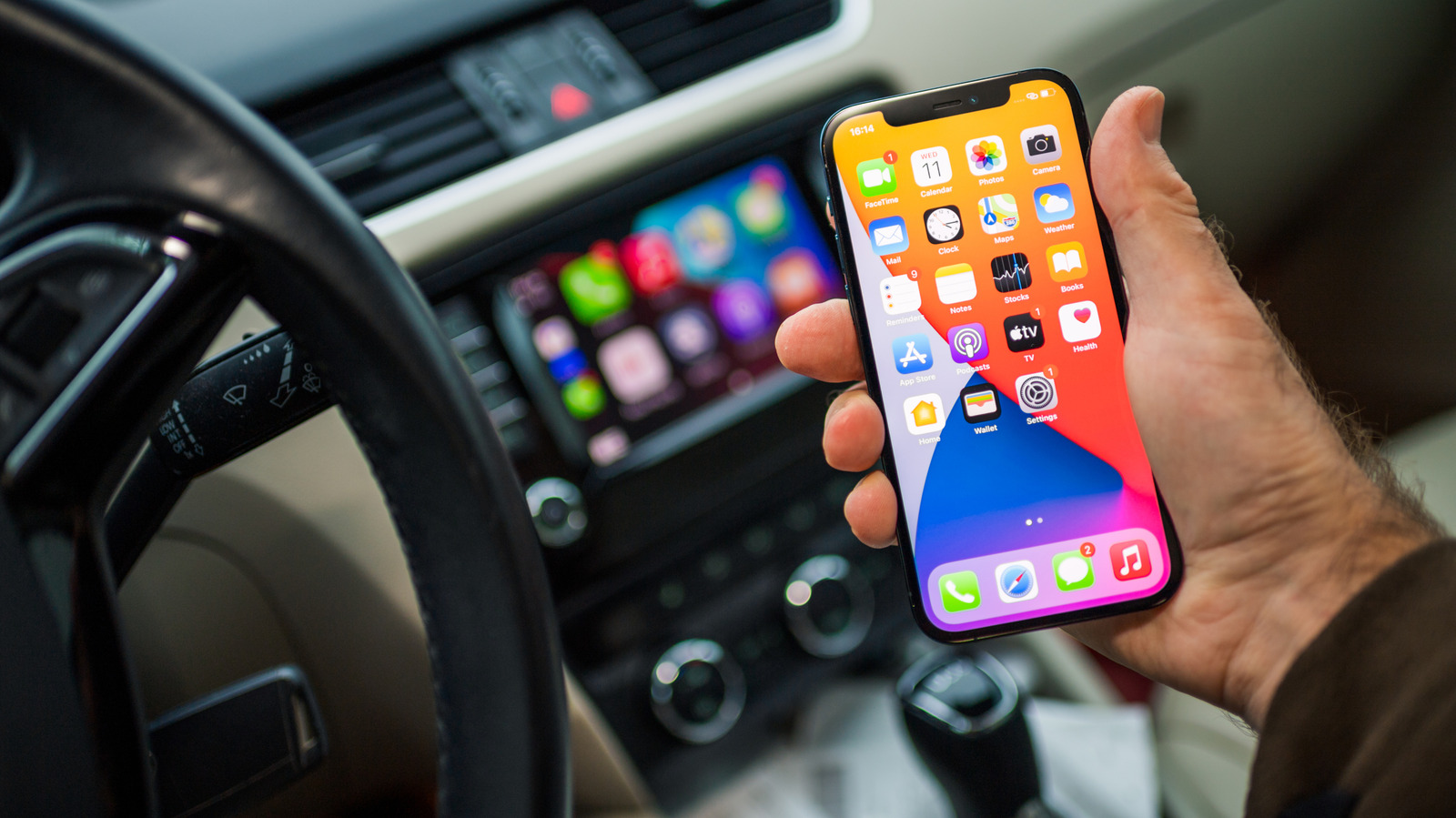
Apple introduced widget support for CarPlay with iOS 26, bringing the in-car display closer to a true extension of the iPhone. While CarPlay apps like Maps or Spotify are fully optimized for driving and take up most of the screen, widgets appear in customizable stacks that show specific, bite-sized information from a chosen app. iOS 27 further expanded the range of available widgets.
Setting up widgets
While parked, drivers can open the iPhone's Settings app and go to General > CarPlay, select their car, then tap Widgets. After confirming that Show Widgets is enabled, tapping Add Widget opens a browsing screen that first shows recommended options, followed by the full list of compatible apps. A single app can offer several different widgets. The number of widgets visible at once depends on the size of the car's infotainment screen.
Widgets can be reordered using drag handles or removed with a red minus button. Some widgets include a blue info icon for further customization — for instance, choosing a specific saved location for the Weather widget. At the bottom of the settings page are two automation toggles: Smart Rotate, which switches the displayed widget based on factors like time or location, and Widget Suggestions, which surfaces potentially useful widgets even if they haven't been manually added. On the road, widgets can be reached by swiping left to right to the leftmost screen, then swiping up or down to move between stacked widgets.
Recommended widgets
Apple's first-party widget options include Photos, Home, Reminders, Weather, Clock, Podcasts and Apple Sports. Following the iOS 27 expansion, third-party widgets are also available, including Instagram, Amazon, and AI chat assistants such as Claude and Gemini. The general recommendation is to stick with widgets offering quick, easily glanceable information that won't distract from driving.