How to factory reset your Google Home Mini speaker
Google Home Mini and other Google smart speakers can be factory reset in just a few minutes using their physical buttons. The process permanently erases all data and Wi-Fi connections.
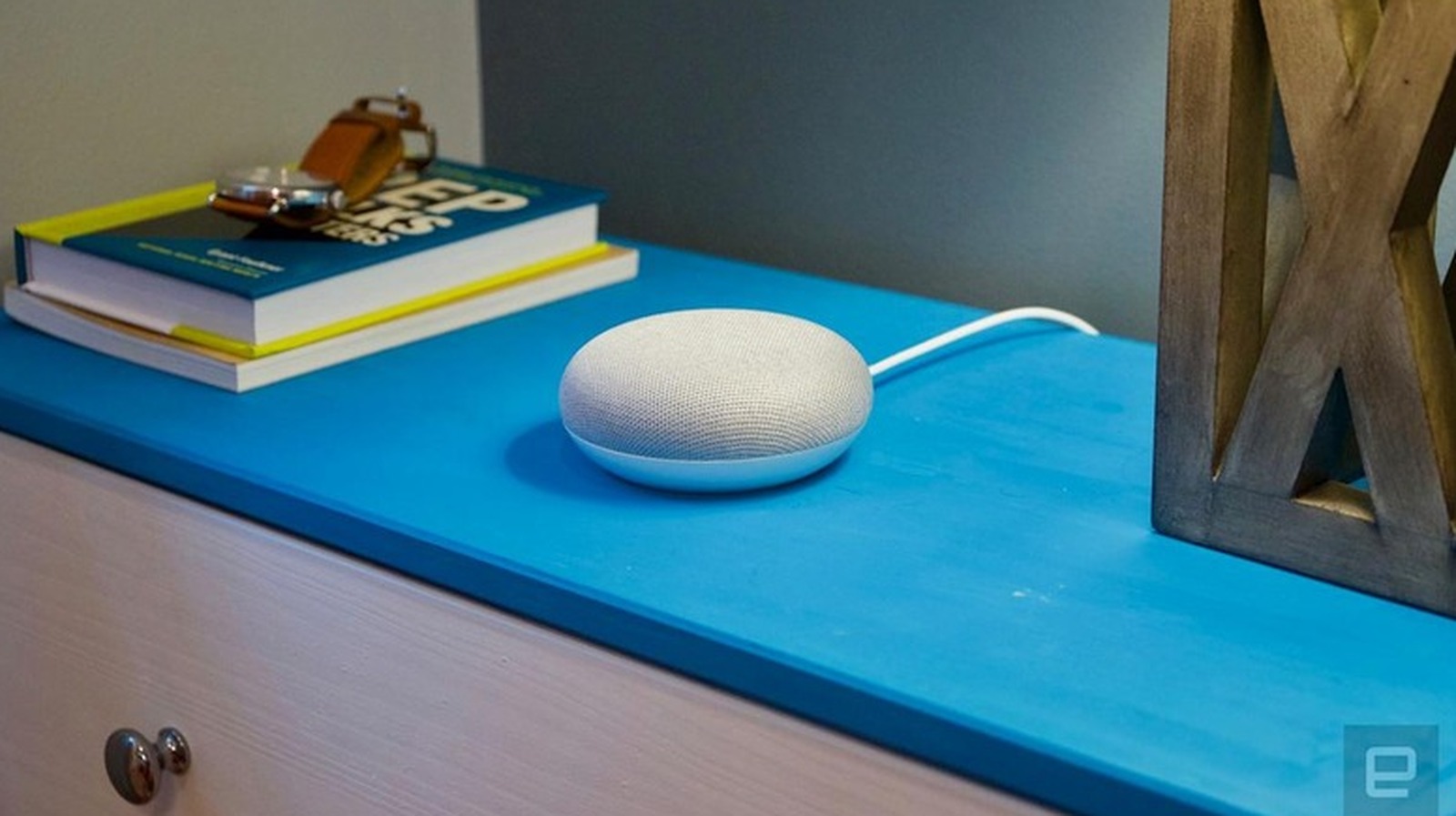
The Google Home Mini has been on the market for nearly nine years, and although Google has discontinued production of the device, many units remain in perfect working order. Still, there are situations where a factory reset becomes necessary — for instance, if the speaker stops responding to commands, Wi-Fi connectivity issues arise, a user wants to switch Google accounts, or the device is being passed on to a new owner.
Earlier this year, Google released a new smart home speaker, marking the end of production for the Nest Home Mini and Nest Audio models. The company confirmed to Engadget that no new units of these devices will be manufactured, though they will continue receiving software updates, security patches and customer support.
How the reset process works
It's worth noting that this process cannot be triggered through voice commands or the Google Home app — physical controls on the device must be used instead. For the first-generation Google Home Mini, users need to flip the device over to find a small reset button on the base, near the power cord. It must be pressed and held for about five seconds until the reset begins, then held for another 10 seconds until a confirmation chime sounds.
For the second-generation Google Nest Mini, which looks nearly identical to the original, users first need to switch off the microphone toggle on the side of the device, causing the LED lights to pulse orange. Then, pressing and holding the top of the device for about five seconds starts the reset, which must be held for another 10 seconds until a chime confirms completion. For display models like the Nest Hub, both volume buttons on the back must be pressed and held simultaneously for about 10 seconds.
What happens afterward
A factory reset permanently erases all personal data, Wi-Fi credentials and linked Google accounts, and disconnects the device from every household member. If the issue is minor, a simple reboot is worth trying first — unplugging the device for a minute resolves many glitches without deleting anything. To reconnect a reset device, users open the Google Home app, select the plus icon, choose the device setup option, and follow the in-app instructions.