How to Scan QR Codes from Screenshots on Your Phone
Both Android and iOS have built-in tools to easily scan QR codes from screenshots without using the camera.
Scanning Without a Camera
Many people believe you need to use your smartphone's camera to scan a QR code, but that's not true. Both Android and iOS devices have built-in features that let you open QR codes directly from screenshots.
On iPhones
To scan a QR code, first take a screenshot. On newer iPhones, press the wake button and volume up button simultaneously. Once the screenshot is in your gallery, open it and look for a small blue badge with three lines above the trash icon. Next to it, you'll see a URL. Tap the QR code again, and you'll be given the option to open it in your browser of choice.
On Android Phones
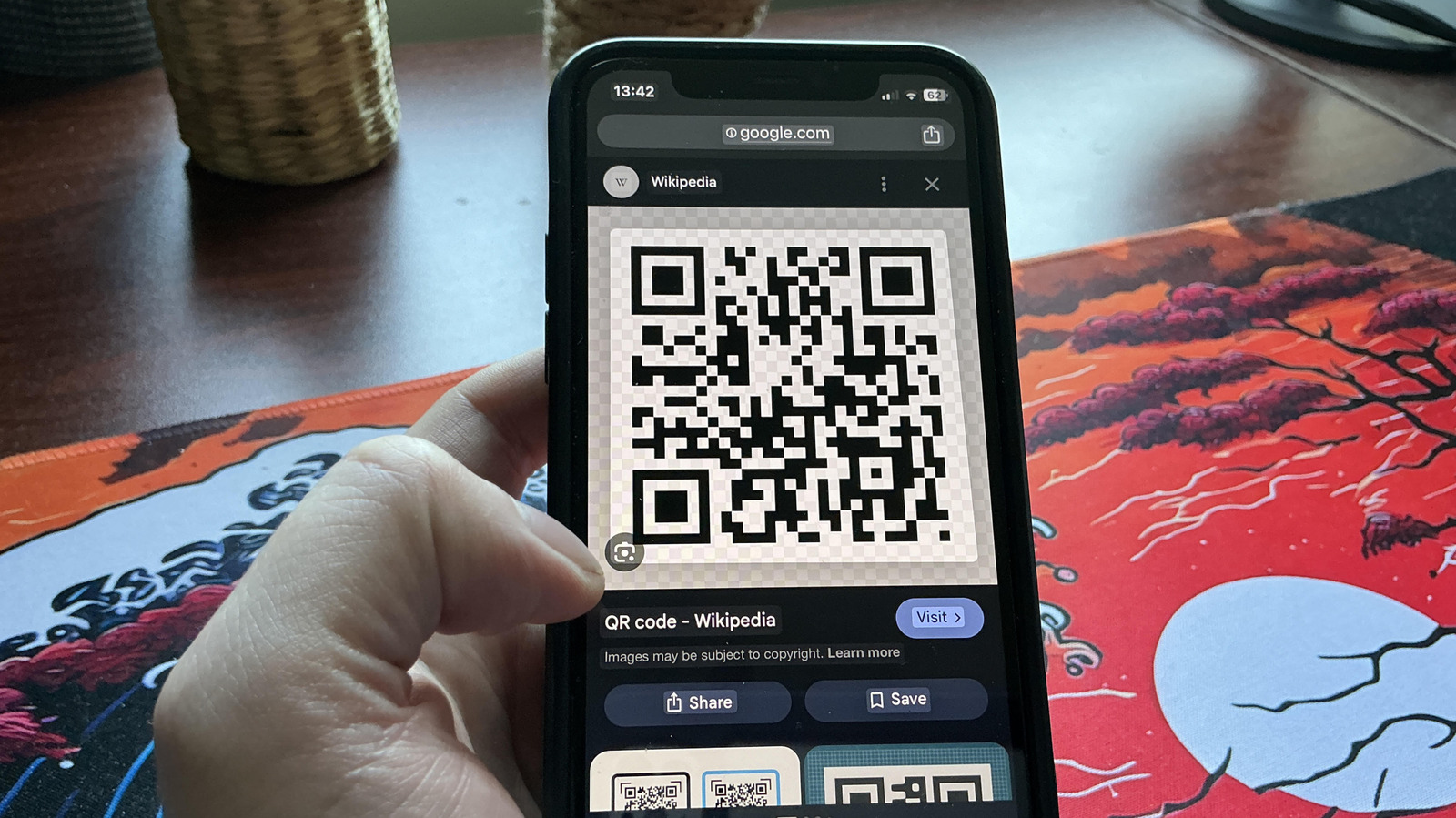
On Android, take a screenshot by pressing the power button and volume down button together. Then, in your gallery, select the screenshot and tap the Lens icon. Google Lens will analyze the code and provide a link.
Additional Methods
Some Android devices (e.g., Google Pixel, Samsung Galaxy) support "Circle to Search." To enable it, go to Settings, search for "Circle to Search," and toggle it on. Then, hold down the home button to bring up a Google Search bar. Simply circle the QR code with your finger to scan it.
Google Lens is also available on iOS if you have the Google app or Google Photos installed.
Safety Tips
While these tools are convenient, always be cautious with QR codes – only scan from trusted sources to avoid phishing attacks.