Why your iPad won't charge — and how to fix it
When an iPad refuses to charge, the most common cause is a faulty cable or charger rather than the device itself. Several simple checks can help pinpoint and solve the problem.
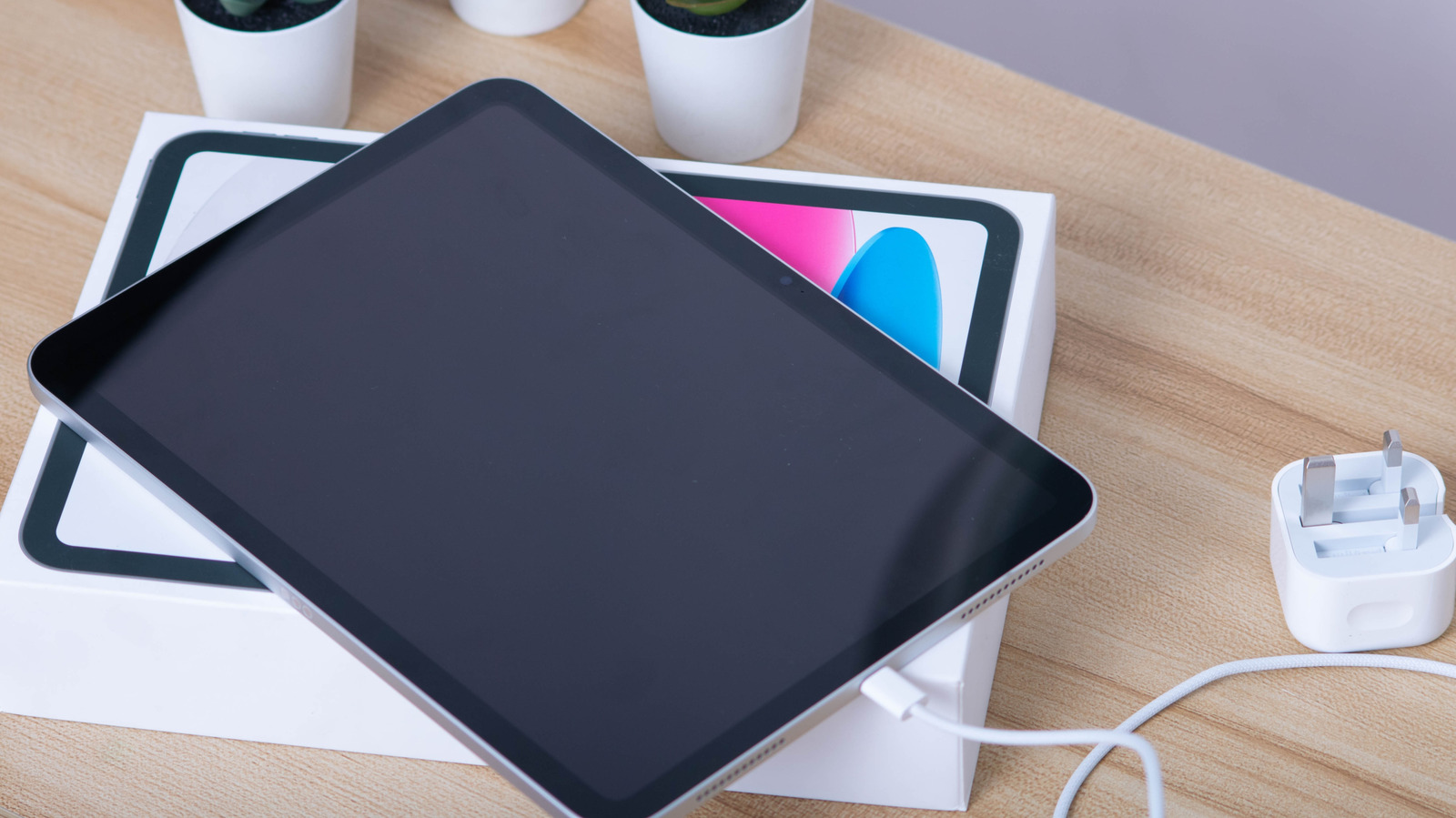
An iPad that suddenly stops charging or charges unusually slowly is a common frustration, but it doesn't necessarily mean the device is broken.
Cable and charger issues
The most frequent culprit is a damaged or underpowered charger. Using the original charger or a reliable fast charger is recommended, since cheap third-party accessories can be unreliable. Because an iPad's battery is larger than a phone's, it needs a more powerful charger — at least 10 watts. Trying different cables, adapters and wall outlets helps determine whether the problem lies with the accessories rather than the tablet itself.
Long periods unused and temperature
If an iPad has sat unused for weeks or months, its battery may be completely drained, meaning it can take a while before it responds to a charger again. Extreme temperatures also affect charging — the manufacturer recommends charging between 32°F and 95°F, as conditions outside this range can cause the system to slow or stop charging to protect the lithium-ion battery.
Charging port damage
If other devices charge normally with the same charger but the iPad doesn't, the charging port itself may be damaged. A charging icon that flickers on and off can be another sign of this. Inspecting the port with a phone flashlight can reveal bent pins or discoloration, in which case contacting Apple Support is advised, since repairs may be free or discounted under warranty or AppleCare. If dust or lint has built up inside the port, it can be carefully cleaned out with a soft brush, avoiding metal objects or cotton swabs.
Forced restart
If the cable, charger and port all appear fine, a forced restart — which doesn't erase any data — may help. On models without a Home button, press and release the volume-up button, then the volume-down button, then hold the power button until the Apple logo appears. On models with a Home button, hold the power and Home buttons together until the logo appears.