What to Do if Your Computer Won't Recognize an External Hard Drive or SSD
Tech outlet Engadget has outlined steps to try when a Windows or macOS computer fails to read an external drive. The advice runs from checking cables and ports to using built-in system utilities.
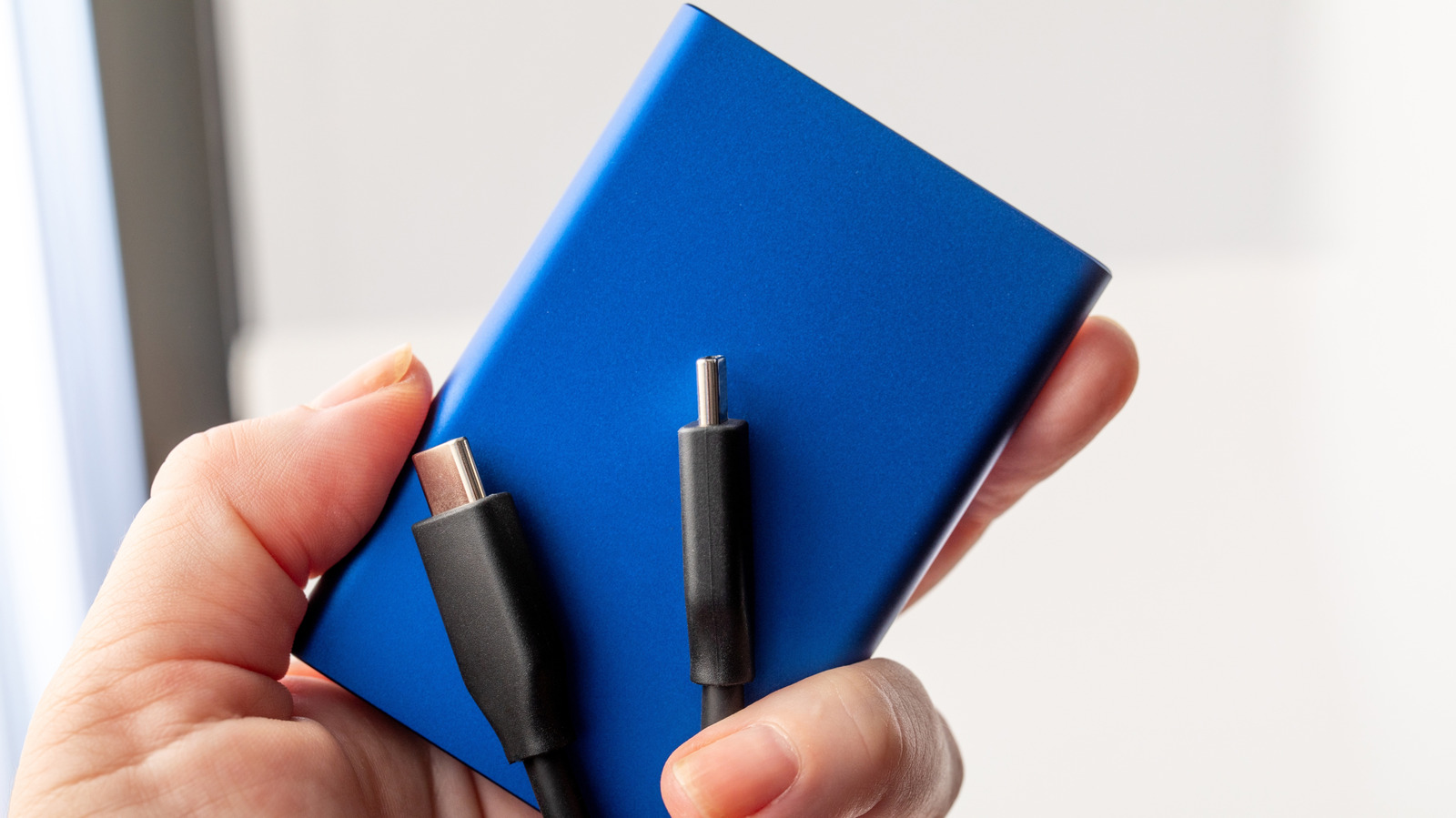
External hard drives and portable SSDs are a convenient way to move data between computers and keep backups. Tech outlet Engadget has published a guide on what to do when such a drive suddenly stops working or does not appear on the computer at all. In most cases, software fixes cost nothing.
For backups, the article cites the 3-2-1 rule: three copies of data on two types of media, with one copy kept in a safe place at home or away from the workplace.
Start with the hardware
The first step is to rule out problems unrelated to the drive itself. Try another port, a different matching USB or Thunderbolt cable, and a second computer if one is available. Some USB ports do not supply enough power, and a drive with an AC adapter must be plugged into the mains.
Windows 11
If the drive is detected but will not load, it may have been formatted incorrectly. In Device Manager, under Disk drives, open the drive's properties and choose Volumes > Populate. In Disk Management, you can then assign a drive letter. If NTFS formatting is missing, reformatting may be required, but it erases existing data and is a last resort. Before that, the article suggests running CHKDSK with the command chkdsk [drive letter] /r, which tries to fix errors and recover bad sectors.
macOS
On Macs, the main tool is Disk Utility. Select View > Show All Devices, find the drive and click Mount. If that fails, use First Aid, which may repair errors without data loss. Reformatting is the final option and wipes the drive completely.
Other fixes
Updating drivers may also help. macOS delivers them with system updates (System Settings > General > Software Update), while Windows users can use Windows Update or the Driver tab in Device Manager. If nothing works, contact the drive manufacturer or a repair shop, or a data recovery firm if valuable data is at stake.