Slow internet? These router tweaks can boost your download speeds
If your downloads are slower than expected, the problem often lies in your router, not your internet plan. Simple adjustments like repositioning, switching to 5GHz, and enabling SQM can make a significant difference.
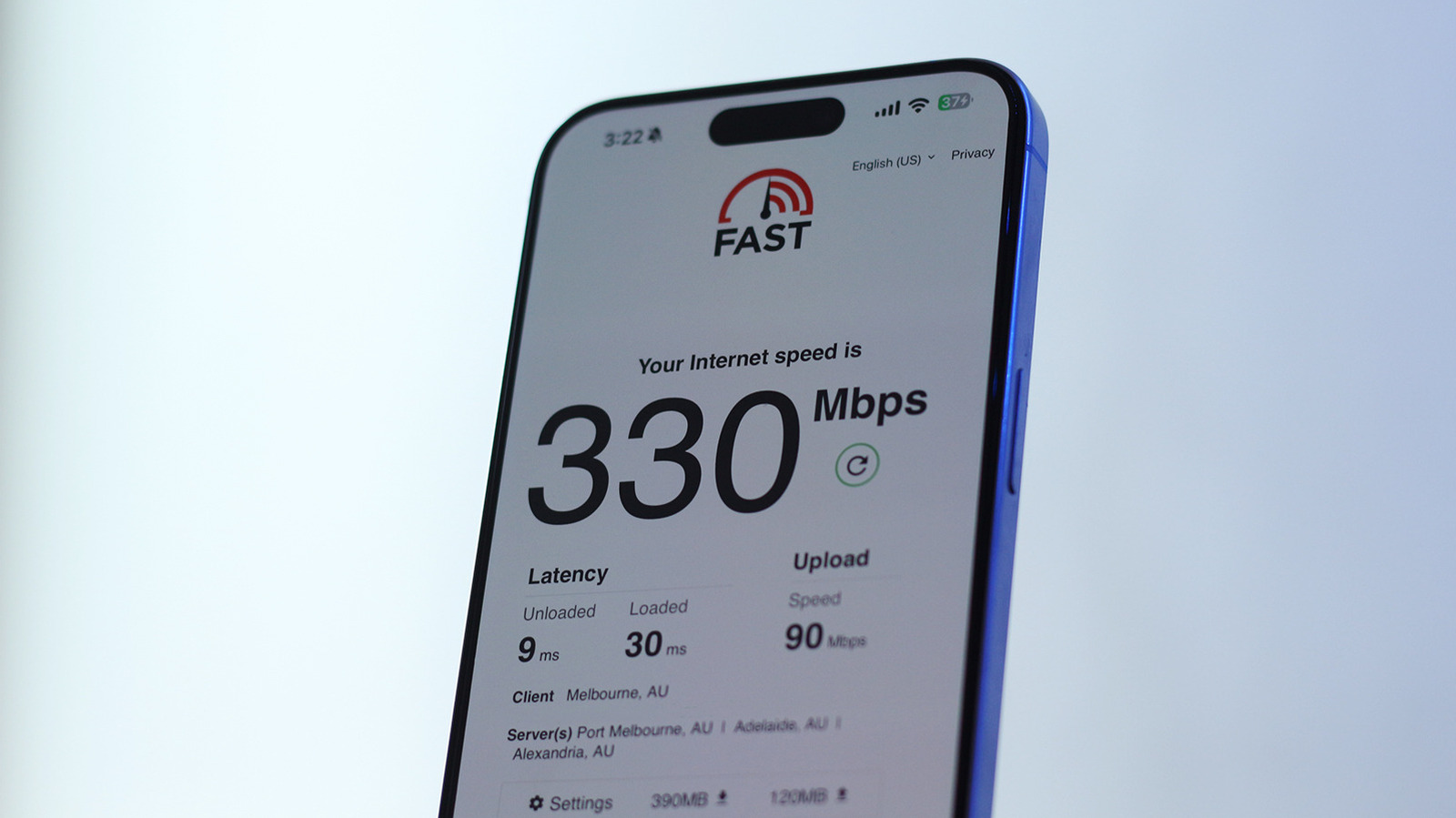
Few things are more annoying than a video that keeps buffering or a file that downloads at a crawl. Before blaming your internet provider, it's worth checking whether your connection actually delivers the speeds you pay for. According to the Speedtest Global Index, the median broadband speed in the US is over 300 Mbps—more than enough for most streaming and large downloads. If your speeds match, your router could be the bottleneck.
Router placement and Wi-Fi signal
A weak Wi-Fi signal can undermine otherwise fast internet. Moving your router to a more central location can improve coverage. If it has external antennas, try spreading them out and pointing them in different directions. Also keep the router away from other electronics, especially microwaves, which can interfere with wireless signals.
Choose the right Wi-Fi band
Many routers broadcast both 2.4GHz and 5GHz networks. The 2.4GHz band is typically limited to around 100 Mbps, while 5GHz can deliver gigabit speeds. If your device connects to the slower band, you won't get the performance your broadband plan allows. Check which network your device is using and switch to 5GHz if available.
Dealing with bufferbloat
Sometimes downloads slow down only when someone else in the house starts streaming or downloading. This could be bufferbloat, which happens when your router's packet queues become too large. You can test for this using Waveform's online bufferbloat test. If you see high latency spikes under load, your router is likely the culprit. Modern routers often include Smart Queue Management (SQM), a feature that prevents a single device from hogging the connection. It's usually located in the QoS settings of the router's web interface or app.
Maintenance and reset
Routers don't need frequent upgrades, but older models may lack the speed and features of newer ones. Before buying a new device, try a few maintenance steps. Power cycle your router by turning it off, unplugging it for about 30 seconds, and plugging it back in. Check for firmware updates in the companion app, as these can fix bugs and security vulnerabilities. As a last resort, you can reset the router to factory defaults, but you'll have to set up your network name, password, and other configurations again.