Turn off this setting right after buying a new TV
Many new TVs ship with store or demo mode enabled, which can make the picture look wrong at home. Disabling it in the settings menu usually solves the problem.
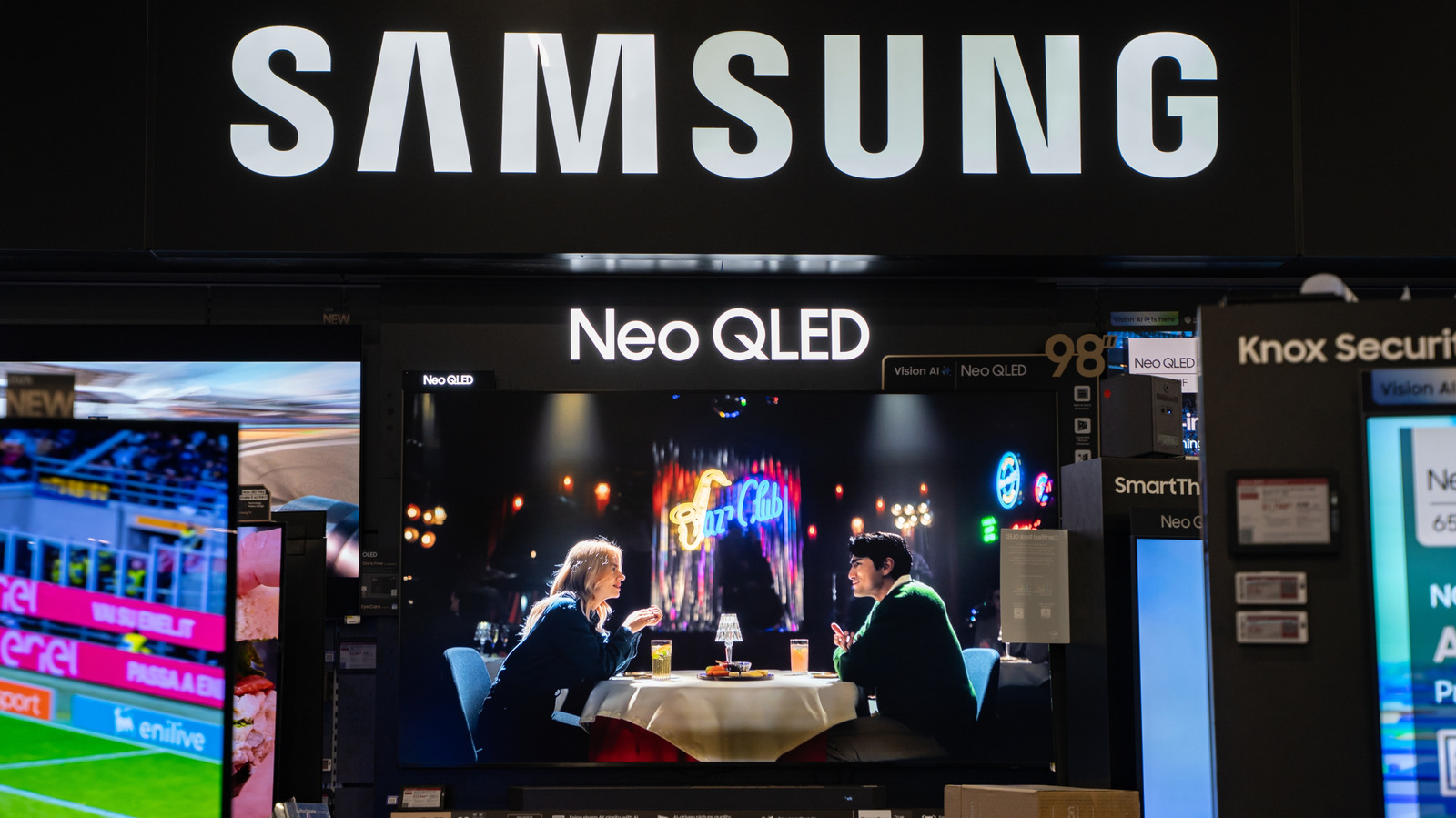
Unboxing a new TV and connecting all your devices is exciting, but the first picture you see may be disappointing. Before spending time on manual calibration, check whether the TV is still in store or demo mode.
Store mode is designed for retail environments, where bright lighting and competition on shelves demand an eye-catching image. Manufacturers often enable it by default, even for online purchases. The mode boosts the backlight and adjusts contrast to make the display stand out in a shop. At home, however, the same settings often result in an overly bright, washed-out or unnatural picture.
Demo mode can also show looping advertisements or on-screen details such as resolution and refresh rate. More annoyingly, it may reset any picture adjustments after a few minutes, returning the display to its default retail state. That means every tweak you make could be undone without warning.
The fix is usually quick. The exact menu location differs by brand. On a TCL television, for instance, the option is under Settings > Advanced Settings > Usage Mode, where you can switch from Store Mode to Home Mode. Other manufacturers may call it Demo Mode or Retail Mode. It is also worth checking for an Auto Store Mode setting and turning that off as well.
Once store mode is disabled, picture quality typically improves immediately. You may still want to fine-tune contrast, brightness or use a preset, but the image should finally look closer to what you expected when you bought the TV.