Windows 11 Component Records Which Coding Agents and Developer Tools Are Used
A researcher reverse-engineering the Windows 11 component MissionControlAggregator found that it logs usage of coding agents and developer tools and reports it via Windows diagnostics. The data is uploaded to Microsoft when optional diagnostic data is allowed.
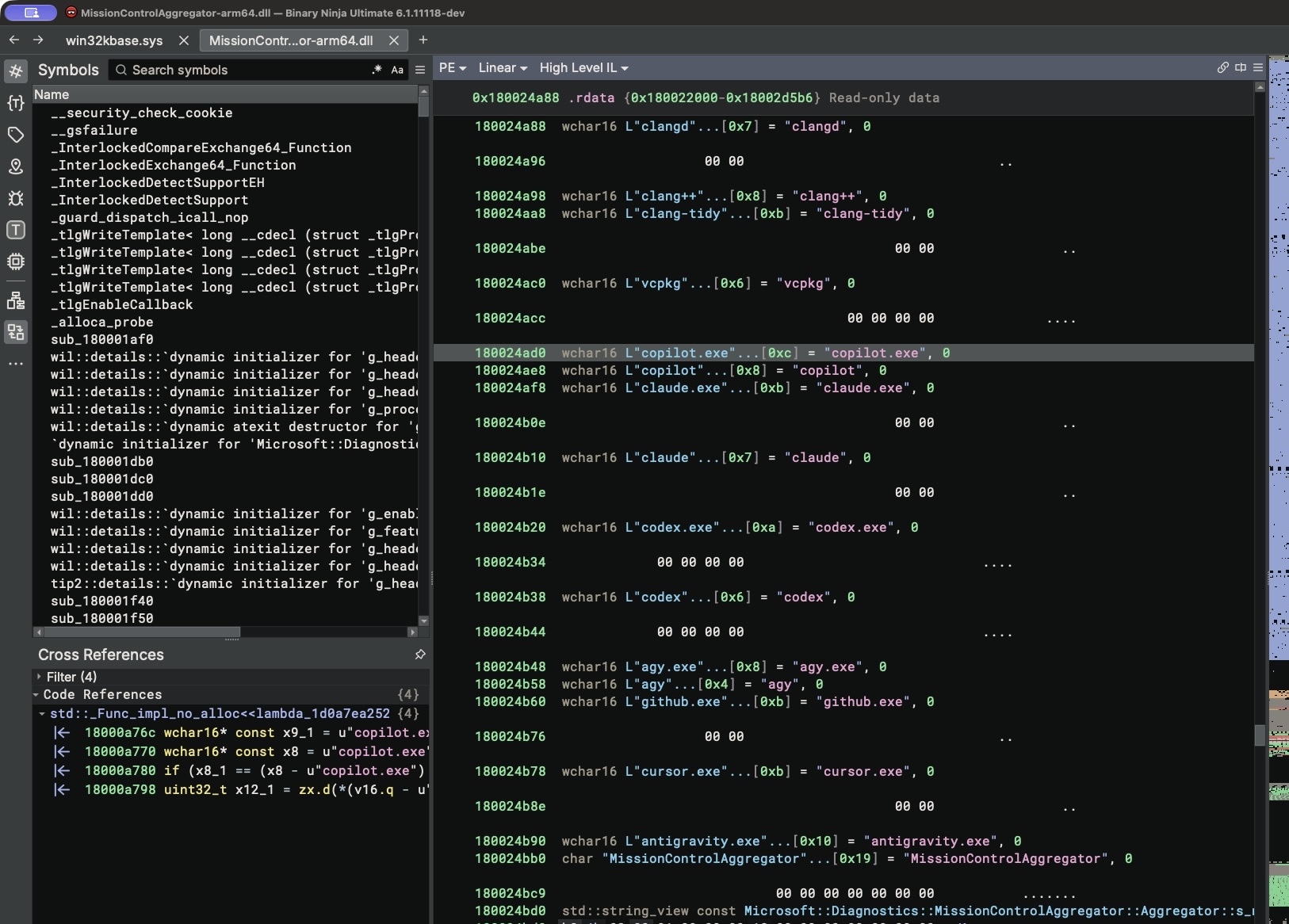
A software developer, Xusheng, has described in a blog post how the Windows 11 component MissionControlAggregator.dll detects whether AI coding agents and other developer tools have been used on a computer. The information is saved locally and included in a diagnostic report, which is uploaded to Microsoft if optional diagnostic data is allowed. The author says that collecting such data carries significant privacy implications in itself.
What the component looks for
Analysis of the binary revealed a list of executable names. For command-line agents these are copilot.exe, claude.exe, codex.exe and agy.exe; for desktop agents, github.exe, claude.exe, codex.exe, cursor.exe and antigravity.exe. Broader developer tools are checked too, including node.exe, python.exe, dotnet.exe, gcc.exe, clang.exe, gdb.exe, javac.exe, devenv.exe and code.exe. In some cases the publisher is verified as well. The feature is gated by a flag named CLICodingAgentUsage.
The component does not scan processes itself. It relies on existing Windows events, including KernelProcess.AppStateChangeSummary and Win32kTraceLogging.AppInteractivitySummary, as well as WSL (Windows Subsystem for Linux) events. Matches are converted into a bitmap and emitted in a report called Segments.SubCohorts. According to the author, run time and other details are discarded, and only the fact that a tool was observed is recorded. No prompt text or source code was found in the report.
Testing in practice
On a Windows 11 ARM64 virtual machine (build 26200.9974), the author copied cmd.exe under the name codex.exe and ran it. The component recognised it as Codex, and the matching bit appeared in the report. A copy named gcc.exe triggered the developer-tool category in the same way. With optional diagnostic data allowed, the report was found in the upload queue of the DiagTrack service.
On a clean Windows 11 Home installation with the US region, optional diagnostic data was enabled by default, the author says. The baseline VM built from the public ISO had the agent feature disabled, so the evidence does not show it is active on every installation. Users can decline the data during setup or later under Settings → Privacy & security → Diagnostics & feedback.