How to reboot a Samsung Galaxy tablet: three methods for every situation
Samsung Galaxy tablets can be rebooted in three ways: a standard restart for sluggish performance, a force restart for frozen screens, and a factory reset as a last resort. The article explains each method step by step, emphasizing that data is safe unless you choose the final option.
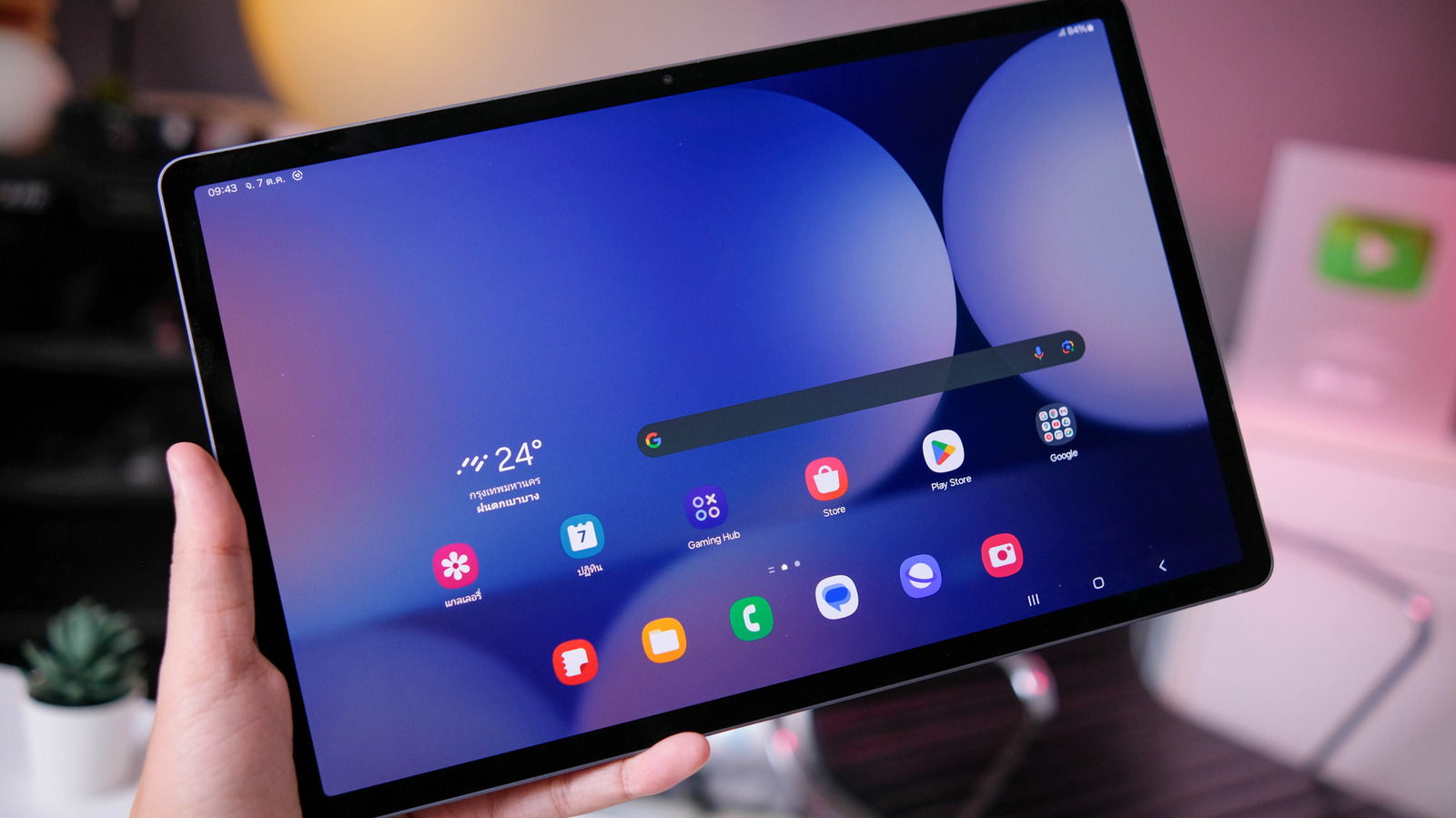
Rebooting a Samsung Galaxy tablet is often the simplest way to resolve common technical issues, from slow operation to unresponsive screens. Depending on the severity of the problem, users can choose among three methods: a standard restart, a force restart, or a recovery procedure. All of them are safe and, in most cases, do not put personal data at risk.
Standard restart
If the tablet is still responding but feels sluggish, a standard restart is recommended. This can be done in two ways. The first involves pressing and holding the Power button on the side along with the Volume Down button until the power menu appears, then tapping Restart and confirming the selection. Alternatively, swipe down to open the quick settings panel, tap the power icon, select Restart, and confirm again. Both methods are quick and do not erase any data, making them a good first step when an app keeps crashing or the device slows down.
Force restart
When the screen is completely frozen and does not respond to touch, a force restart is necessary. This bypasses the software and forces the hardware to reboot. Press and hold the Volume Down and Side/Power buttons simultaneously for at least seven seconds. The restart begins when the screen goes black, the tablet vibrates briefly, and the Samsung logo appears. Samsung's official support documentation recommends this method for devices that are frozen or unresponsive, and it is considered safe and reversible.
If nothing else works
If neither method succeeds, users can try holding the Power button for up to two minutes to force a complete shutdown. After leaving the tablet off for one minute, press the Power button again to reboot. If it still does not respond, let the battery drain completely, then charge the device for 30 minutes before switching it on. Should these reboot attempts not solve the issue, a factory reset may be the next step. However, this process wipes the tablet completely and restores it to its original state, permanently deleting all apps, photos, and personal data. A full backup is essential before proceeding. The factory reset is performed by going to Settings > General Management > Reset > Factory Data Reset and confirming the action multiple times.
If the factory reset still does not fix the problem, the issue may be hardware-related. The Samsung Members app includes a diagnostic tool under the Support section that can check software, battery, network connections, sensors, buttons, cameras, and more. If the diagnostics point to a deeper hardware fault, contacting Samsung Support or visiting a repair shop is the best course of action.