Front USB ports on desktops may run slower than rear ones
Many desktop front-panel USB ports offer less speed and power than rear ports, because they connect through extension cables and often share a single header. Everyday accessories are fine, but fast peripherals are better plugged in at the back.
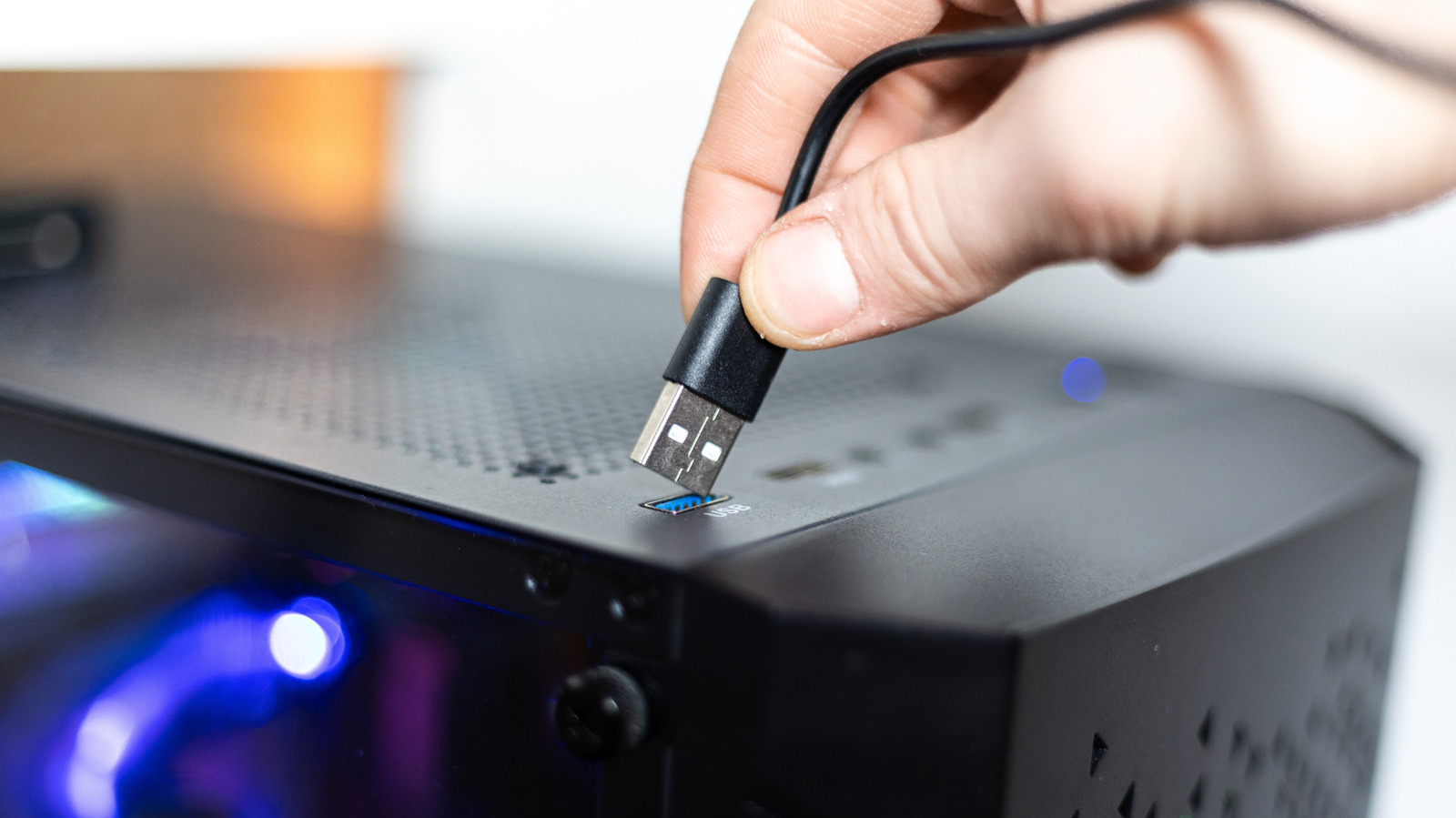
USB ports on the front of a desktop case let users plug in devices without reaching around to the back, but that convenience can cost speed and power. A connected device may run slower than expected: files take longer to copy and a phone charges more slowly. This is not a fault of the computer but a result of how front ports are engineered. It is not a universal rule, since some modern PCs have fast ports on the front, and in many cases users will not notice a difference.
Why front ports can be slower
Rear USB ports are usually soldered directly to the motherboard, so power and data travel a shorter path. Front ports are linked to the I/O controllers through extension cables, and each additional layer causes some signal loss, even if minimal. In many cases front-panel ports also share a single connector, so speed and power are divided among all of them. Manufacturers also often use slower USB standards for at least some front ports.
The source cites the ASUS ROG Maximus Z790 Hero motherboard as an example. Its rear has two 40 Gbps Thunderbolt 4 ports, six 10 Gbps USB 3.2 Gen 2 ports and four 5 Gbps USB 3.2 Gen 1 ports. The front panel has one USB 3.2 Gen 2x2 port (theoretically 20 Gbps) and four 5 Gbps USB 3.2 Gen 1 ports powered by two headers, so the speed is shared among connected devices. On some boards, two external SSDs plugged into the front at once will share the same 5 Gbps rate.
Macs have similar limits. The baseline Mac mini with the M6 chip has two front USB-C ports of up to 10 Gbps, while its rear Thunderbolt 4 ports reach up to 40 Gbps. The base model of the latest Mac Studio likewise has two 10 Gbps USB-C ports on the front, with Thunderbolt ports only on the back.
What to plug in where
Mice, keyboards and headphones work fine on front ports, since they use little power and need no high speeds. A regular USB flash drive is also fine unless you transfer large amounts of data or read and write constantly.
For bandwidth-intensive or latency-sensitive peripherals such as external SSDs, capture cards or VR headsets, rear ports are the better choice. Some of these devices may not work at all on slower ports. Checking the motherboard or computer specifications will show the exact speed of each port; symbols and colors can offer hints but are not always consistent.