How to Get Rid of Fake Virus Warnings on a Windows PC
Pop-ups claiming a computer is infected are usually scams meant to push people into installing real malware. Tech site Engadget explains how to close them and avoid them.
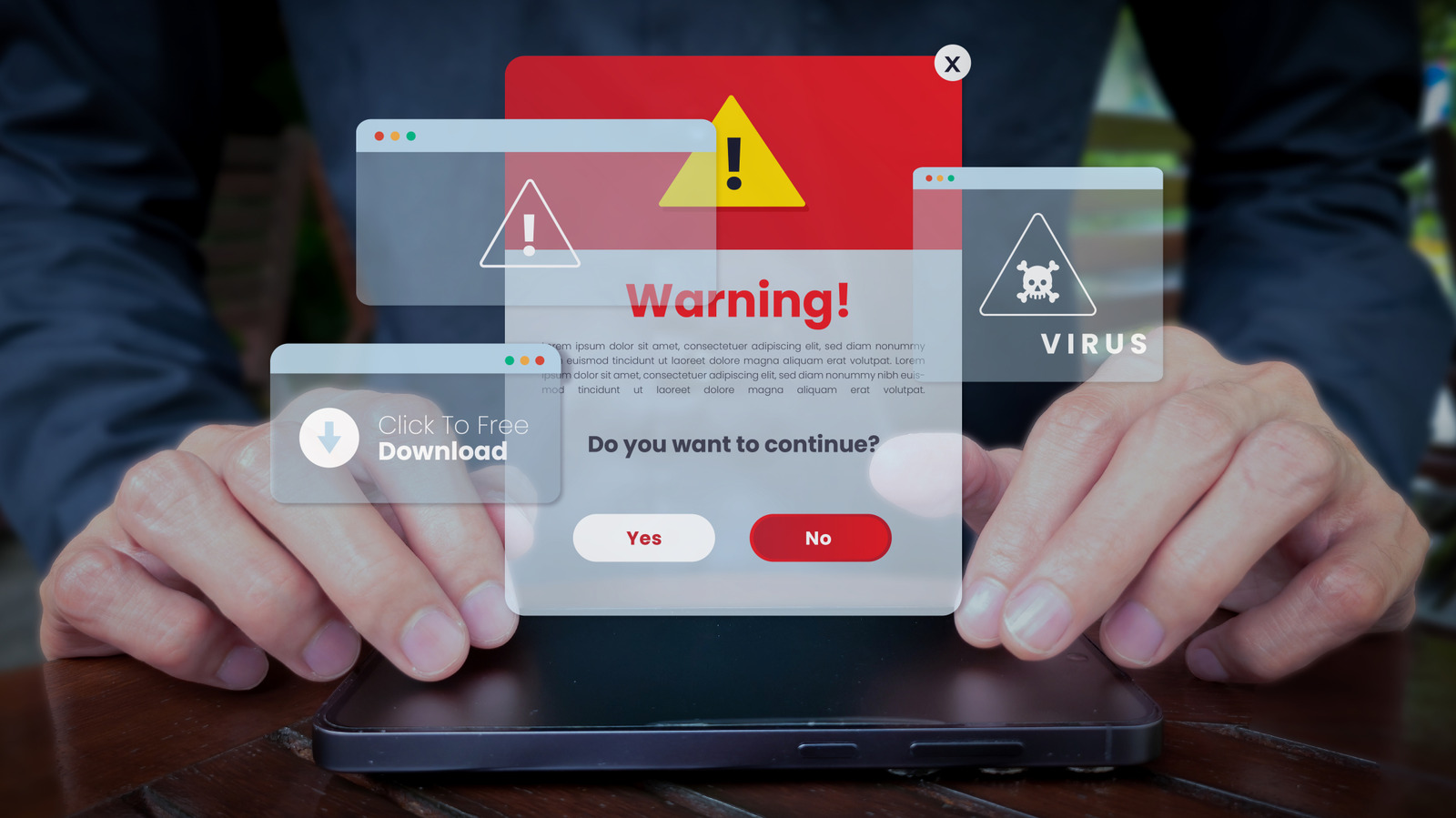
While browsing the web, an urgent warning may suddenly appear saying your computer has a virus. According to a guide from the technology site Engadget, such alerts on Windows PCs are almost always fake. They are known as "scareware": messages designed to cause panic so that users act hastily and give criminals access to the computer or to their money.
A study by security firm Barracuda found that one browser-based strain, called CypherLoc, has affected more than 2.8 million people since the start of 2026.
How the warnings work
Scammers use dramatic wording such as "Critical Threat Detected!", flashing lights, bright colors and alarm sounds. Some pages play a robotic voice announcing a "critical Microsoft security alert" or display the visitor's IP address. Names of genuine security brands, such as McAfee or Windows Defender, are also borrowed.
The alerts arrive either as browser pop-ups or as notifications in the Windows notification center. Usually the cause is an unsafe link or a malicious website, although rogue ads can appear even on legitimate pages. Notifications can also come from sites the user has allowed to send them by clicking "Allow".
Victims are typically urged to call a bogus tech support number, download a fake anti-malware scanner or hand over payment details. The US Federal Trade Commission (FTC) has also flagged a scam using fake CAPTCHA requests to install malware.
What to do
If a full-screen warning appears, do not click anything on the page. The most effective step is to close the offending tab with the browser's built-in task manager (Shift + Escape in Chrome, Edge and Firefox). F11 exits full-screen mode. If that fails, force-quit the browser through Windows Task Manager (Ctrl + Shift + Esc) using "End task", and do not restore the closed tabs afterwards.
If notifications continue, delete recent cookies and check the list of sites allowed to send notifications. It is also worth reviewing browser extensions and installed Windows apps, removing any suspicious ones.
Staying protected
A real infection typically does not come with flashing warnings, so regular scans are important. Engadget says the built-in Microsoft Defender is good enough for most people. As a backup, it suggests the free Malwarebytes, whose Browser Guard extension blocks malicious pop-ups and trackers.

