How to Turn On Personal Results on a Google Home Speaker
Personal results on Google Home smart speakers can be enabled in the Google Home app using the Voice Match voice recognition feature. It lets up to six household members get individual responses.
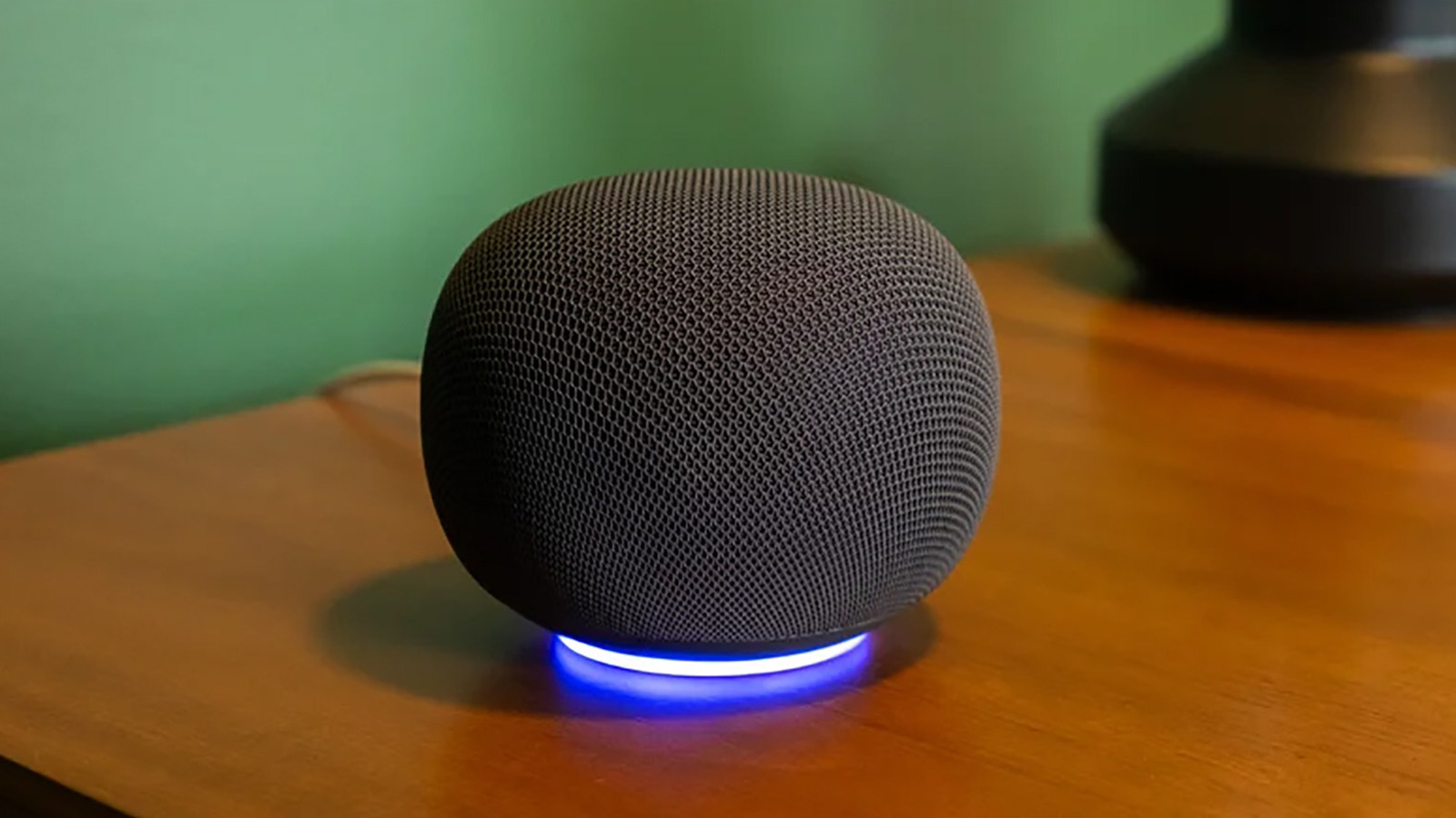
Personal results on Google Home smart speakers and other compatible devices can be turned on through the Google Home app and the Voice Match voice recognition feature. Voice Match lets the device work out who is speaking and give answers relevant to that person. This matters for anyone who shares the device with other members of the household.
In August 2025, Google announced that Google Home speakers and other compatible devices would get a Gemini-based refresh. It brings a more conversational and contextual experience, the ability to understand natural phrasing, and improvements to Voice Match and personal results. For example, when someone asks about their calendar, the device knows who is asking and responds accordingly.
How to set it up
In the Google Home app connected to the speaker, Voice Match must be set up first: select the profile photo, then Home settings > Gemini for home assistant > Voice Match. Next, open Home > Settings, choose Google Assistant > Personal results under Features, and select the devices it should work with. On compatible devices, the speaker can then access personal calendars, appointments, Google Keep, notes, lists, photos and other relevant details.
How it works
With Voice Match and personal results on, the speaker listens for the user's voice and gives responses relating to them, while others are blocked from those. Guests or family members who have not set up profiles can still ask questions, set alarms and do other things, but receive generic rather than personalized answers. A user can ask about their calendar, remaining items on a to-do list, or request a favorite music playlist.
If Voice Match is turned off while personal results remain on, anyone speaking to the assistant will hear the user's personal results. That may not matter if the speaker is in a home office or on a nightstand, but in a multi-person household with the speaker in a central spot, extra steps are needed.
For the whole family
For the feature to work for everyone, each person must set up Voice Match. It supports up to six people, and each must link their own Google account to the device and turn on Voice Match. If the speaker keeps misunderstanding someone, moving it to a quieter room or redoing the Voice Match training may help.

