How to turn on your Android phone's flashlight without unlocking it
On Samsung Galaxy and Google Pixel phones, the flashlight can be switched on from the lock screen using quick settings, shortcuts or a voice command. This helps when light is needed urgently.
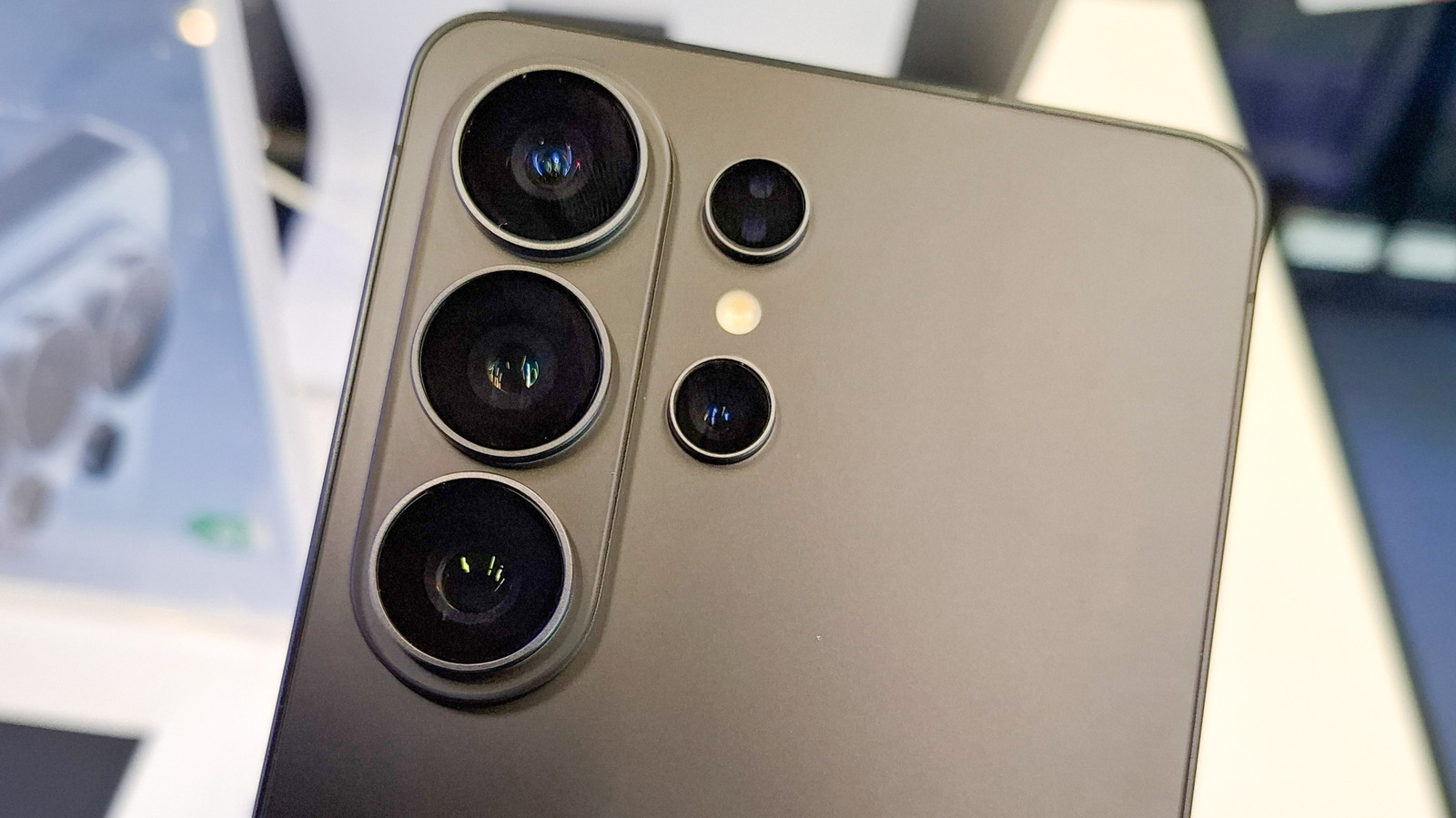
Android users can switch on their phone's flashlight without unlocking the device. Technology outlet Engadget has put together instructions for smartphones from two popular makers, Samsung Galaxy and Google Pixel. On both, the lock-screen menu is customizable and contains useful tools, including the flashlight, which can be used in an emergency.
Voice command
The flashlight can be turned on hands-free: say "Hey, Google" and follow it with "Turn on the flashlight." This works on both makers' devices, and the phone does not need to be unlocked.
Google Pixel
On a Pixel, the flashlight button is in the Quick Settings menu, opened by swiping down from the top of the screen. Tapping the icon turns the light on, and tapping again turns it off. If the icon is not among the top options, it can be added or moved by pressing the pencil at the bottom of the menu and then the plus button on the Flashlight icon.
A Pixel cannot be shaken to switch the flashlight on, as that is an older Motorola feature. However, the Quick Tap gesture can be set up: under Settings > System > Gestures > Quick Tap, enable Toggle Flashlight, and double-tapping the back of the phone will turn the light on. Third-party apps offer shake activation.
Lock-screen buttons can be changed by long-pressing the lock screen and tapping Customize. Under Shortcuts, choose the flashlight icon to place it at the bottom of the screen.
Samsung Galaxy
On Samsung Galaxy phones, the flashlight is in the Quick Panel, opened by swiping down from either top corner of the screen. If it is not visible, or you want to reorder the icons, tap the kebab (three-dot) or pencil icon while the panel is open and rearrange them.
The two bottom corners of the lock screen usually hold the Phone and Camera buttons. One can be replaced with the flashlight by long-pressing the lock screen and choosing which button to swap. If the lock screen cannot be customized, go to Settings > Lock Screen & AOD and enable Touch and Hold to Edit.