How to create, send, and delete stickers on your iPhone
iPhone users can make custom stickers from their own photos and videos, then use them in Messages and other apps. The process is simple and includes options for animated stickers, effects, and syncing across Apple devices.
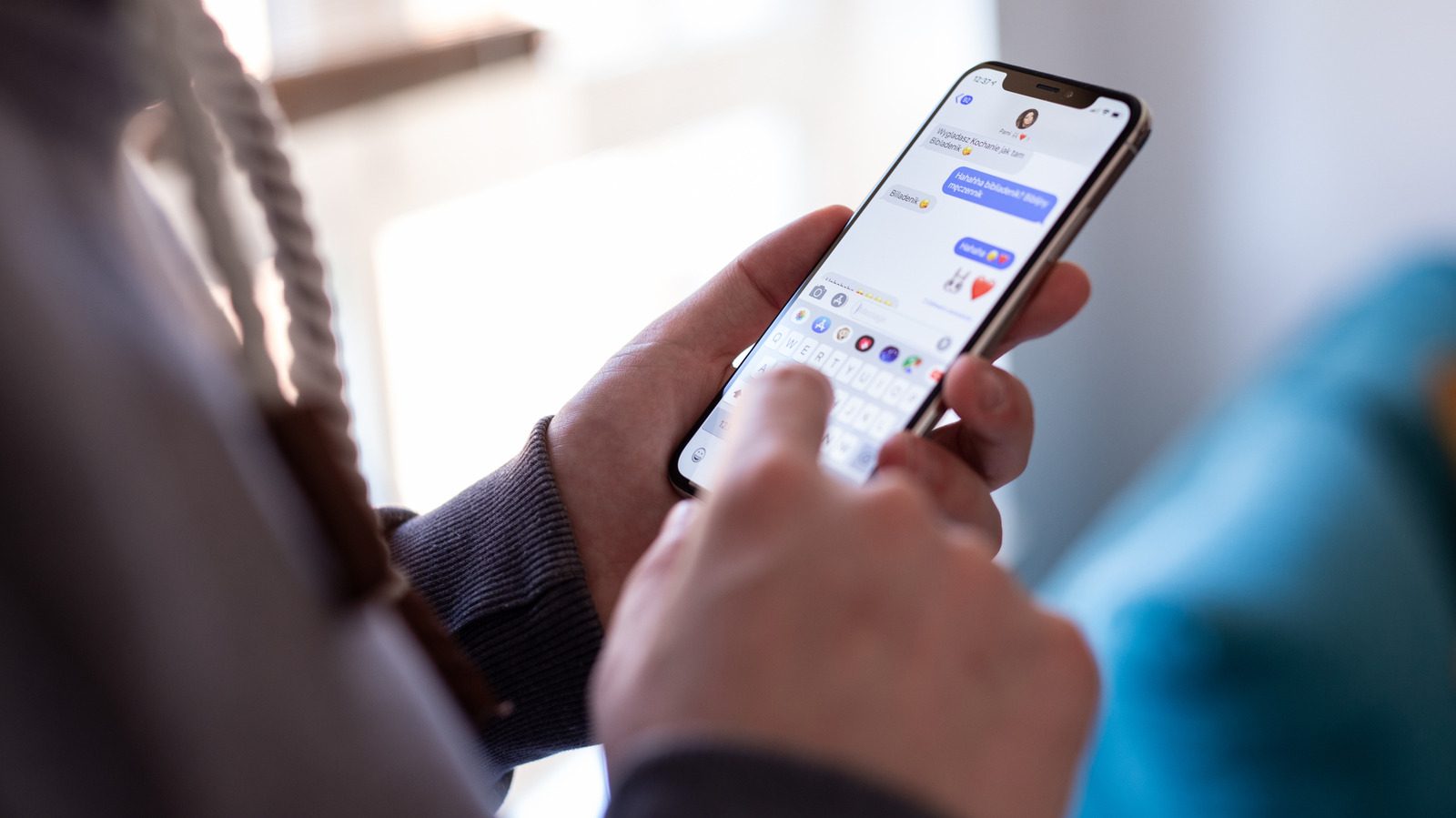
iPhone stickers offer a personalized way to react in conversations. Users can turn their own photos and videos into custom images and use them across compatible apps. The feature works without photo editing skills and keeps created stickers in a library for reuse.
Creating stickers
There are two primary ways to make a sticker. In the Photos app, a user can open an image, press and hold on a foreground subject, and choose Add Sticker from the tooltip. Images with clear subjects work best, and a single photo can sometimes yield several stickers. If a Live Photo is selected, the sticker becomes animated unless the Live option at the top-left is disabled.
The same process can be done from Messages. After opening a conversation, tap the + icon to the left of the text field and choose Stickers. In the sticker row, tapping + opens the photo library with suitable elements highlighted. The user taps one and confirms with + at the bottom.
Managing and sending
Stickers are managed from the Stickers menu in Messages. Pressing and holding a sticker opens a tooltip with Rearrange, which triggers a jiggle mode similar to the Home screen. Stickers can then be dragged into a new order or deleted in bulk using the minus button. The Add Effect option offers styles such as Outline and Shiny, and some effects respond to device movement like a holographic card.
To send a sticker, a user can tap it to add it to the message draft. Alternatively, pressing and holding a sticker lets the user peel it off and drag it directly onto a conversation. This makes it possible to place stickers over texts and photos, such as adding a pet to a landscape shot.
Compatibility and other apps
Stickers are built for iMessage conversations with blue bubbles. They should also send in RCS chats with Android users, but the peel-and-stick interaction may not work properly there. In SMS conversations, size limits can make stickers appear blurry.
Outside Messages, stickers work in WhatsApp through the Emoji button and Stickers tab, though they cannot be stuck onto messages. Apps with Markup mode, including Photos, Mail, and Notes, allow users to add stickers while editing images. In Photos, for instance, a user can tap Edit, then Markup, then +, and choose Add Sticker. The sticker can be moved, resized, and copied before saving.
Sticker packs and syncing
The Stickers menu also includes emoji, Genmoji, Memoji, and sticker packs from installed apps. Examples mentioned include American Airlines, Wikipedia, and Taco Bell. Users can rearrange packs with Edit or browse more options through Get Sticker Apps. Created stickers sync across a user's Apple devices, including iPad and Mac.