Is your iPhone stuck in SOS mode? Here's how to fix it
Seeing the SOS icon on your iPhone doesn't mean the device is useless; you can still contact emergency services. Here are steps to restore normal cellular connectivity.
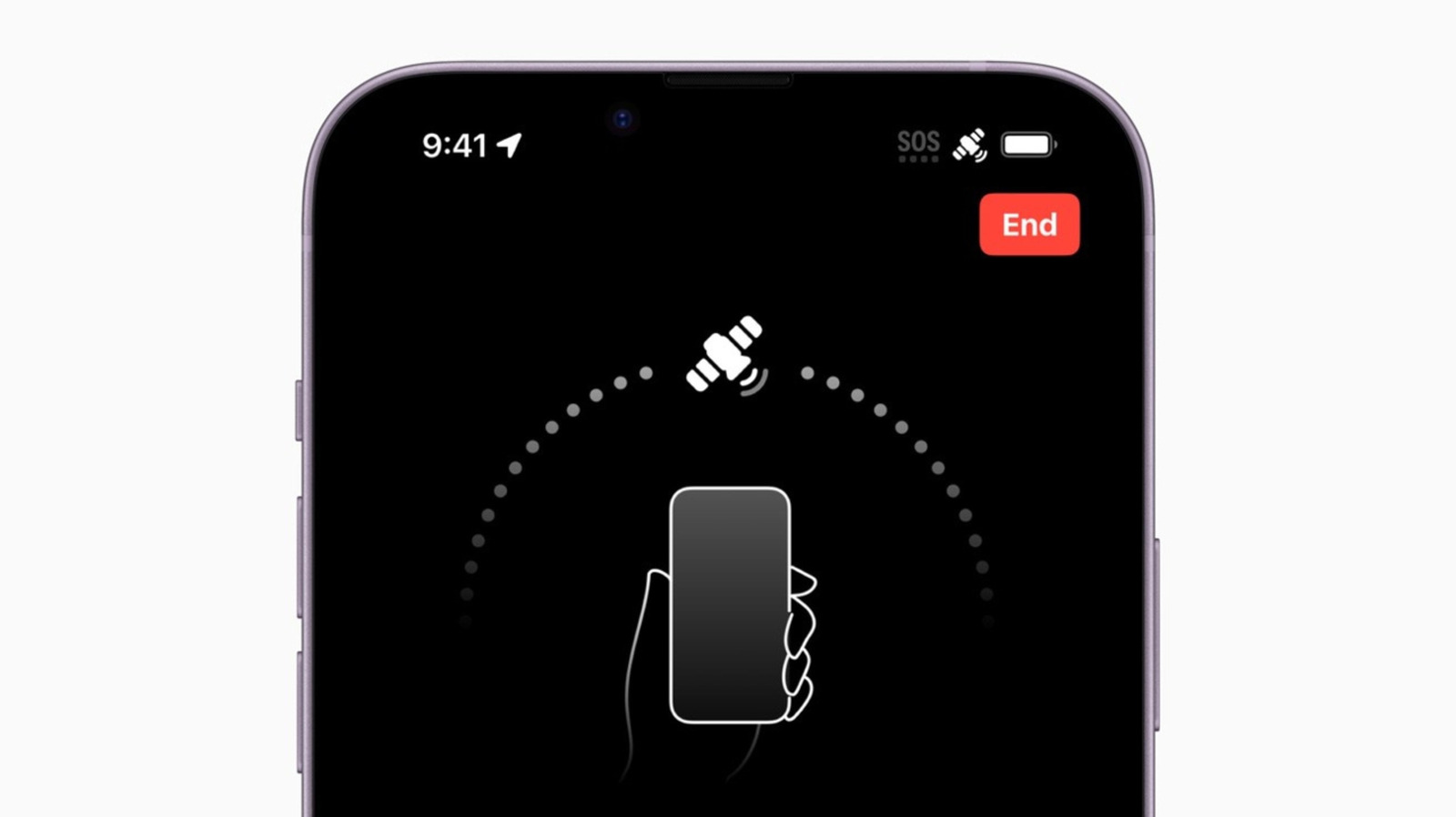
Many iPhone users have encountered the SOS symbol in the top right corner at some point. While it can be alarming, the phone remains capable of making emergency calls through other available cellular networks. On iPhone 14 and later models, users can also reach emergency services via Apple's satellite network, which is currently available in 18 countries including Australia, Canada, Japan, much of Europe, and the US.
If you see the SOS icon but aren't off-grid, try these fixes. First, toggle Airplane Mode on for at least 15 seconds, then turn it off. If that doesn't work, restart your iPhone by turning it off and on again.
Next, check for software updates. Go to Settings → General → Software Update to install the latest iOS. You can also enable automatic updates to prevent future issues.
If you use multiple SIM cards or eSIMs, verify their settings. Open Settings → Cellular and ensure your desired line is turned on. If you have a physical SIM, remove and reinsert it.
If the problem persists, check for carrier settings updates under General. If those are up-to-date, the issue may be with your carrier — you'll need to contact them directly. If you can connect to Wi-Fi, confirm your account is active and not blocked.
On iOS 18 or later, you can run diagnostics using the Apple Support app from the App Store.
For travelers, the most common cause is disabled data roaming. Go to Settings → Cellular → Cellular Data Options and enable Data Roaming. Be aware this may incur extra fees. If using a travel eSIM, turn off other carriers or enable Allow Cellular Data Switching to expand coverage, but again watch for additional charges.