How to Check Whether Your Phone Apps Have More Permissions Than They Need
Tech outlet Engadget explains how to view and limit app permissions for the camera, location and other data on iPhone and Android phones. Reviewing permissions regularly helps keep personal data secure.
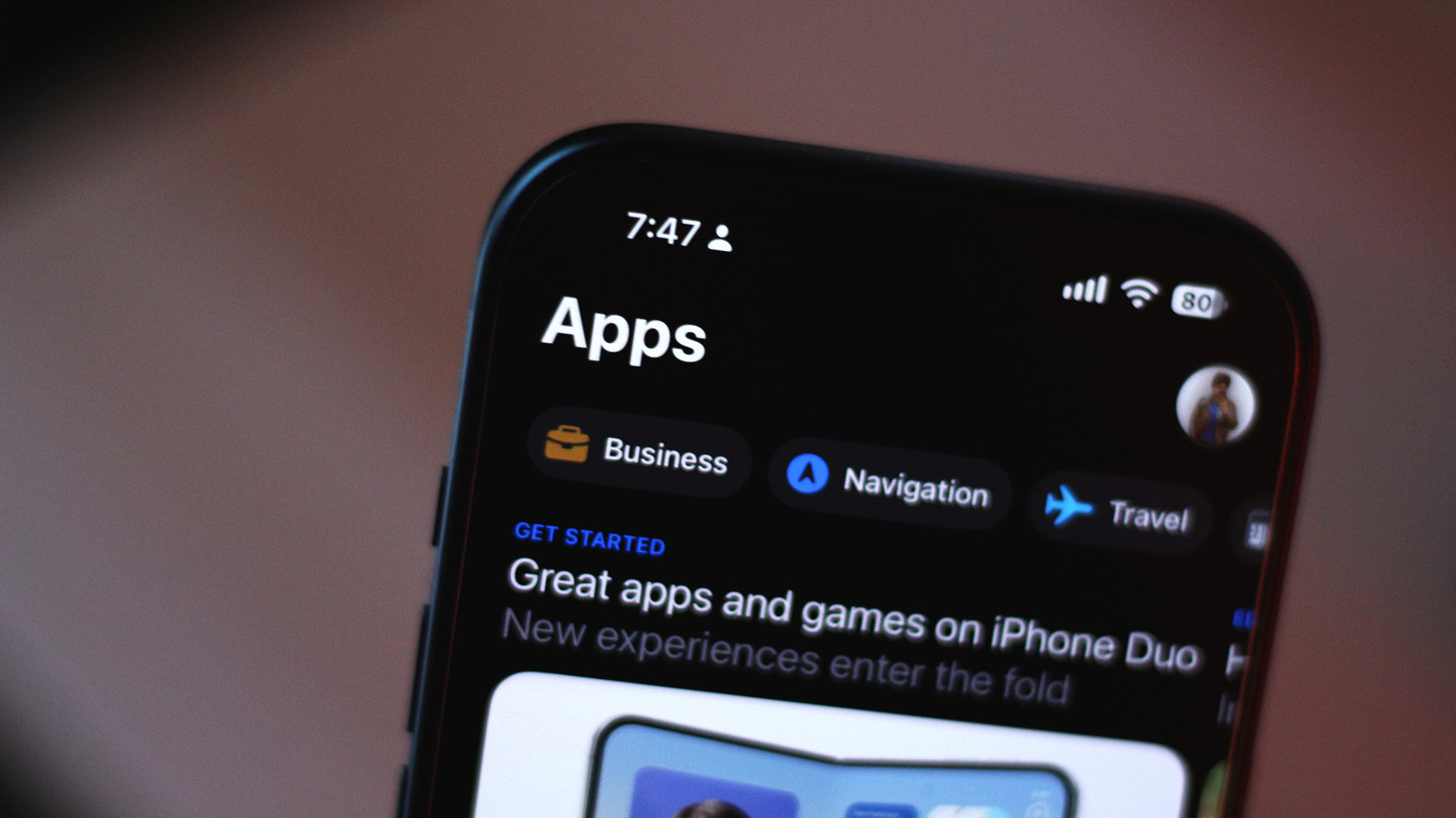
Smartphone users can check which data and device features their installed apps can access, and revoke permissions when needed. The guidance comes from the technology outlet Engadget, which points to the settings menus of the iOS and Android operating systems.
The outlet notes that both Android and iOS have built-in security measures that detect and block malicious apps. Even so, some apps may pose a risk if they can reach sensitive information. A request for access to the camera, location, text messages or files does not by itself mean an app is unsafe, but it is worth asking why it needs them, especially when they have little to do with the app's main purpose.
On-screen indicators
Camera and location data are especially sensitive, so both systems show indicators when an app uses the camera or microphone or checks location. On iPhone, a green dot means the camera is in use, an orange dot means the microphone is active, and a blue icon means location is being used. Android phones show similar status bar icons, and swiping down opens the quick settings panel, where you can see which app is using these features.
iOS settings
In iOS 27 and iPadOS 27, permissions work in a similar way. Every third-party app must ask for permission the first time it wants to reach contacts, photos, location or the microphone. For location, users can choose Allow Once or Allow While Using App.
Permissions can be managed at any time under Settings > Privacy & Security, which lists the number of apps using each permission type. Access can be revoked by turning off the toggle next to an app's name. Photo access can be limited by choosing Limited Access and selecting only specific images. Turning on App Privacy Report shows which apps have accessed data and sensors, as well as which domains they contact.
Android settings
Menu labels on Android vary by manufacturer. App permissions can be found by long-pressing an app's icon and tapping the i icon, or by going to Settings > Apps > See all apps. Under Permissions, users select a data type and choose Allow or Don't allow. The Privacy dashboard shows which apps have used permissions in the past 24 hours. Permissions can also be reviewed before installation in the Play Store and the App Store.

