How to restart, soft reset or hard reset your iPhone
When an iPhone starts acting up or is being handed off to a new owner, there are three escalating troubleshooting steps available — from a simple restart to wiping all data. Each serves a different purpose in fixing problems.
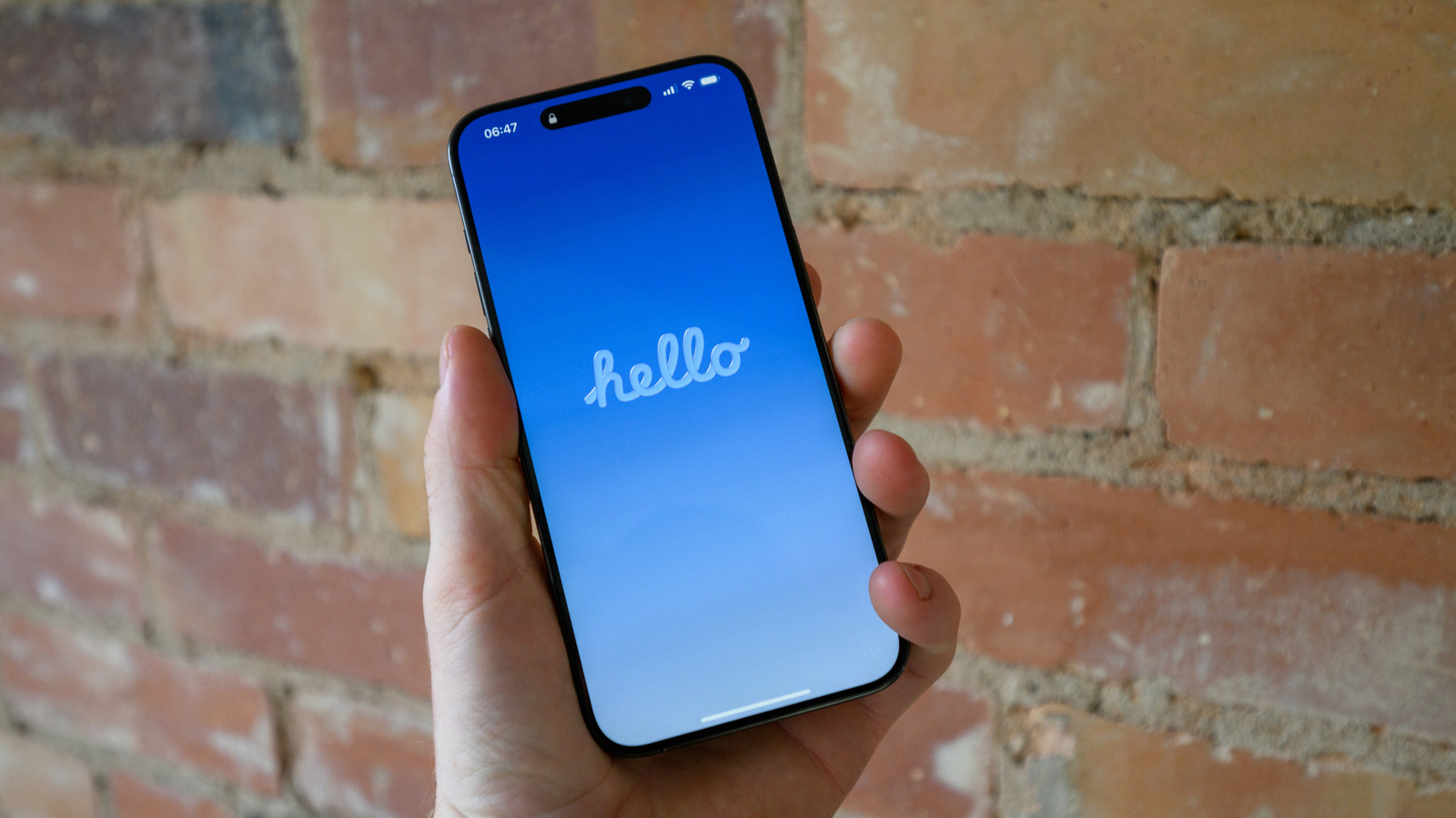
Before taking a misbehaving iPhone in for repairs, it's worth trying some basic troubleshooting at home. There's long been disagreement in the tech community over what exactly counts as a "soft" versus "hard" reset — some define it as a simple restart versus a full factory wipe, while others distinguish based on whether the restart was done through the menu or by cutting power. For clarity, it helps to think of three separate steps: restarting, soft resetting, and hard resetting.
Restarting
A basic restart is often the best first troubleshooting step, clearing the device's memory and shutting down problematic processes without losing any data. If the usual button combination doesn't bring up the power slider, a forced restart can be triggered by quickly pressing and releasing the volume up button, then the volume down button, and finally holding the side button until the Apple logo appears — which can take more than 10 seconds.
Soft reset
This clears all settings without erasing any data. It resets network settings such as Wi-Fi and Bluetooth, Apple Pay cards, app and website permissions, display and sound settings, and learned keyboard words. It's done through Settings, General, Transfer or Reset iPhone, and Reset, where users can choose a full settings wipe or reset only a specific category, such as network settings.
Hard reset
As a last resort, or when preparing to give away a device, a full factory reset erases all data on the iPhone. It's recommended to back up the device via iCloud beforehand. The process is done through the same menu, selecting Erase All Content and Settings, choosing whether to keep or delete the eSIM, and entering the passcode and Apple Account password to complete the wipe.