How to Customize Your Android Auto Display to Fit Your Driving Habits
The look and layout of Google's in-car system Android Auto can be changed from both the phone and the car screen. Each adjustment takes only a few minutes.
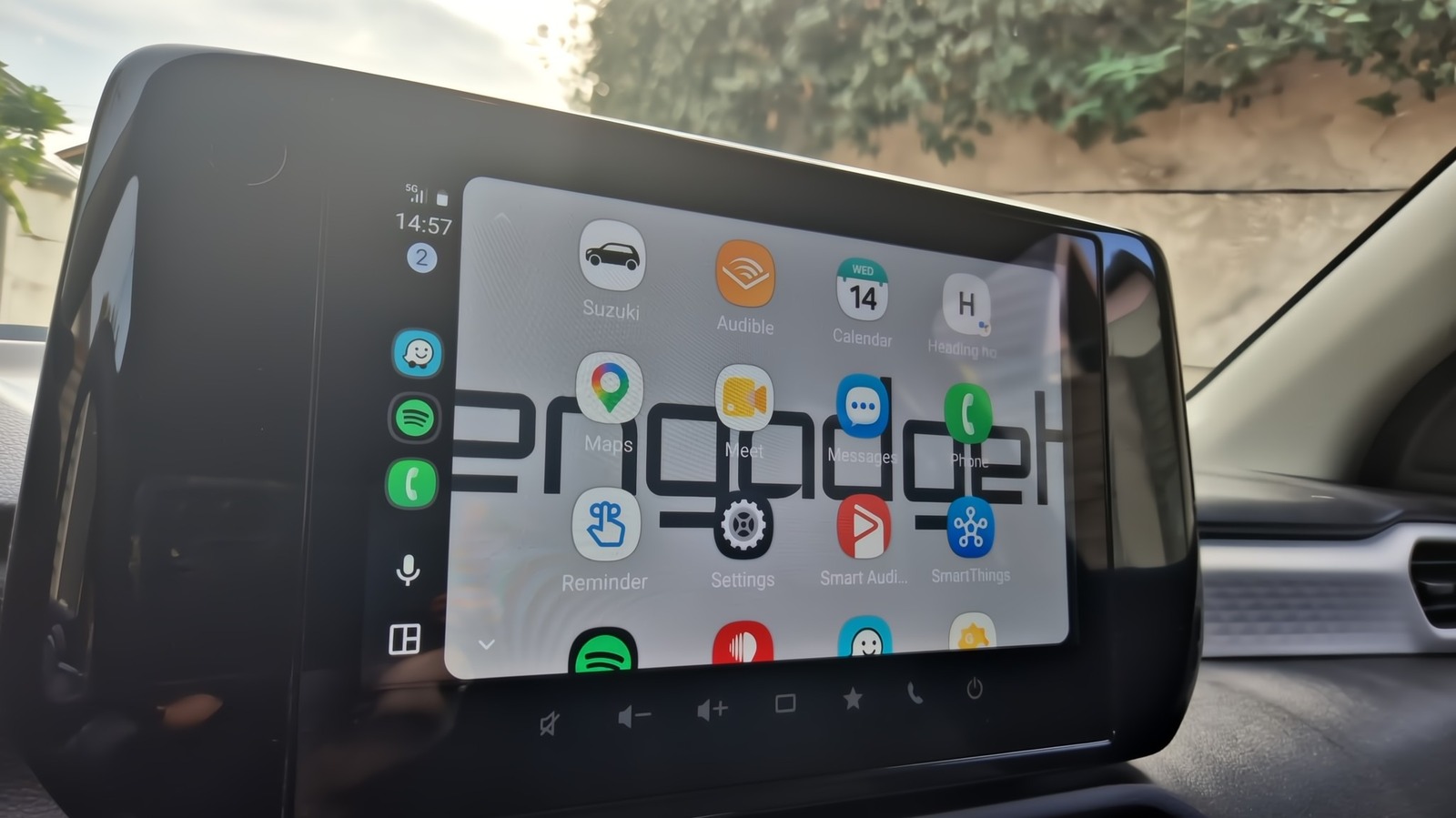
Android Auto, Google's system that shows phone apps on a car's infotainment screen, offers more customization than many drivers realize. Most people keep the default setup, even though the display can be rearranged to match personal habits, according to technology outlet Engadget.
Customizing the launcher
Most settings are available on the phone. Open Settings > Connected devices > Android Auto and choose Customize launcher. There you can pick which apps to show or hide and drag them into a different order. For example, the music app Spotify can be placed within easier reach, while less-used apps such as Reminder or Weather can be moved down. Hiding an app only removes it from the car screen; it stays installed on the phone.
The same page lets you add a shortcut that calls a contact or triggers an Assistant action. The author describes a setup in which the Gemini assistant, with one button press or a voice command, starts navigation home, checks the estimated arrival time and texts her husband. She has also told the assistant her best friend's name, so she can place a call by voice instead of searching through contacts.
Layout and wallpaper
Under Change layout, you can choose whether the map or the media player sits closer to the driver. For those who rely on turn-by-turn navigation, keeping the map nearby reduces the time eyes are off the road. For those who prioritize podcasts and playlists, the opposite arrangement may suit better. Both are worth testing, since wider screens handle split layouts better.
The wallpaper can only be changed from the car screen: in Android Auto settings, turn on Use Phone's Wallpaper and the background will match the phone's. Years ago, users could choose from wallpapers preloaded by Google.
Other settings
In the Maps section, day or night mode can be forced on the map; by default the system switches between them based on ambient light and time of day. In the Startup section, automatic media playback when driving begins can be switched off.