How to customize your Apple CarPlay display and settings
Apple CarPlay offers several ways to personalize the interface, from changing the appearance and wallpaper to rearranging apps and widgets. Here are the key options to make it work better for you.
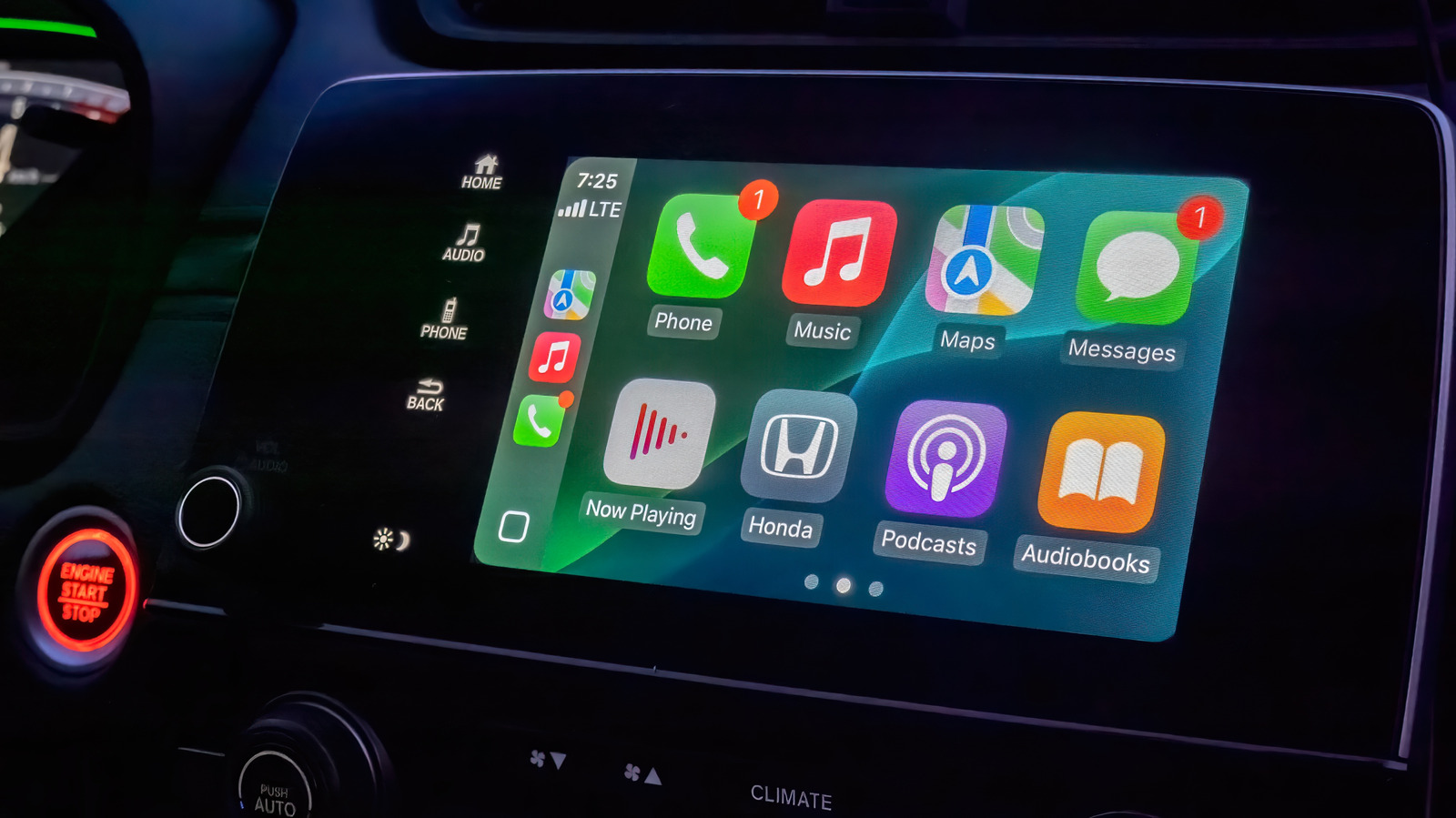
For drivers whose vehicles support Apple CarPlay, the feature can be a major quality-of-life upgrade, putting navigation and media controls right on the car's screen instead of requiring a phone mount. CarPlay's interface is built around large, easy-to-read text and buttons, and with iOS 27, Siri is receiving a significant overhaul, which should make hands-free interaction more reliable while driving.
By default, CarPlay uses dark mode so the screen doesn't become distracting in low light. If that makes it harder to read during the day, you can switch to light mode or choose the Automatic option, which toggles between light and dark depending on ambient conditions. These settings are found in the CarPlay Settings app under Appearance.
The same place is where you can change the wallpaper, under Settings > Wallpaper. Apple provides several designed backgrounds with different colors and patterns, though you cannot use a custom image from your phone. The Settings > Customize Icons menu lets you choose a dark icon pack or go with the clear icons that follow Apple's Liquid Glass design language. There is also an Accessibility submenu where you can adjust the text size.
One of the most useful ways to personalize CarPlay is rearranging the apps on its home screen. Unlike the previous options, this is done on the iPhone: go to Settings > General > CarPlay, pick your vehicle, then tap Apps. You can reorder the list to put frequently used apps on the first page or remove ones you don't need. A few default apps cannot be deleted, but you can drag them to the bottom. Remember that the size of your car's display determines how many apps appear per page.
Widgets were added to CarPlay with iOS 26 and live on a separate page, which you access by swiping right from the main dashboard. Depending on how wide the screen is, you will see one or more stacks of widgets. By default, CarPlay shows suggested ones like a clock, calendar, media player and weather. To make better use of the space, go to the CarPlay settings on your iPhone, enable Show Widgets, and then add or reorder widgets in each stack. What is available depends on which apps you have installed.


