How to Help Your Smart Speaker Understand Your Voice Commands
Smart speakers don't always interpret commands correctly, but placement and settings changes can often fix the problem. Engadget has compiled tips for Amazon Echo, Google Home and Apple HomePod users.
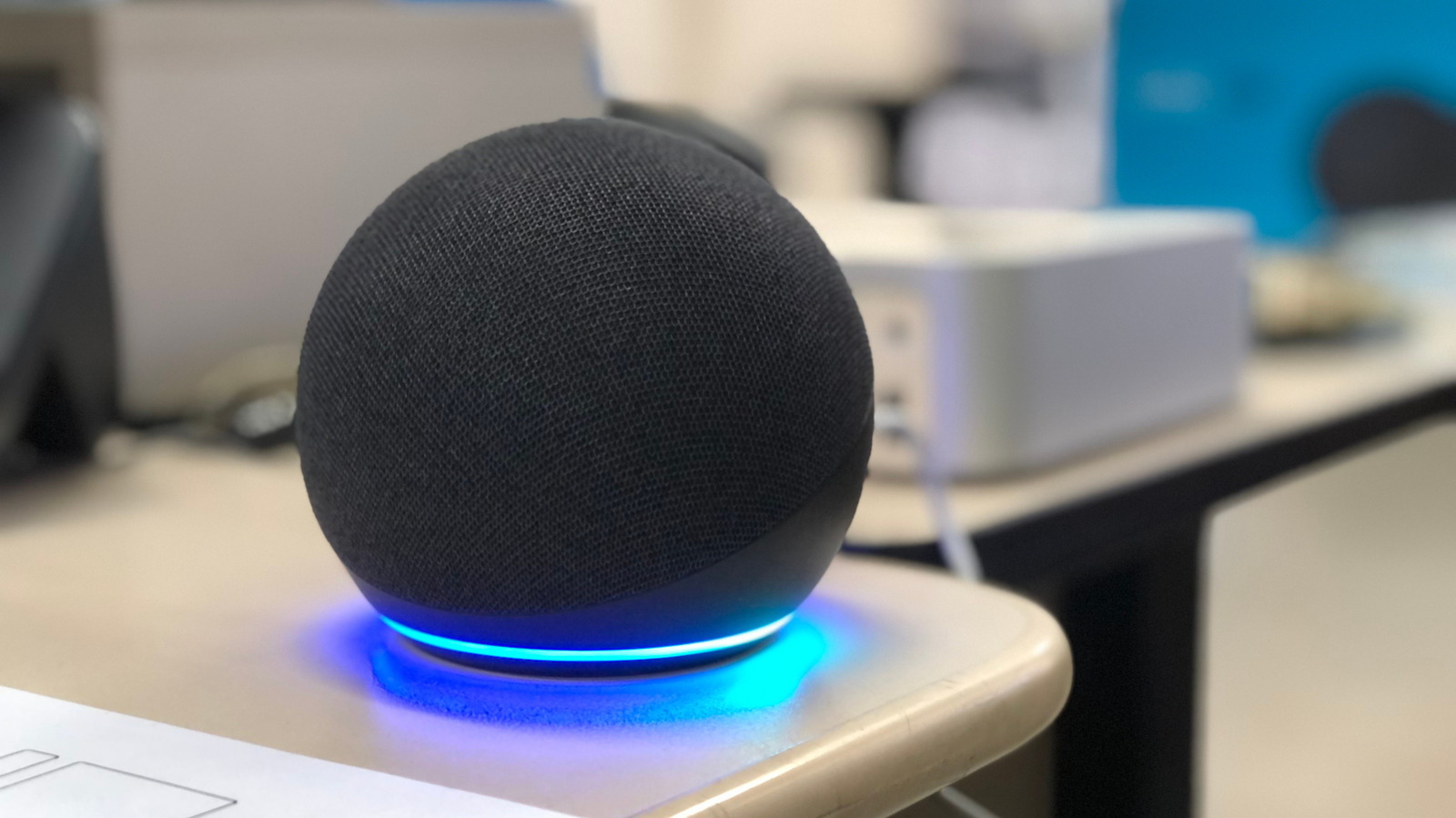
Smart speakers such as the Amazon Echo (with the Alexa assistant), Google Home and Apple HomePod do not always understand voice commands correctly. Causes include how far you are from the device and noise in the home. Technology outlet Engadget has put together a set of fixes to improve how these devices respond.
General fixes
Start by wiping the speaker with a dry cloth if dust or grime has built up. If that doesn't help, try moving it to another spot or another room. Background noise, echo and distance from the speaker can all make a big difference. Keep it away from fans and surround-sound speakers, and at least one foot (about 30 centimeters) from walls.
If you have several units at home, the one handling your request may not be the closest. When the app allows it, lower the sensitivity of the problem speaker. On Echo devices, the wake word can be changed per device. Devices can also be placed farther apart. After making changes, test a few commands. Also check that the speaker is actually able to carry out the command, and speak clearly and briefly.
Linked smart home devices should have unique names, since similar names can cause one to be mistaken for another. Each room should also have a clear label in the home app.
Platform-specific settings
The most effective change is setting up voice recognition. On Echo, open the Alexa app and go to More > Settings > Account Management > Your Profile > Voice ID. For Google speakers, open the Google Home app and go to Settings > Google Assistant > Voice Match; up to six voices per home can be registered. On HomePod, open the Home app, go to Home Settings, open your user profile and turn on Recognize My Voice. For smoother use across Apple devices, enable Siri under iCloud in your phone's settings.
If nothing helps, restart the speaker by unplugging it for a minute. For a serious problem, a factory reset is possible, but it erases all custom settings, so it should be a last resort.