Why Windows 11 always seems to be using so much RAM
Windows 11 often shows most of a PC's memory in use even with few apps open, but this is usually by design rather than a problem, since the system fills spare RAM to speed things up. High memory use only signals trouble if it comes with slowdowns, crashes, or low-memory warnings.
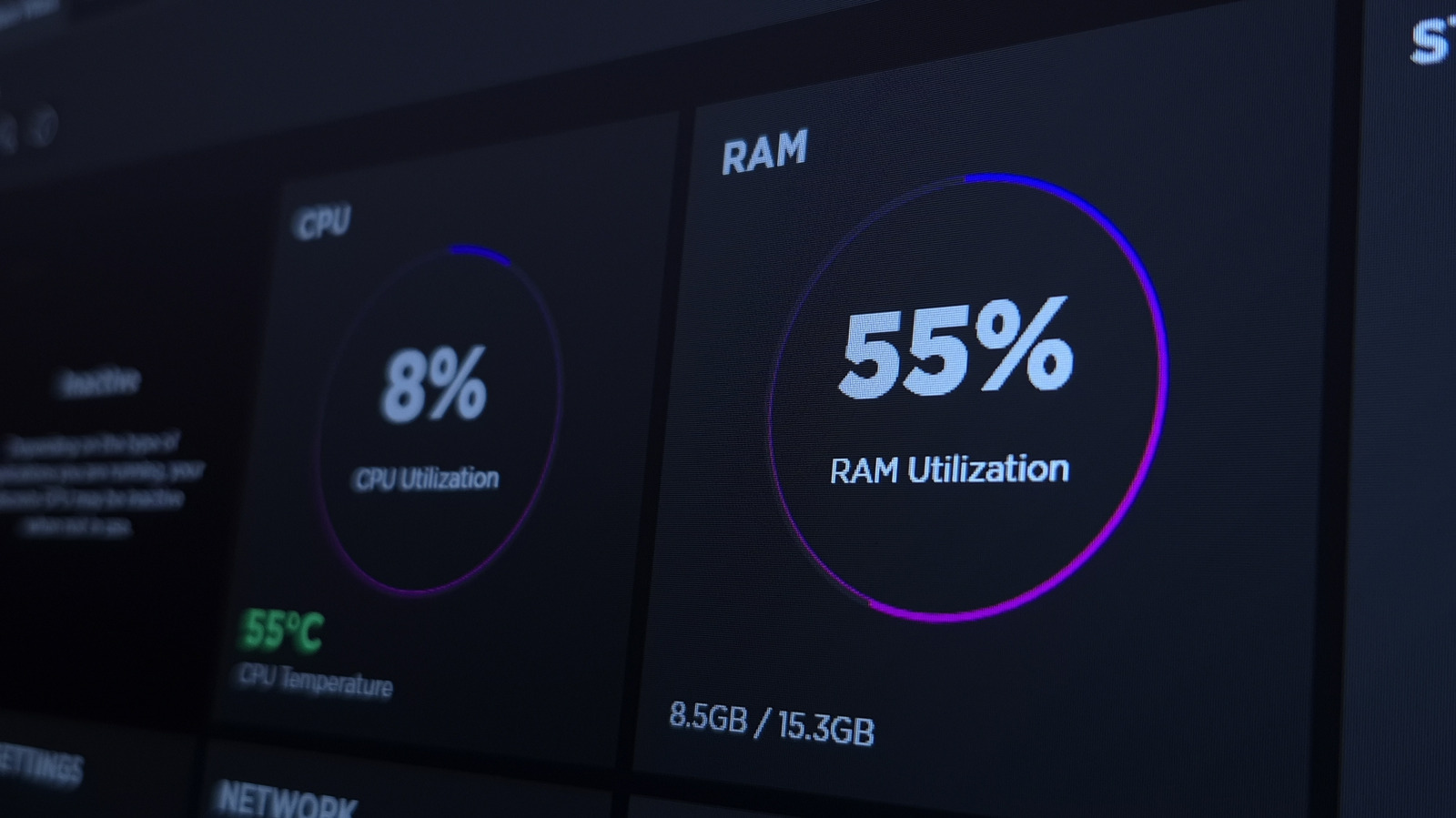
Many Windows 11 users who open Task Manager are surprised to see more than half of their RAM in use even when only a handful of apps are running. While this can look alarming, in most cases it isn't a real issue — it reflects how the operating system now handles memory.
A shift in memory management
Older versions of Windows used only as much RAM as open programs required. Modern Windows instead treats unused memory as wasted potential, preloading apps and files a user is likely to need soon. This work is handled by a background process called SysMain (known as SuperFetch in earlier Windows versions), which learns usage patterns and keeps frequently used programs cached in standby memory. As a result, those apps open noticeably faster than if they had to be loaded fresh from a hard drive or SSD.
How to check what's really going on
To see whether memory use is actually a concern, users can open Task Manager with Ctrl+Shift+Esc, go to the Performance tab, and select Memory. The key figure to watch is "Available" rather than "In use," since cached data still counts as available — Windows can reclaim it instantly when needed. The more RAM a PC has, the more the system can dedicate to this kind of caching.
When heavy RAM use is a genuine problem
If a computer starts running slowly, apps crash, or Windows displays low-memory warnings, something else may be at fault. In that case, checking the Processes tab to close memory-hungry apps, disabling unnecessary startup programs, and restarting the PC to clear memory leaks are recommended steps. Third-party "memory cleaner" tools are generally not worth using, since forcing data into the page file can make a system slower rather than faster. Disabling SysMain entirely is possible via the Services manager, but it's only advisable on older machines with mechanical hard drives that struggle with constant preloading. For systems still running with 8GB of RAM or less, upgrading to 16GB or more remains the most effective long-term fix.