What Apple's Image Playground app is and how to use it
Apple's Image Playground app uses Apple Intelligence to generate images and Genmoji on the device. The latest version, available with iOS 27, lets users describe any visual style and edit images by touch.
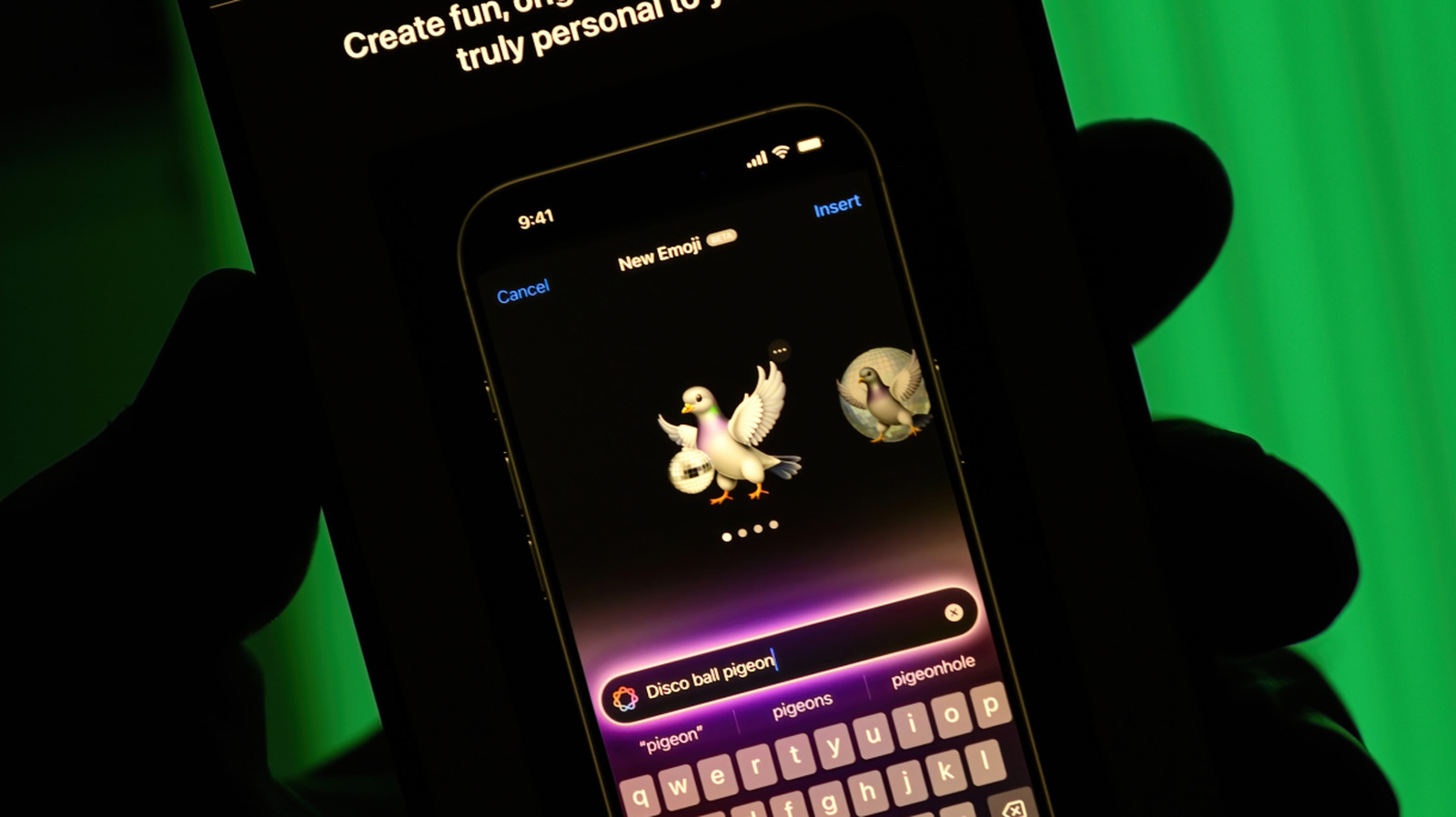
Image Playground is Apple's image generation app, letting iPhone, iPad and Mac users create their own pictures from a text description. The app runs on Apple Intelligence, the company's artificial intelligence system, and has received an update with the iOS 27 release.
What it is
Apple launched Image Playground in December 2024. Images are generated on the device itself and can be saved, shared or turned into Genmoji, which are personalized emoji made with Apple Intelligence. The feature is also built into several Apple apps, such as Messages, Keynote and Freeform, so opening a separate app is not required.
Using it requires an iPhone 15 Pro or Pro Max, or an iPhone 16 or later, with Apple Intelligence turned on. It also works on iPads with an M1 chip or newer, on the iPad Mini (A17 Pro), and on Macs with at least an M1 chip.
What is new in iOS 27
The most notable change is the ability to describe the desired visual style in natural language. Earlier versions offered only a few preset styles, such as illustration, while the new "Any Style" option lets users specify virtually any approach.
Existing images can also be modified by touch and natural language. If someone asks for a picture of a cabin, for example, they can select the door with a finger and ask for it to be changed to red, or move the selection around. The update also adds the ability to create Contact Posters and Lock Screen wallpapers.
How to use it
An image can be started by typing a description into the prompt box. A menu of styles, such as animation and sketch, is also available. Choosing Genmoji lets users save the creation alongside their other stickers and use it like an emoji.
Near the prompt box, users can tap the figure of a person and pick a face from their photos, for instance to depict themselves as an astronaut. Next to it is a button for using a photo they have taken as the basis for the image. Below the image, additional prompts or the touch feature can be used for tweaks, and the finished result can be sent with the Share button.