Which USB Port Should You Use for Your Mouse and Keyboard?
To save high-speed ports for more demanding devices, mice and keyboards should be plugged into the slowest USB 2.0 ports available.
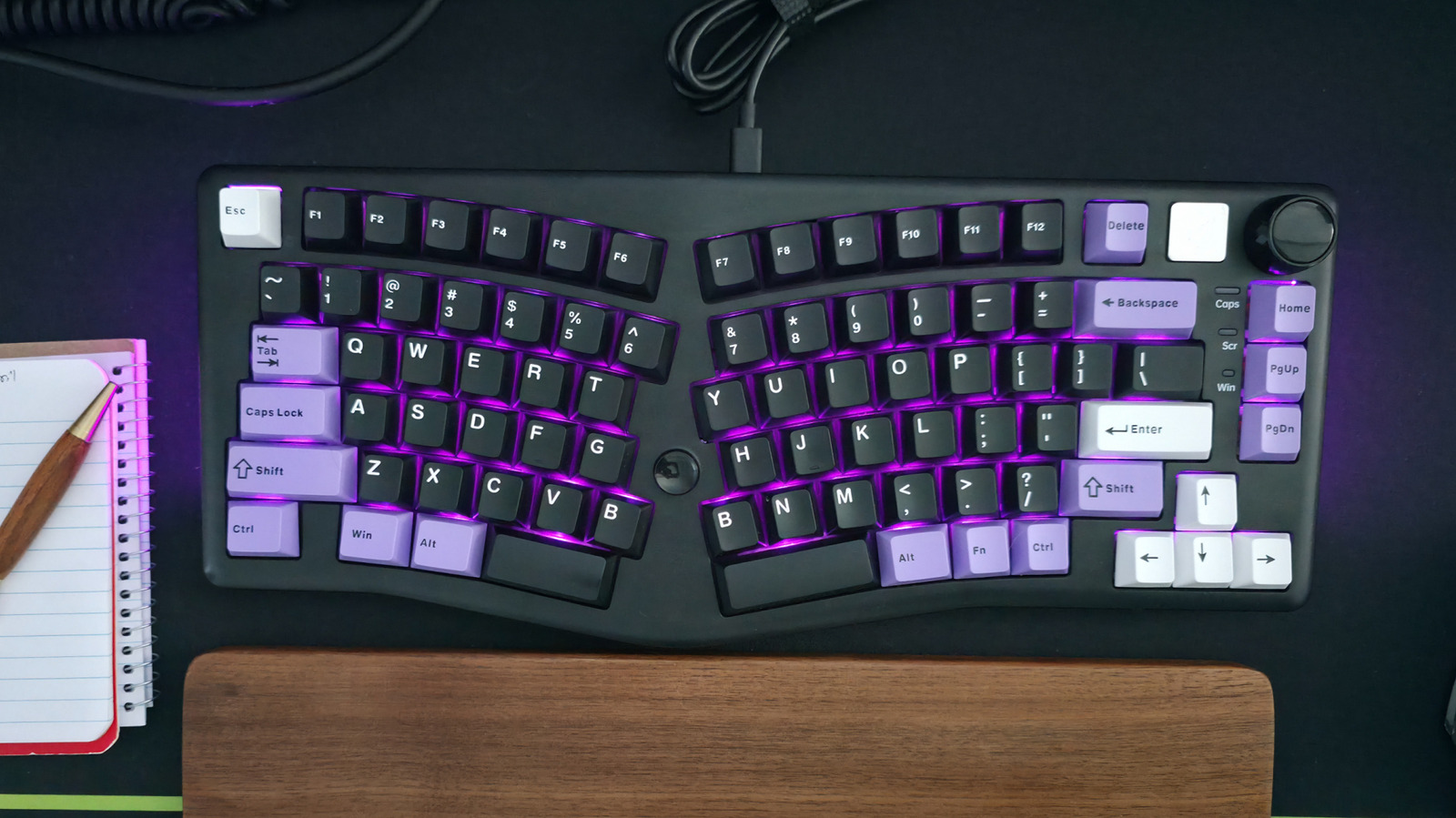
Setting up a computer can be complicated, but even plugging in USB peripherals like a mouse and keyboard requires some technical knowledge. Not all USB ports are equal—some are high-speed USB 3.2 Gen 2x2 or USB4, while others are low-speed USB 2.0. Mice and keyboards are the least demanding peripherals, needing very little bandwidth. While any port will power them, using the wrong one leaves fewer options for devices like portable SSDs, external monitors, or USB hubs.
To keep high-speed ports free, connect your mouse and keyboard to open USB 2.0 ports. Those fast ports should be reserved for flash drives, SSDs, and other storage that require full port capabilities for best performance.
There are caveats. If you use a USB-C hub or dock and plan to connect storage devices as well, plug the hub into a high-speed port. If the hub has multiple port types, connect the mouse and keyboard to the slower ones. If your computer has both USB Type-A and Type-C ports, the USB-C ports are likely faster. So if your mouse or keyboard uses USB-C, consider using a USB-C-to-USB-A cable.
Finally, if your keyboard has a built-in USB hub with USB 3.x ports, connect the keyboard to a high-powered port on your computer to support devices plugged into it. If you only plan to run a mouse through the keyboard, a lower-spec port may suffice—choose the arrangement that best fits your use case.