How to use Gboard to boost productivity on your Android phone
Google's Gboard keyboard app has several less obvious features that make typing and text handling easier on Android devices. They include a clipboard, keyboard resizing and a special mode for physical keyboards.
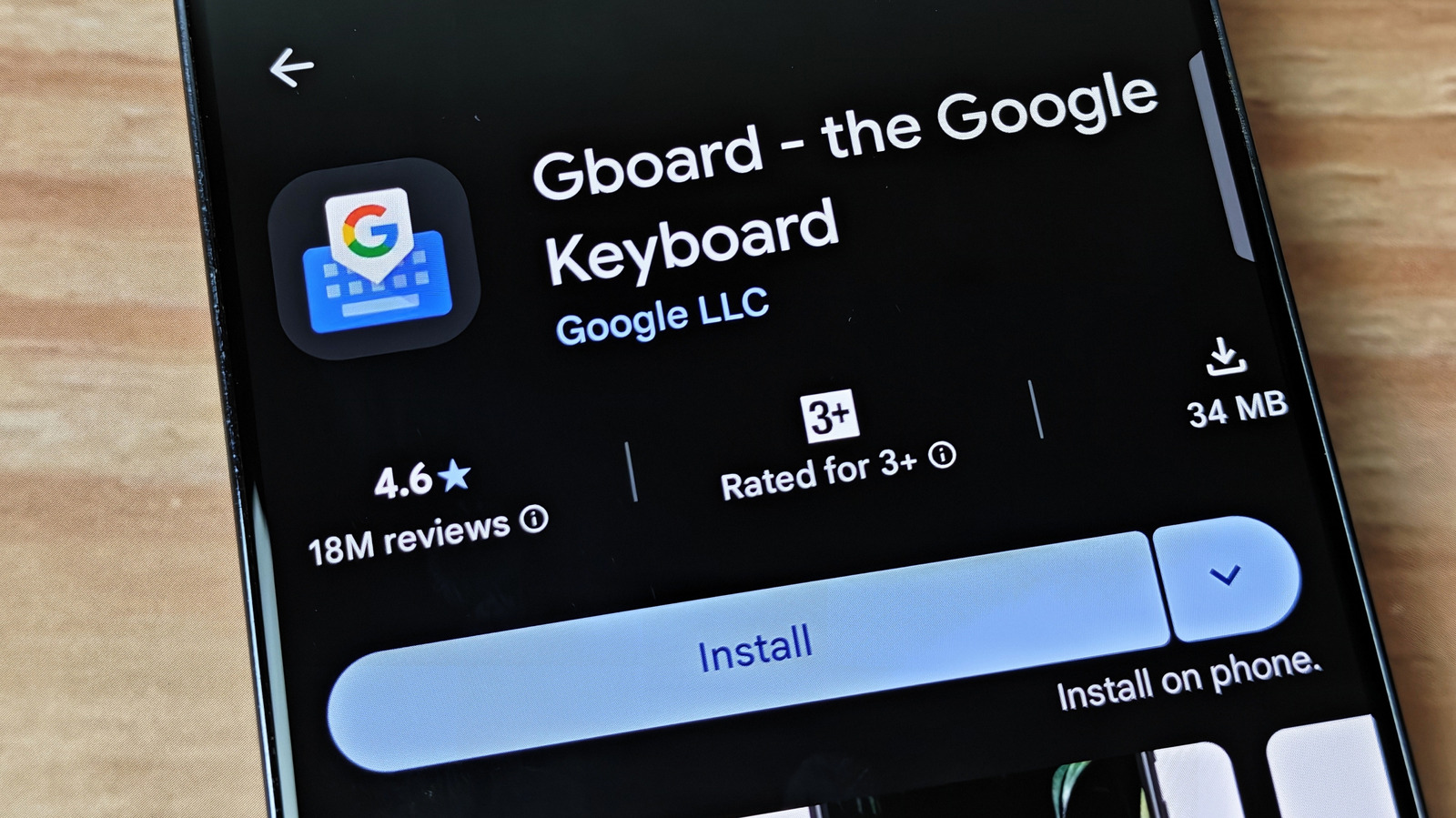
Android has long let users replace the keyboard preinstalled on their phone with another developer's app. In a guide by the technology site Engadget, Google's own keyboard, Gboard, is described as widely regarded as the best option on the platform. It comes installed by default on Google's Pixel phones and on devices from several other brands, while some makers, such as Samsung, ship their own keyboards. Many of its useful features are hidden away and can be switched on within seconds.
Clipboard
One of the most impactful changes is turning on the clipboard, which is disabled by default for security reasons. Android normally lets you paste only the last item you copied or cut, whereas Gboard's clipboard keeps several, including images. Items are removed after an hour, but they can be pinned to stay permanently, for example an email sign-off. The guide warns that a password copied from a password manager will remain on the clipboard for an hour unless deleted manually, so there is some risk, though for most people the benefits outweigh it. Clipboard sync with other devices is provided by programs such as Microsoft Phone Link or KDE Connect.
Resizing, floating and one-handed mode
Gboard lets users change the keyboard's height, raise it on the screen and, on tablets, move it horizontally. Floating mode detaches the keyboard from the bottom of the screen so it can be moved freely as an always-on-top window. One-handed mode pushes all the keys toward one side of the screen, and a button swaps the side.
Settings
The settings let users change the touch-and-hold duration (the author uses 200 milliseconds) and the keypress vibration length (the author uses two milliseconds). The comma and period keys can also be enabled on the main layout.
Physical keyboards
When Gboard detects input from a physical keyboard, the on-screen keyboard disappears and is replaced by a narrow strip with text and emoji suggestions. A suggestion can be accepted by pressing Alt together with 1, 2 or 3. The strip can be turned off under Physical keyboard by switching off Show toolbar.