How to use Windows' built-in RAM diagnostic tool
Windows includes a pre-installed tool for checking whether a computer's RAM is functioning correctly, though finding the test results afterward requires a few extra steps. The utility can help identify hardware issues behind crashes, slowdowns or the Blue Screen of Death.
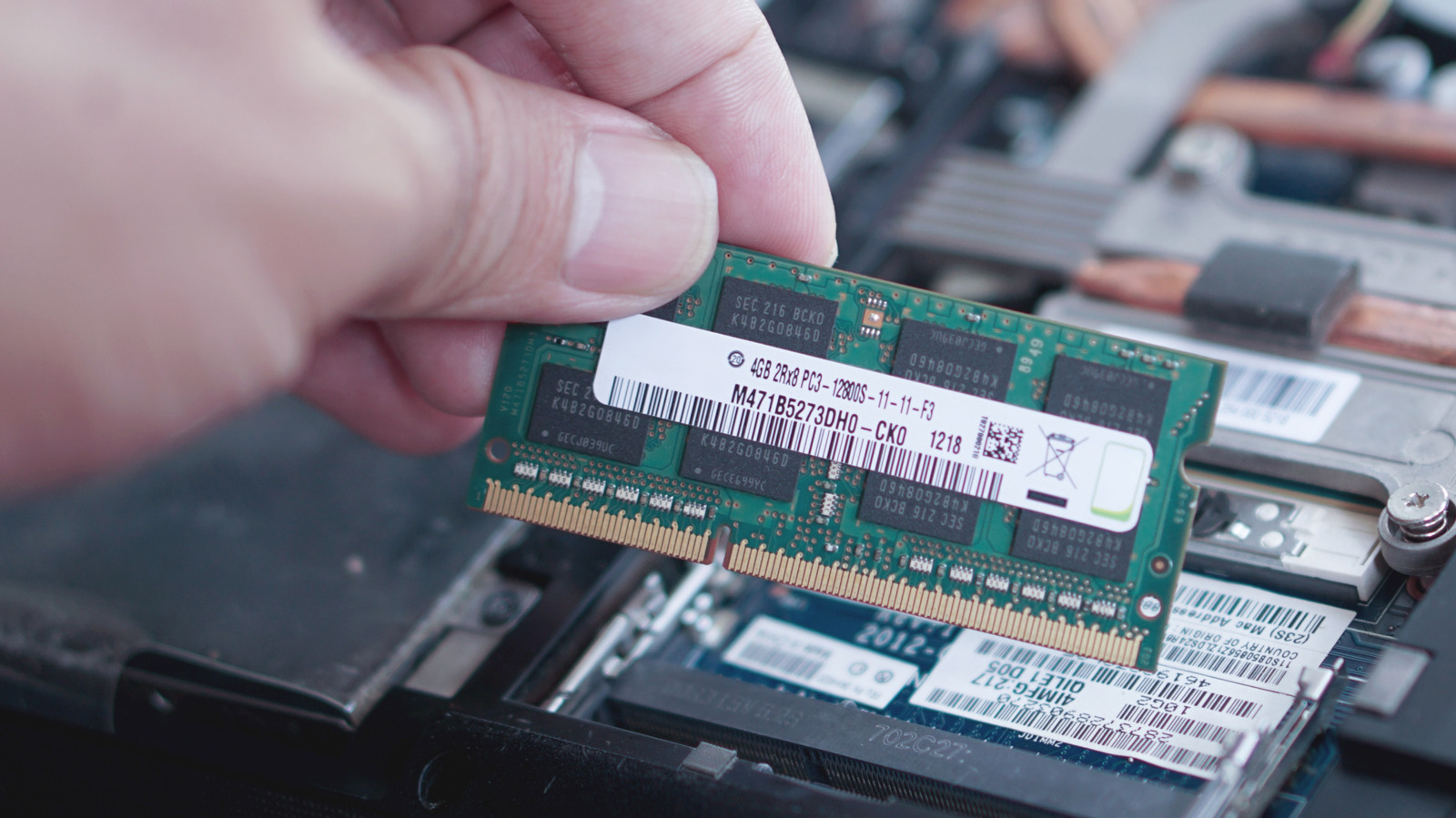
Random access memory, or RAM, temporarily holds data that a computer's processor needs quick access to, unlike an SSD or hard drive, which stores apps, files and the operating system itself. When RAM starts malfunctioning, it can trigger performance problems, application crashes, unexpected restarts and the dreaded Blue Screen of Death.
Rather than visiting a repair shop, users can turn to Windows Memory Diagnostic, a built-in utility that tests whether RAM can reliably store and retrieve data. It works by repeatedly writing information to memory and reading it back, flagging any mismatches that could point to a hardware fault.
Running the test
Because the test needs to run outside the normal Windows environment, it's best to save any open work beforehand. The tool can be launched by searching for "Windows Memory Diagnostic" in the Start Menu, or by pressing Windows+R and typing mdsched.exe. Selecting the restart-and-check option reboots the computer and starts the scan automatically.
During the test, pressing F1 opens options to choose between Basic, Standard and Extended test modes, with Extended being the most thorough but slowest. Users can also increase the number of test passes, up to 15, for a more rigorous check. Once finished, the computer restarts normally, though results don't always appear automatically on login.
Finding the results
To view the outcome, users need to open Event Viewer, expand Windows Logs, then System, and filter the log to show only entries from MemoryDiagnostics-Results. The relevant entry will state whether no errors were found or whether hardware problems were detected.
Even a clean result doesn't fully rule out memory issues, so it may be worth rerunning the test using the Extended mode with multiple passes. If problems are detected, users can try testing individual RAM sticks separately, or disable XMP or EXPO memory profiles in the BIOS, since these can sometimes push RAM beyond its rated specifications and cause instability.


