How to check your PC's hard-drive or SSD health
Windows offers several built-in tools to check the health of a hard drive or SSD, though free third-party utilities can provide a fuller picture. Regularly backing up data remains the most important precaution against sudden drive failure.
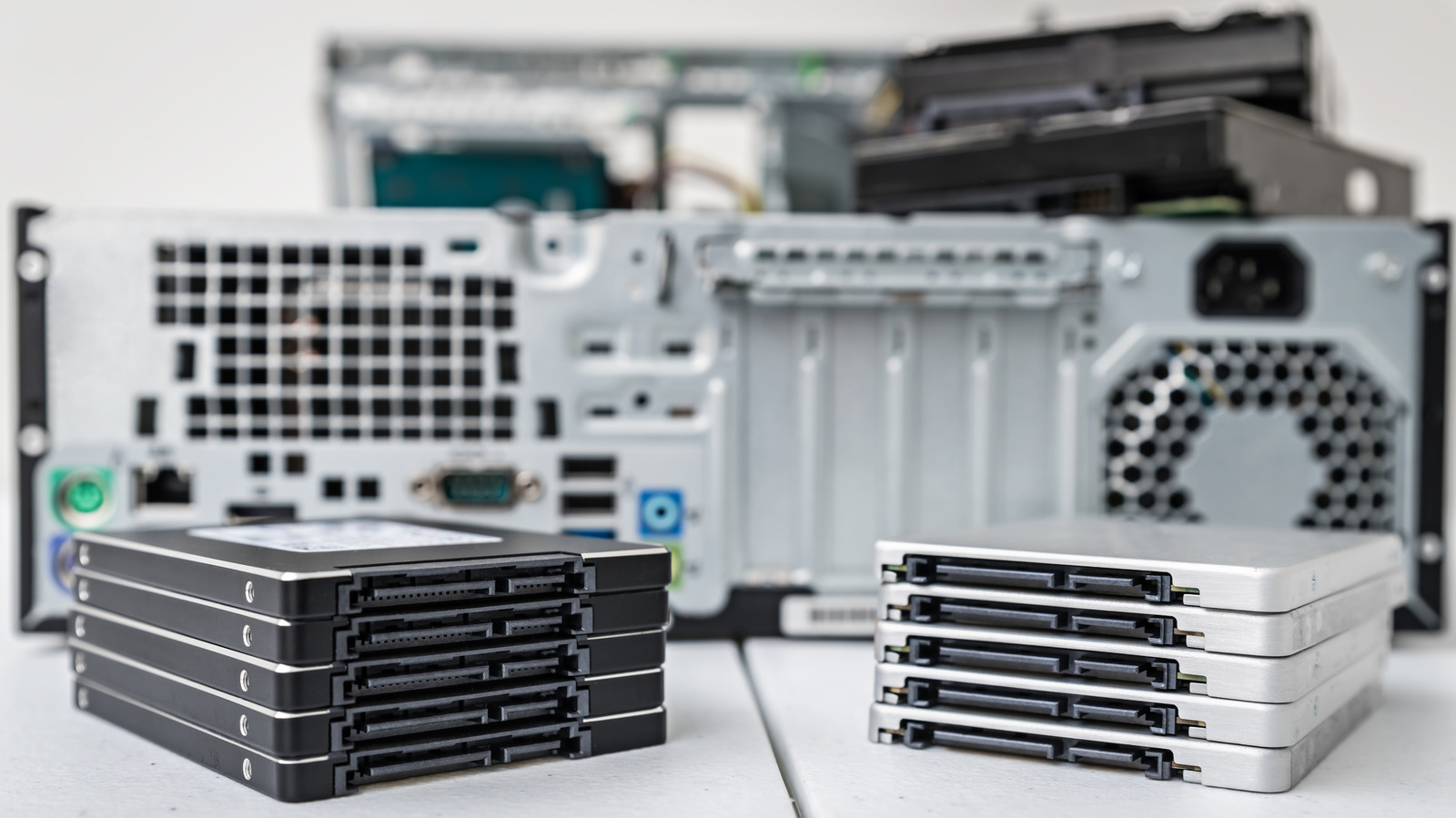
Storage drives rarely give clear warning before they fail. Traditional hard drives sometimes produce clicking or grinding noises beforehand, but SSDs have no moving parts and can fail silently. Warning signs include corrupted files, unusually slow performance, frequent read or write errors, crashes, or a drive that intermittently disappears from Windows. Anyone noticing these symptoms should back up important files immediately, before running further diagnostics.
Built-in Windows tools
In Windows 11, users can check drive health by opening Settings, selecting System, then going to Storage > Advanced storage settings > Disks & volumes, and viewing a drive's Properties. For supported NVMe SSDs, this shows estimated remaining life, available spare capacity and temperature, along with alerts for low spare capacity or reduced reliability. However, Microsoft notes this monitoring does not cover SATA SSDs or traditional hard drives, so a lack of data there doesn't mean a drive is fine.
A quicker check is available through PowerShell using the Get-PhysicalDisk command, which reports a HealthStatus of Healthy, Warning, Unhealthy or Unknown. The older wmic diskdrive get status command is no longer valid, since WMIC has been removed from currently supported versions of Windows 11.
Interpreting the results
A Healthy status combined with normal performance is reassuring, but backups should continue regardless, since these systems catch only some potential failures. For a second opinion, the free tool CrystalDiskInfo reads SMART data from many HDDs and SSDs and assigns a simple status: Good, Caution, Bad or Unknown. A Caution or Bad result makes backing up the top priority, and the issue can be further verified with manufacturer tools such as Seagate's SeaTools or Samsung Magician. Persistent warnings, an Unhealthy status or clear mechanical noises are good reasons to stop relying on that drive and consider replacing it. CHKDSK remains useful for a different purpose: fixing file-system errors and locating bad sectors, though correcting such errors doesn't make questionable hardware healthy again.