How to fix an Android app that keeps crashing
Several simple troubleshooting steps can resolve an Android app that repeatedly crashes, ranging from checking for updates to installing an older version. Most crashes stem from buggy app updates rather than the device itself.
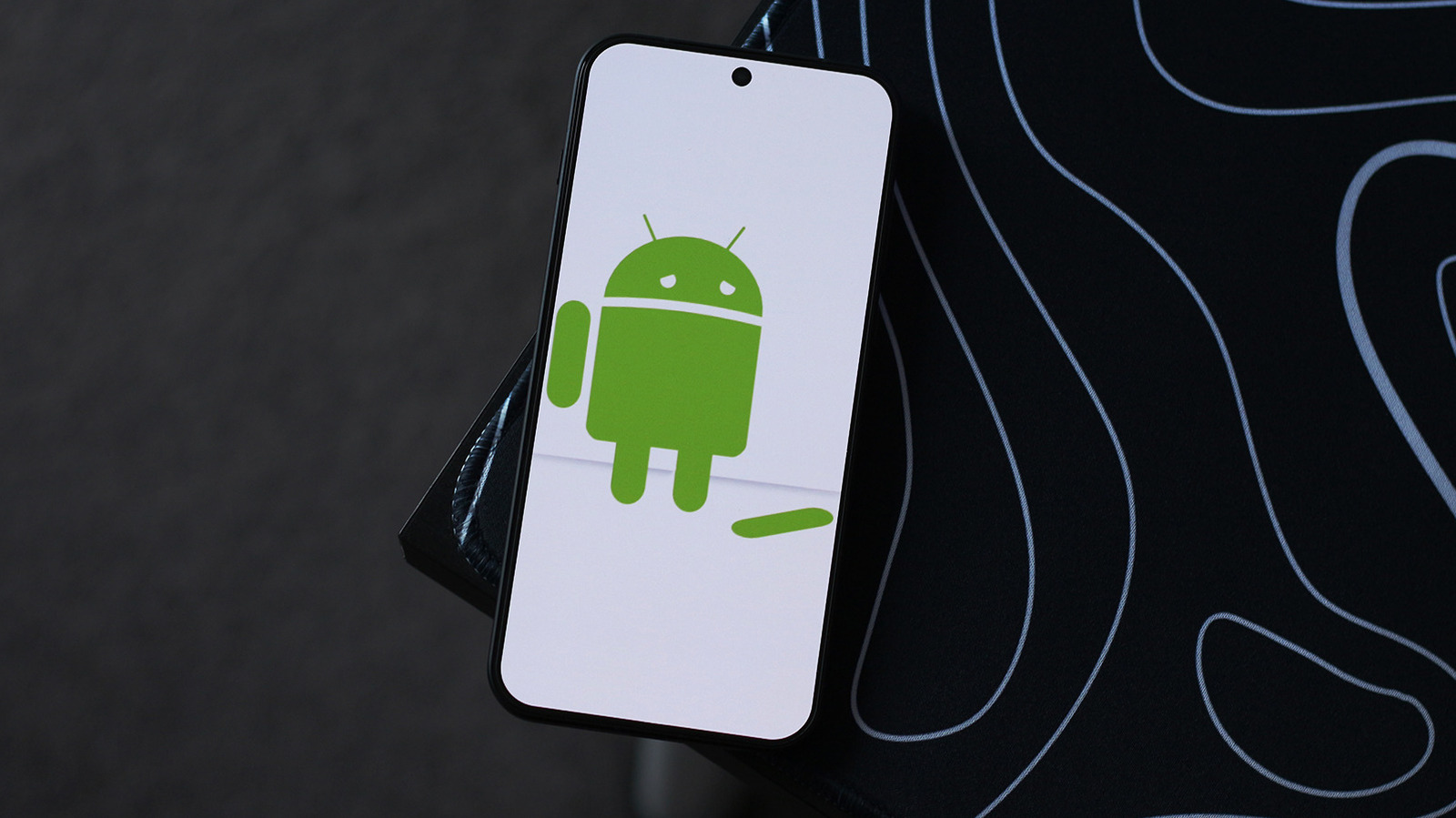
When an Android app starts behaving oddly or closing unexpectedly, the first thing to check is the Google Play Store, since most crashes are traced back to flawed software updates rather than a hardware issue. From the profile menu, users can access the app and device management section to see if a pending update is available for the problematic app.
Clearing cache and data
If no update is waiting, the next step is opening the app's info page, either by long-pressing its icon and tapping the info symbol, or by finding it in the settings menu's list of installed apps. From there, clearing the app's cache removes temporary files that may have become corrupted, after which force-stopping and relaunching the app can help.
If that doesn't resolve things, users can clear the app's data entirely, or uninstall and reinstall it from the Play Store. This wipes locally stored information such as login credentials and files, so anyone without cloud backup enabled should set it up before removing the app.
Restarting and system updates
A simple device restart can sometimes fix persistent issues as well, as can checking whether the phone's own software has pending updates, which may resolve system-level bugs contributing to crashes.
Installing an older version
If problems persist, an older, more stable version of the app can be sideloaded from outside sources, though this requires enabling developer mode in settings and should be treated as a temporary workaround until the developer releases a proper fix. Using the app's web version in a browser is another option in the meantime.