What to Do When Your MacBook Doesn't Recognize a USB Device
When USB accessories aren't detected on Apple's macOS computers, the cause may be permissions, power, cables or ports. Most problems can be fixed with simple steps.
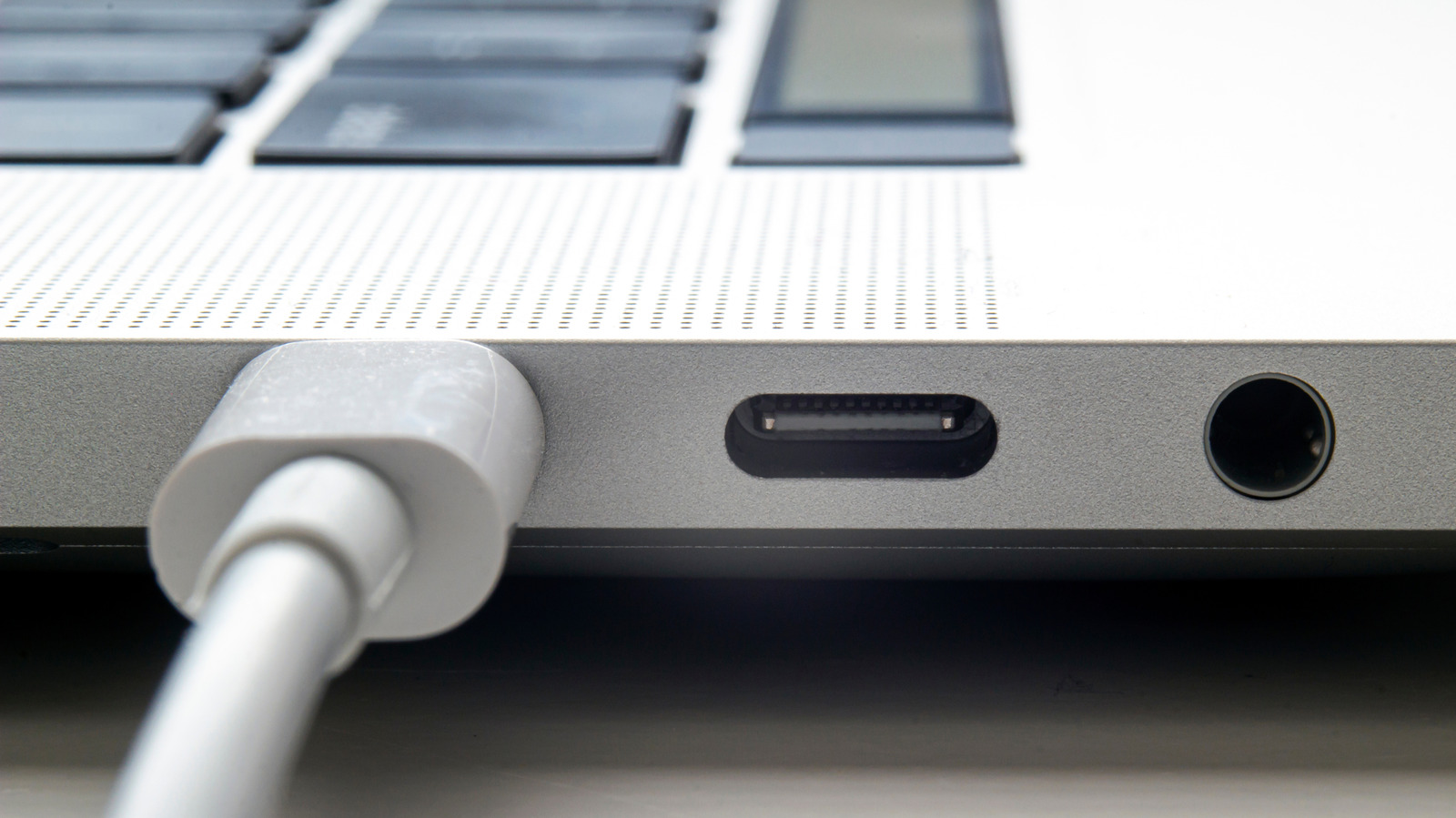
Users of Apple's MacBook laptops sometimes find that the macOS operating system fails to detect a connected USB device. Technology site Engadget has rounded up the known causes and fixes, ranging from security settings to damaged cables.
Start with permissions
By default, macOS asks the user to approve a new accessory before it can connect. The aim is to prevent malware from being injected. If a permission prompt is rejected by accident, the device will not transfer data, although charging should still work. The prompt can usually be brought back by unplugging the device and plugging it in again.
The setting can be changed under Apple menu > System Settings > Privacy & Security, in the Accessories section, which offers three options: ask for new accessories, automatically allow when unlocked, or always allow. The third option is advised only if the user is always near the computer or in a very secure environment.
Checking and power
To see whether the system detects the device at all, hold down the Option key and open Apple menu > System Information. If the accessory is listed under Hardware, the manufacturer's online support information is the next place to look. If it isn't visible, or an error message appears, power may be the problem. Some accessories need more than a Mac's USB port can supply and may require a separate power cable. Users can try other ports or connect directly instead of through a hub or dock. If power warnings persist, Apple tech support should be contacted.
Other possible causes
Hubs and docks often need their own power supplies, and chains of devices can lose the signal. The authors cited a case where a wireless mouse receiver didn't work through a Thunderbolt dock until it was plugged straight into the laptop, while an SSD on the dock worked fine.
Users should also make sure macOS is up to date (System Settings > General > Software Update) and that the latest manufacturer software is installed if a device relies on it. External cards and drives must use a macOS-compatible file system format: APFS, FAT or ExFAT.
Finally, check that the cable suits the device's power and data needs and that neither cables nor ports are damaged or clogged. Lint and bent pins can block operation; dust can be cleared with an air can or a soft-tipped tool. A damaged cable should be replaced, especially if it shows browning or exposed wires, which signal a fire hazard.