What is USB tethering and how to enable it
USB tethering lets a computer use a phone's cellular connection over a cable, offering a stable and less visible connection. Here's how to set it up on Android and iPhone, and what to keep in mind.
Most people share their phone's internet by turning it into a wireless hotspot. A wired alternative, USB tethering, connects the phone directly to a computer via USB cable, allowing the computer to use the phone's mobile data. This approach can be useful when you want greater stability or don't want to broadcast a visible Wi-Fi network.
Why choose USB tethering?
For everyday use, a Wi-Fi hotspot is still the easiest option. It supports multiple devices at once and lets you move the phone around freely. But a USB connection can be less prone to interference, which helps in busy places such as airports or convention centers. Also, since the connection is wired, it doesn't create a visible network for others. As a bonus, the phone may charge during the connection.
Setting up USB tethering on Android
One important limitation: Android phones cannot USB tether to a Mac. In that case, use a Wi-Fi hotspot instead. Other combinations work, including Android to Windows and iPhone to either Mac or Windows. For iPhone to Windows, you may need to install the Apple Devices app or iTunes for Windows from the Microsoft Store. On an Android phone, connect it to a Windows PC with a USB cable. Then open Settings > Network & internet > Hotspot & tethering (on some devices, Settings > Connections > Hotspot & tethering). You can also swipe down to open Quick Settings and press and hold the Hotspot icon. Activate USB tethering. If the option is grayed out, make sure you have a data-capable cable, not a charge-only one.
Setting up USB tethering on iPhone
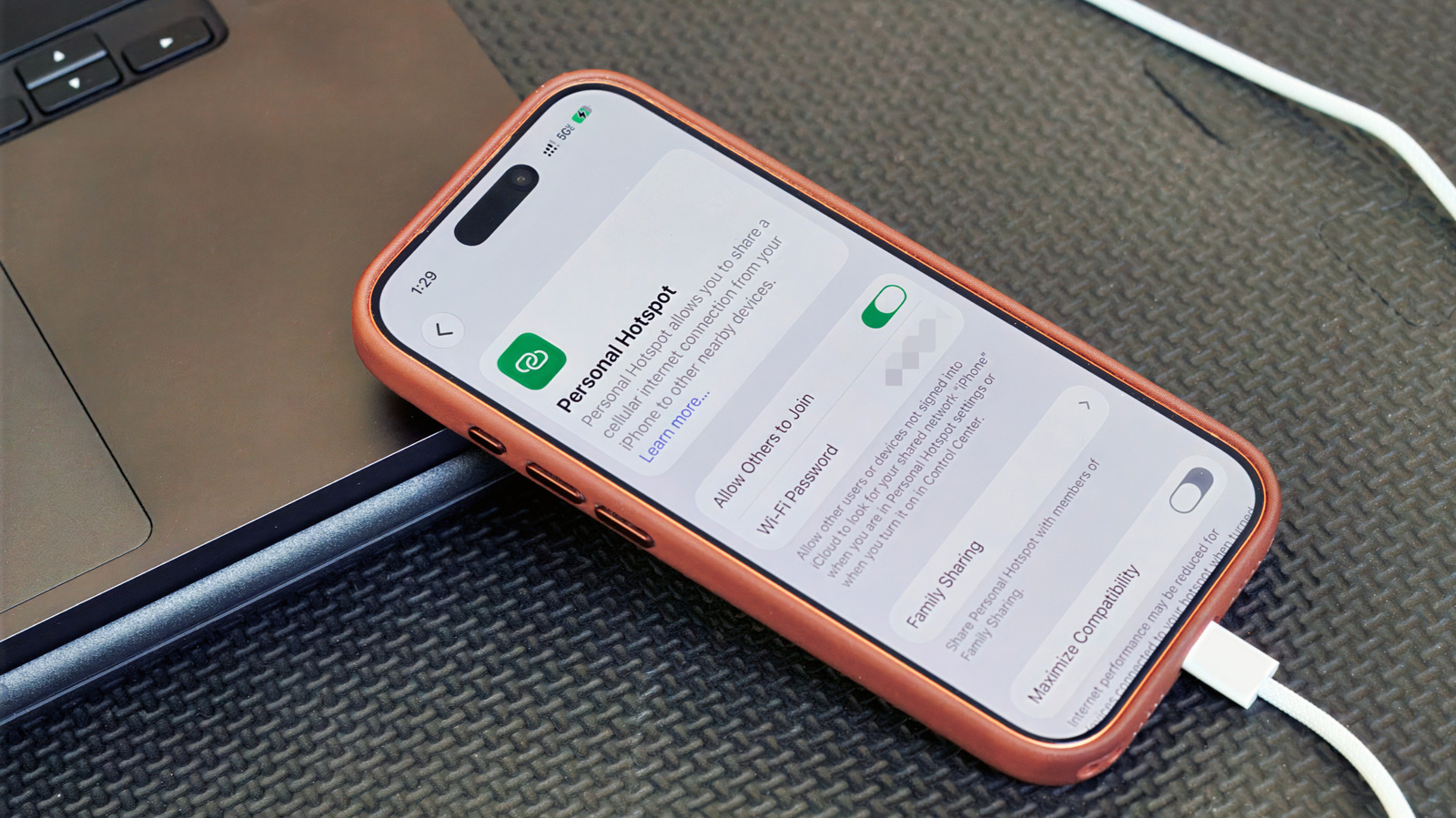
Plug the iPhone into a computer with a USB cable. If prompted, tap Trust on the phone and enter your passcode. On a Mac, you may see an 'Allow accessory to connect' message; click Allow. On the iPhone, go to Settings > Personal Hotspot. If you haven't used a hotspot before, you may need to go to Settings > Cellular > Set up Personal Hotspot first. Then turn on Allow Others to Join.
What to keep in mind
USB tethering is usually more convenient for a single device than as a full hotspot replacement. To get both a laptop and a tablet online at the same time, use a Wi-Fi hotspot. Laptops often consume data in the background through updates and cloud syncing, which can quickly reduce your allowance. Your carrier may also restrict hotspot usage, charge extra, apply a separate data limit, or not support tethering at all, so it's wise to check your plan. Although a wired connection can be more reliable than wireless, it still depends on the phone's cellular signal. If the signal is weak, the internet will be slow or inconsistent no matter how you connect.