How to control your iPhone camera with AirPods
The Camera Remote feature lets you use AirPods as a wireless shutter button for your iPhone. Setup is straightforward, but only newer AirPods models are supported.
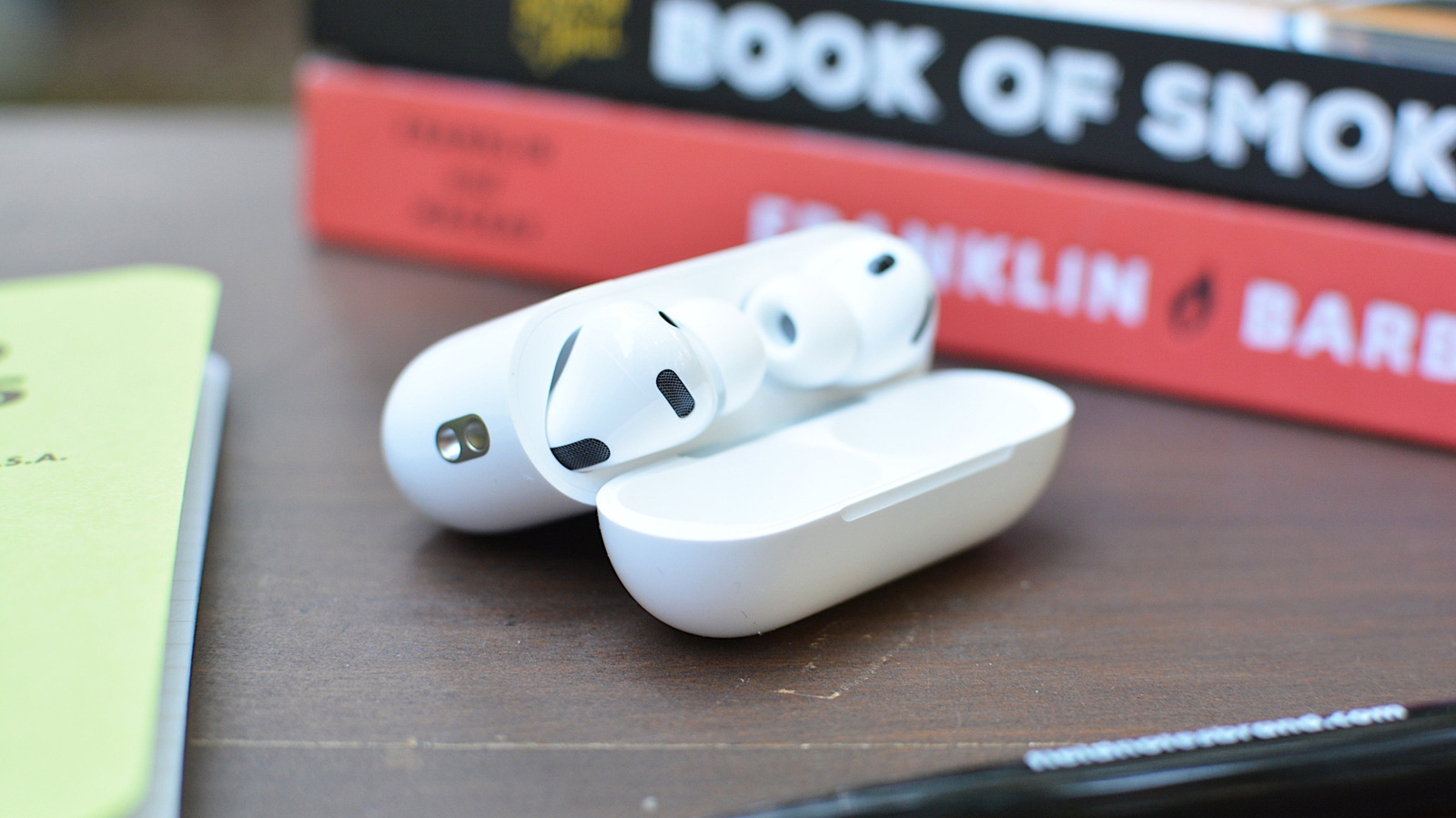
With iOS 26, Apple introduced Camera Remote, a feature that turns your AirPods into a wireless shutter release for your iPhone camera. This is useful if you don't own an Apple Watch, which has a dedicated Camera Remote app. Instead of placing your iPhone on a surface, setting a 10-second timer, and rushing back, you can simply press your AirPods to take a photo or start/stop video recording.
To use this feature, your iPhone must be running the latest iOS version (currently 26.5.1), and you need AirPods Pro 3, AirPods Pro 2, AirPods 4, or AirPods Max 2. Older models, such as the original AirPods Pro, do not support Camera Remote.
How to enable it:
- Open the Settings app on your iPhone.
- Tap the name of your AirPods (if they don't appear, open the AirPods case).
- Scroll down and find the Camera Control section.
- Tap the Camera Remote field and choose either "Press Once" or "Press and Hold."
Once enabled, whenever the Camera app is open, pressing the stem of your AirPods or the Digital Crown on AirPods Max will snap a photo or start/stop video. Note that at least one AirPod must be in your ear for this to work; if they are on a desk or in your hand, the camera control won't function.
Also keep in mind that enabling Camera Remote disables certain AirPods gestures while the Camera app is open. If you select "Press Once," media playback gestures become unavailable; if you select "Press and Hold," Siri and listening mode gestures are disabled.